
• Microsoft Office
  • Microsoft Windows
  • Other Software
    • Microsoft Visual
    • Microsoft Project
    • Microsoft Visio
    • Anti Virus
  • Blog
    • Word
    • Excel
    • Powerpoint
    • Software tricks/tips

No products in the cart.

  • Microsoft Office
  • Microsoft Windows
  • Other Software
    • Microsoft Visual
    • Microsoft Project
    • Microsoft Visio
    • Anti Virus
  • Blog
    • Word
    • Excel
    • Powerpoint
    • Software tricks/tips

No products in the cart.

  • Microsoft Office
  • Microsoft Windows
  • Other Software
    • Microsoft Visual
    • Microsoft Project
    • Microsoft Visio
    • Anti Virus
  • Blog
    • Word
    • Excel
    • Powerpoint
    • Software tricks/tips

No products in the cart.

  • Microsoft Office
  • Microsoft Windows
  • Other Software
    • Microsoft Visual
    • Microsoft Project
    • Microsoft Visio
    • Anti Virus
  • Blog
    • Word
    • Excel
    • Powerpoint
    • Software tricks/tips
Word

Tips For Converting Text To Table In Word

0 Comments

Converting Text to Table in Word is a task that often needs to be done when working with Word. After reading this article from Buffcom.net, you will learn a quick tip to convert text to table that not everyone knows.

Steps for Converting Text to Table in Word

Typically, when you need to enter data from text into a table in Word, you have to calculate the necessary number of rows and columns and manually fill in the data in each cell. Obviously, this is not an optimal way to do it. Especially when dealing with data that spans dozens or even hundreds of rows, it can be very time-consuming and prone to input errors.

Is there a more time-efficient way to do this? The answer is the Convert Text to Table function in Word. With this function, you can easily convert text to a table in just four steps:

Step 1: Insert Separator Characters: Comma or Tab
Using separator characters like commas or tabs helps indicate where the text should be split into a table.
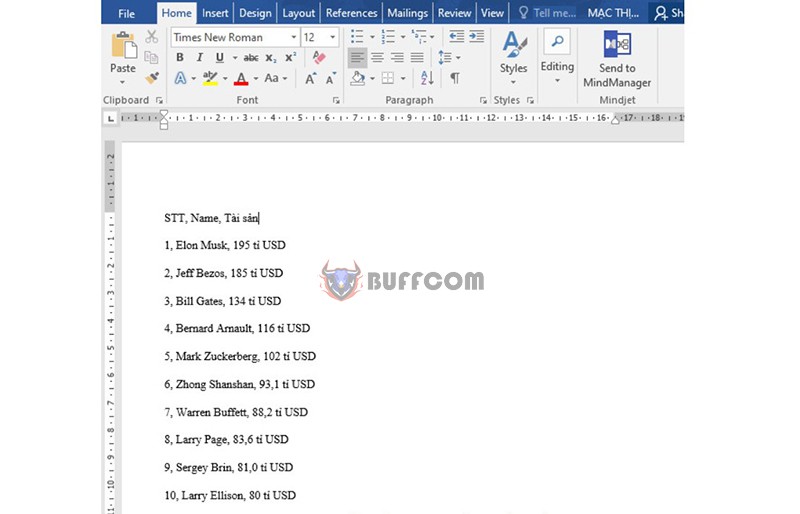
Converting Text To Table In WordStep 2: Ctrl+A (Select All) -> Insert -> Table -> Convert Text to Table
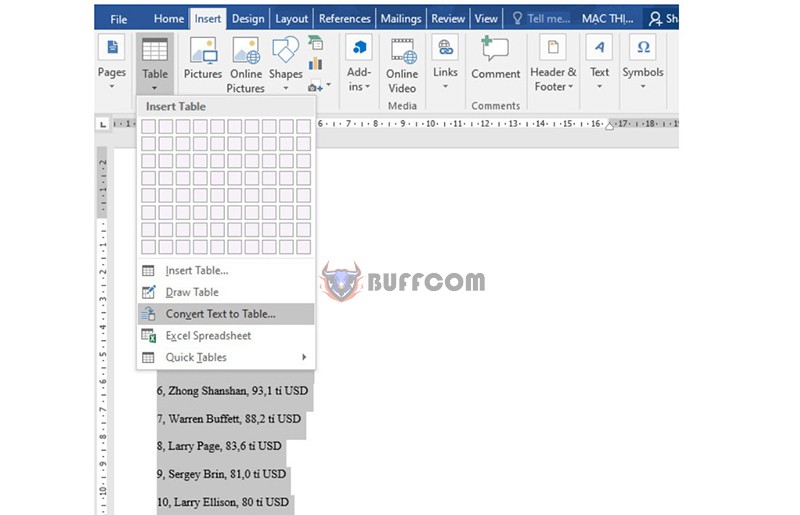
Converting Text To Table In Word

Converting Text To Table In Word

Step 3: In the Convert Text to Table dialog box, choose your options.
Under Table Size, make sure the numbers match the number of columns and rows you want.
Under AutoFit behavior, choose how you want the table to appear. Word will automatically adjust the width of the columns.
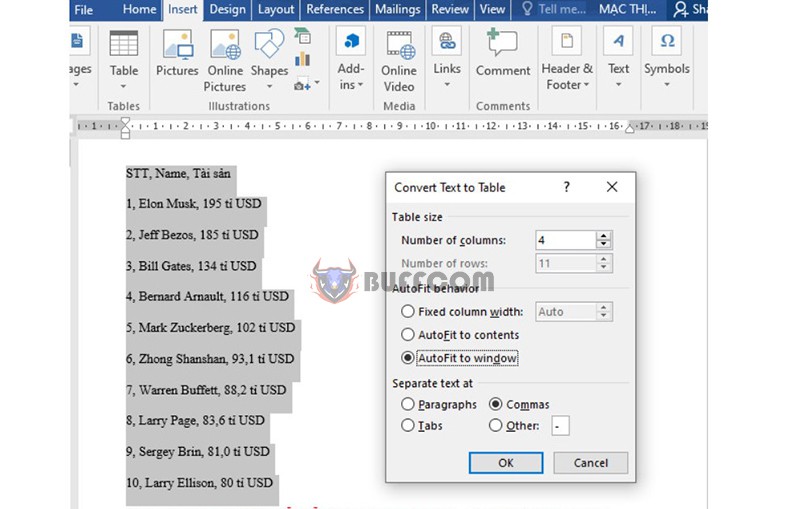
Converting Text To Table In Word

Converting Text To Table In Word

Step 4: Click OK and See the Result
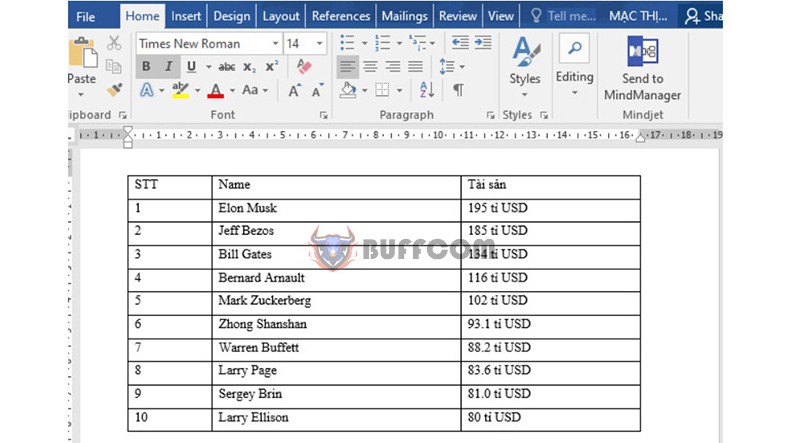
Converting Text To Table In Word

Converting Text To Table In Word

Convert text to table

Conclusion

In this article, Buffcom.net has revealed a tip to convert text to table using the convenient and time-saving Convert Text to Table function.

In addition, if your job is related to office computer but you cannot use all necessary features of the software, please contact Buffcom.net to buy a licensed software.


Rate this post
51
329 Views
What is the function of the Ctrl + Z shortcut key on Windows?PrevWhat is the function of the Ctrl + Z shortcut key on Windows?March 23, 2023
How to Copy a Chart from Excel to WordMarch 24, 2023How to Copy a Chart from Excel to WordNext

Leave a Reply Cancel reply

You must be logged in to post a comment.

Buy Windows 11 Professional MS Products CD Key
Buy Office 2021 Professional Plus Key Global For 5 PC
Top rated products
  • AVG Internet Security 2021 1 Device 1 Year Global AVG Internet Security 2021 1 Device 1 Year Global
    Rated 5.00 out of 5
    $11.00
  • Buy Office 2021 Professional Plus Key Global For 5 PC Buy Office 2021 Professional Plus Key Global For 5 PC
    Rated 5.00 out of 5
    $68.00
  • Avast SecureLine VPN 2021 2 Years 5 Devices Global Avast SecureLine VPN 2021 2 Years 5 Devices Global
    Rated 5.00 out of 5
    $47.00
  • Windows 11 Pro Product Activation Key Windows 11 Pro Product Activation Key
    Rated 5.00 out of 5
    $6.00
  • AVG Internet Security 2021 10 Devices 1 Year Global AVG Internet Security 2021 10 Devices 1 Year Global
    Rated 5.00 out of 5
    $30.00
Products
  • Project Professional 2024 Project Professional 2024 $43.00
  • Trend Micro Internet Security 3 Devices 1 Year Key GLOBAL Trend Micro Internet Security 3 Devices 1 Year Key GLOBAL
    Rated 5.00 out of 5
    $17.00
  • Microsoft Office Professional Plus 2019 CD Key Global Microsoft Office Professional Plus 2019 CD Key Global - 5 PC
    Rated 4.92 out of 5
    $32.00
  • Office 2016 Home and Student for PC Key CD Key Global Office 2016 Home and Student for PC Key CD Key Global
    Rated 4.96 out of 5
    $14.00
  • Windows 10 Pro N Key Global Windows 10 Pro N Key Global
    Rated 4.83 out of 5
    $10.00
  • Kaspersky Small Office Security 20 PCs + 20 Mobiles + 2 Servers 1 Year Kaspersky Small Office Security 20 PCs + 20 Mobiles + 2 Servers 1 Year $284.73
  • Office 2019 Professional Plus Key Global Bind to your Microsoft Account Office 2019 Professional Plus Key Global Bind to your Microsoft Account
    Rated 4.97 out of 5
    $49.00
  • AVG Internet Security 2021 1 Device 1 Year Global AVG Internet Security 2021 1 Device 1 Year Global
    Rated 5.00 out of 5
    $11.00
  • Microsoft Visio 2016 professional CD Key Global Microsoft Visio 2016 professional CD Key Global
    Rated 4.94 out of 5
    $28.50
  • Windows 10 Education Key Global Windows 10 Education Key Global
    Rated 4.84 out of 5
    $9.00
Product categories
  • Anti Virus
  • Microsoft Office
  • Microsoft Project
  • Microsoft Visio
  • Microsoft Visual
  • Microsoft Windows
  • Other Software
  • Uncategorized

Buffcom.net always brings the best digital products and services to you. Specializing in Office Software and online marketing services

BIG SALE 50% IN MAY

Microsoft Office
Microsoft Windows
Anti-Virus
Contact Us

Visit Us:

125 Division St, New York, NY 10002, USA

Mail Us:

buffcom.net@gmail.com

TERMS & CONDITIONS | PAYMENT GUIDE  | SHIPPING POLICY  | REFUND POLICY

Copyright © 2019 buffcom.net  All Rights Reserved.