
• Microsoft Office
  • Microsoft Windows
  • Other Software
    • Microsoft Visual
    • Microsoft Project
    • Microsoft Visio
    • Anti Virus
  • Blog
    • Word
    • Excel
    • Powerpoint
    • Software tricks/tips

No products in the cart.

  • Microsoft Office
  • Microsoft Windows
  • Other Software
    • Microsoft Visual
    • Microsoft Project
    • Microsoft Visio
    • Anti Virus
  • Blog
    • Word
    • Excel
    • Powerpoint
    • Software tricks/tips

No products in the cart.

  • Microsoft Office
  • Microsoft Windows
  • Other Software
    • Microsoft Visual
    • Microsoft Project
    • Microsoft Visio
    • Anti Virus
  • Blog
    • Word
    • Excel
    • Powerpoint
    • Software tricks/tips

No products in the cart.

  • Microsoft Office
  • Microsoft Windows
  • Other Software
    • Microsoft Visual
    • Microsoft Project
    • Microsoft Visio
    • Anti Virus
  • Blog
    • Word
    • Excel
    • Powerpoint
    • Software tricks/tips
Software tricks/tips

How To Uninstall Apps On Windows 10
0 Comments

If you’re not using certain apps on your computer, it’s recommended to uninstall them. If you’re unfamiliar with the process of uninstalling apps on Windows 10, you can refer to this article.

When there are software programs that you no longer use or haven’t used for a while, it’s a good idea to remove them. Windows 10 comes with various pre-installed apps that you might not use, so it’s advisable to remove them as well.

Today, Buffcom.net will guide you on how to uninstall apps on Windows 10.

Method: Uninstalling Default Apps on Windows 10

When installing Windows 10, many default apps are installed, most of which you may not use. You can remove them using the following steps:

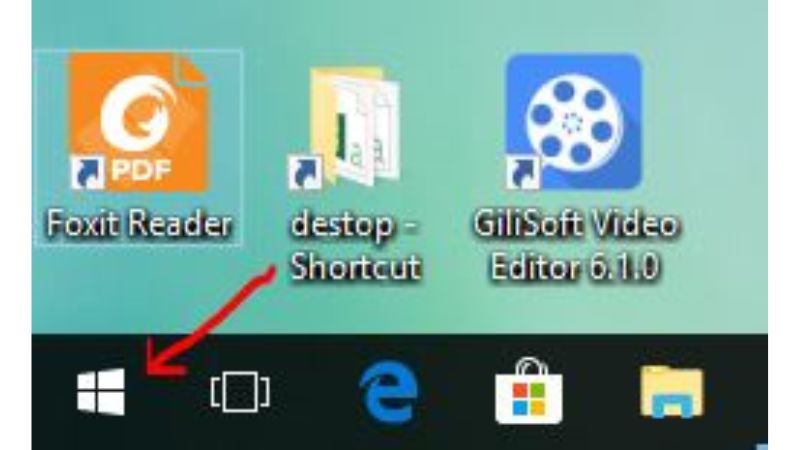
Step 1: Click on the Start menu.
Uninstall Apps On Windows 10 1
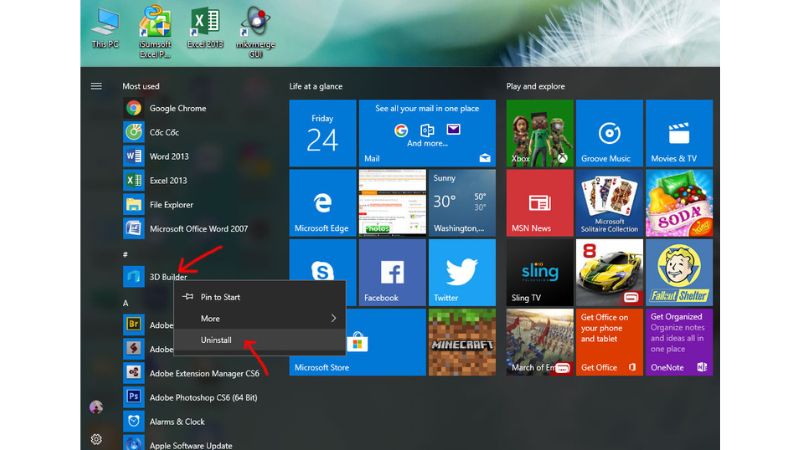
Step 2: Right-click on the unused software and select Uninstall.
Uninstall Apps On Windows 10 2
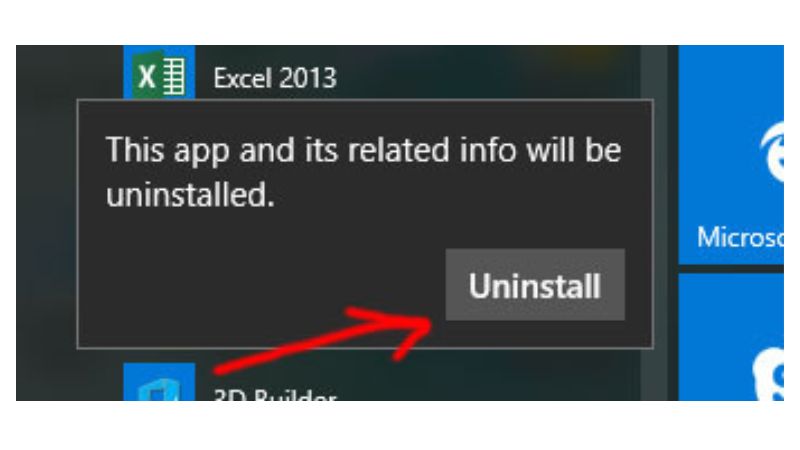
A confirmation dialog box will appear, asking you to confirm the uninstallation. Choose “Uninstall” to proceed with removing the app.
Uninstall Apps On Windows 10 3Another method can also help you delete default apps on Windows 10

Step 1: Click on Start and select the gear icon.
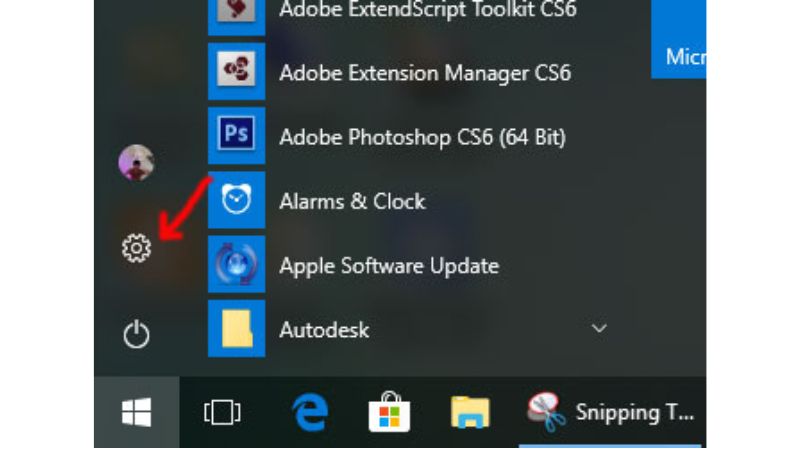
Uninstall Apps On Windows 10 4
Step 2: In the Windows Settings panel, choose “System.”
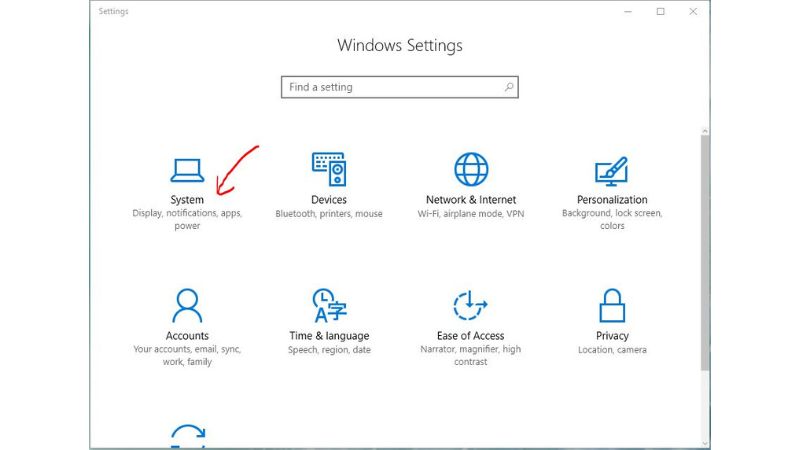
Uninstall Apps On Windows 10 5
Step 3: Next, select “Apps & features.”
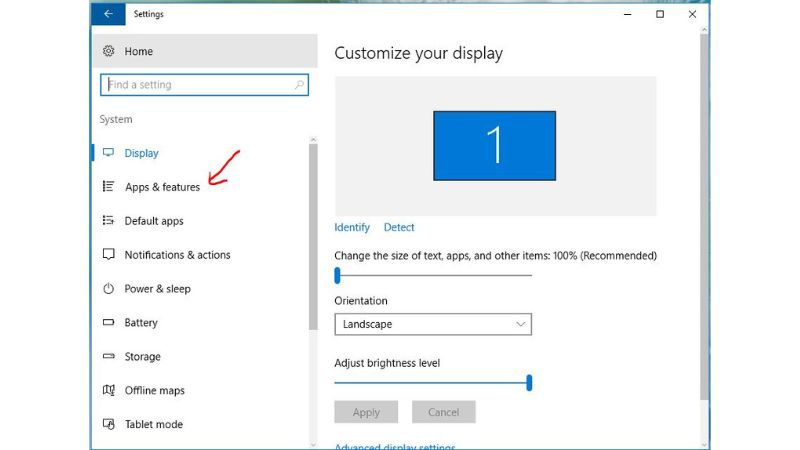
Uninstall Apps On Windows 10 6
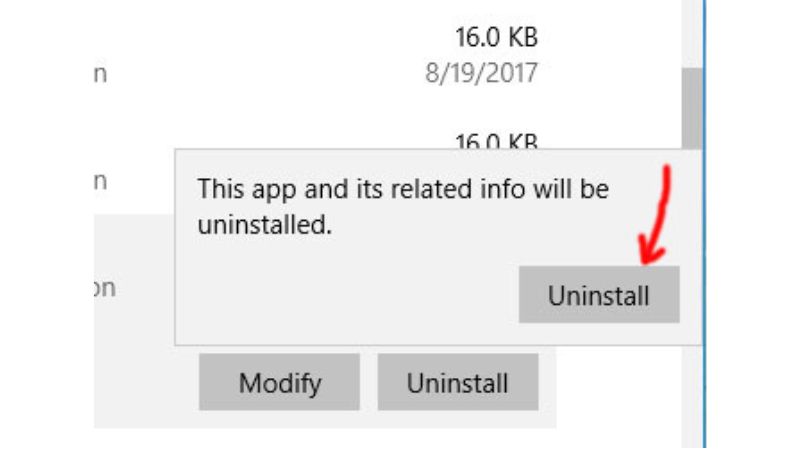
Now, you are in the app uninstallation interface. Choose the app you want to remove and click on it, then select “Uninstall.”
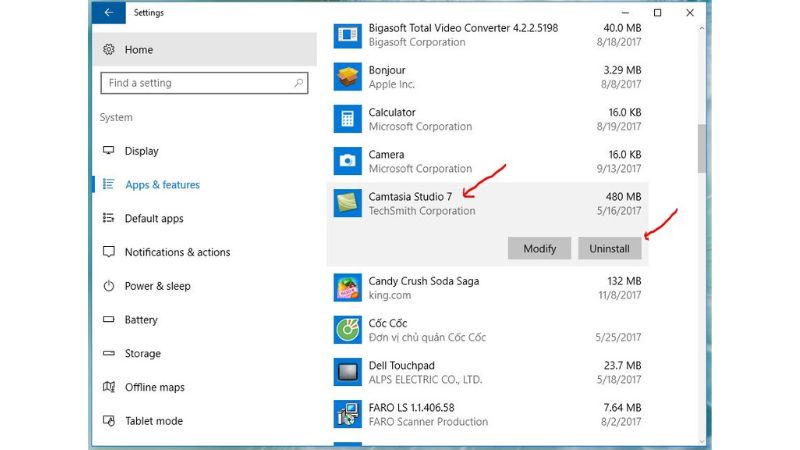
Uninstall Apps On Windows 10 7
A confirmation dialog box will appear. Choose “Uninstall” to proceed.
Uninstall Apps On Windows 10 8Method: Uninstalling User-Installed Apps on Windows 10

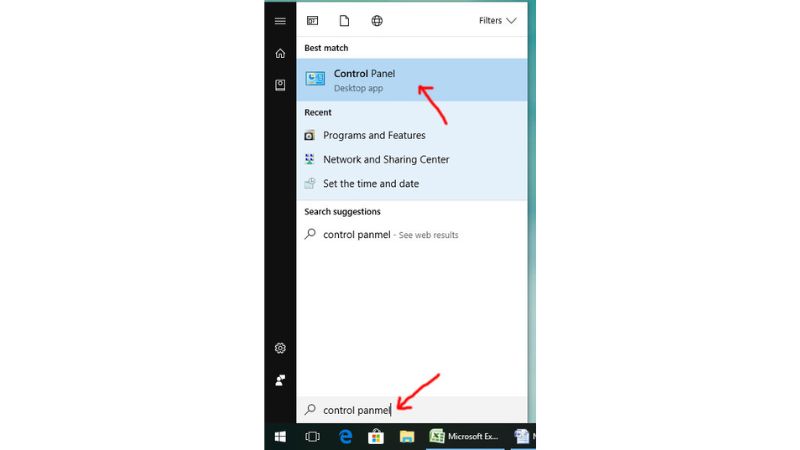
Step 1: Go to Start and search for “Control Panel.”
Uninstall Apps On Windows 10 9
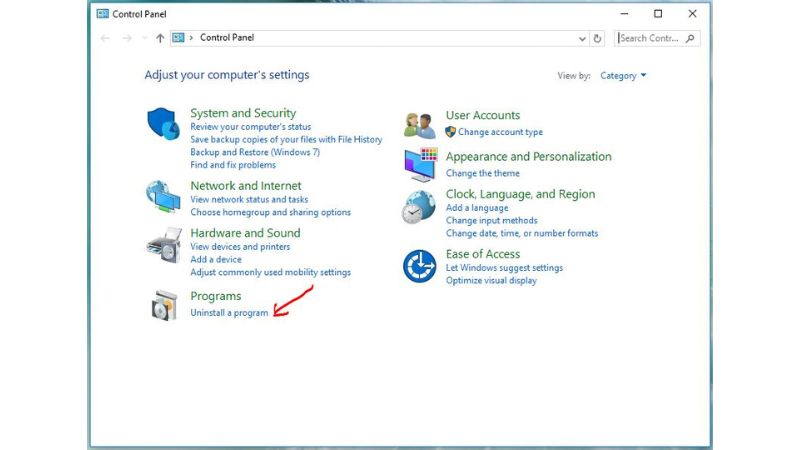
Step 2: Select “Uninstall a program” under the “Programs” section, as shown in the image.
Uninstall Apps On Windows 10 10
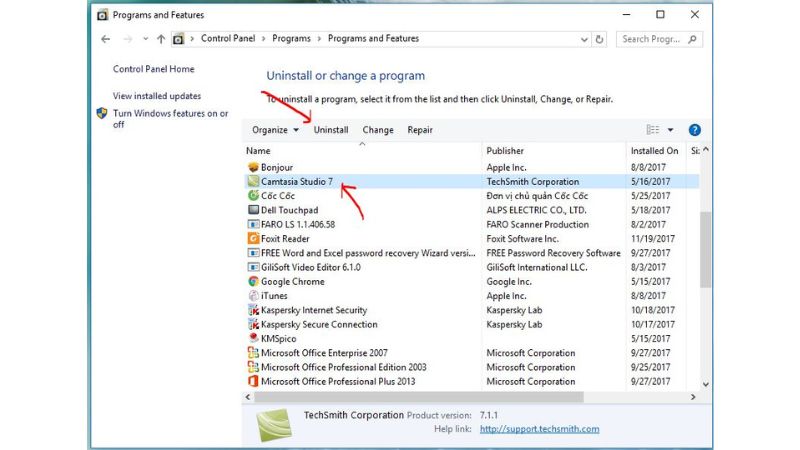
Step 3: To uninstall an app you no longer use, follow these steps:

Click on the app and select “Uninstall.”
Uninstall Apps On Windows 10 11
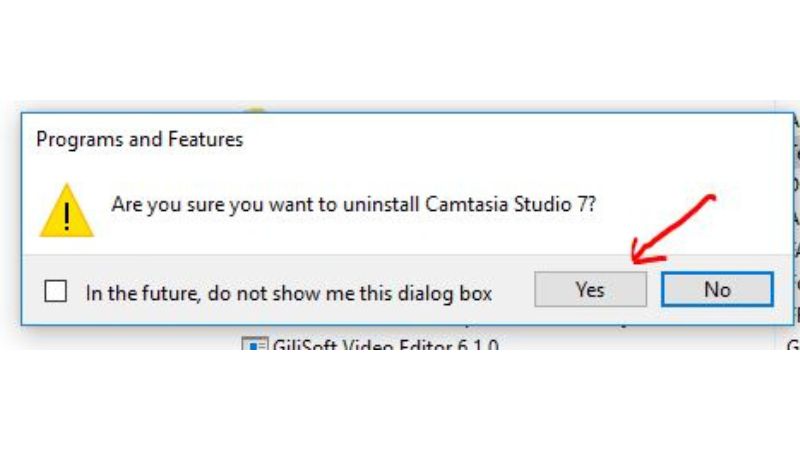
A confirmation dialog box will appear, asking if you want to uninstall the app. Choose “Yes.”
After selecting “Yes,” you will successfully uninstall the app.

Note: Each software program may have a different uninstallation process, so please pay attention!

Above are the methods for uninstalling apps on Windows 10. If you’re unfamiliar with the process, take a look. With just a few simple steps, you can remove unnecessary apps, which will help speed up your computer. If you’re interested in purchasing a genuine Windows key, please contact Buffcom.net!

Rate this post
49
311 Views
How To Disable Updates On Windows 10, Turn Off Auto Updates On Windows 10PrevHow To Disable Updates On Windows 10, Turn Off Auto Updates On Windows 10May 22, 2023
How to add a timestamp to an Excel recordMay 23, 2023How to add a timestamp to an Excel recordNext

Leave a Reply Cancel reply

You must be logged in to post a comment.

Buy Windows 11 Professional MS Products CD Key
Buy Office 2021 Professional Plus Key Global For 5 PC
Top rated products
  • Kaspersky Small Office Security 15 PCs + 15 Mobiles + 2 Servers 1 Year Kaspersky Small Office Security 15 PCs + 15 Mobiles + 2 Servers 1 Year
    Rated 5.00 out of 5
    $201.00
  • Buy Windows 11 Professional MS Products CD Key Buy Windows 11 Professional MS Products CD Key
    Rated 5.00 out of 5
    $6.00
  • AVG Internet Security 2021 1 Device 1 Year Global AVG Internet Security 2021 1 Device 1 Year Global
    Rated 5.00 out of 5
    $11.00
  • Buy Office 2021 Professional Plus Key Global For 5 PC Buy Office 2021 Professional Plus Key Global For 5 PC
    Rated 5.00 out of 5
    $68.00
  • Avast SecureLine VPN 2021 2 Years 5 Devices Global Avast SecureLine VPN 2021 2 Years 5 Devices Global
    Rated 5.00 out of 5
    $47.00
Products
  • Avast Ultimate Suite 2021 3 Years 10 Devices Global Avast Ultimate Suite 2021 3 Years 10 Devices Global
    Rated 5.00 out of 5
    $90.00
  • Microsoft Visio Professional 2010 Key 1PC Microsoft Visio Professional 2010 Key 1PC $9.00
  • Microsoft Visual Studio Enterprise 2022 For 1 PC Microsoft Visual Studio Enterprise 2022 For 1 PC $19.00
  • Windows Server 2022 Datacenter Key Global Windows Server 2022 Datacenter Key Global
    Rated 5.00 out of 5
    $7.00
  • Windows Server 2019 Datacenter Key Global Windows Server 2019 Datacenter Key Global
    Rated 4.75 out of 5
    $7.00
  • Project Professional 2024 Project Professional 2024 $43.00
  • Windows 10 Home OEM Key Global Windows 10 Home OEM Key Global
    Rated 4.80 out of 5
    $6.00
  • Windows Server 2019 Essentials Key Global Windows Server 2019 Essentials Key Global
    Rated 4.71 out of 5
    $7.00
  • Microsoft Project Standard 2019 - 1 PC Microsoft Project Standard 2019 - 1 PC $12.00
  • Windows 10 Education Key Global Windows 10 Education Key Global
    Rated 4.84 out of 5
    $9.00
Product categories
  • Anti Virus
  • Microsoft Office
  • Microsoft Project
  • Microsoft Visio
  • Microsoft Visual
  • Microsoft Windows
  • Other Software
  • Uncategorized

Buffcom.net always brings the best digital products and services to you. Specializing in Office Software and online marketing services

BIG SALE 50% IN MAY

Microsoft Office
Microsoft Windows
Anti-Virus
Contact Us

Visit Us:

125 Division St, New York, NY 10002, USA

Mail Us:

buffcom.net@gmail.com

TERMS & CONDITIONS | PAYMENT GUIDE  | SHIPPING POLICY  | REFUND POLICY

Copyright © 2019 buffcom.net  All Rights Reserved.