
• Microsoft Office
  • Microsoft Windows
  • Other Software
    • Microsoft Visual
    • Microsoft Project
    • Microsoft Visio
    • Anti Virus
  • Blog
    • Word
    • Excel
    • Powerpoint
    • Software tricks/tips

No products in the cart.

  • Microsoft Office
  • Microsoft Windows
  • Other Software
    • Microsoft Visual
    • Microsoft Project
    • Microsoft Visio
    • Anti Virus
  • Blog
    • Word
    • Excel
    • Powerpoint
    • Software tricks/tips

No products in the cart.

  • Microsoft Office
  • Microsoft Windows
  • Other Software
    • Microsoft Visual
    • Microsoft Project
    • Microsoft Visio
    • Anti Virus
  • Blog
    • Word
    • Excel
    • Powerpoint
    • Software tricks/tips

No products in the cart.

  • Microsoft Office
  • Microsoft Windows
  • Other Software
    • Microsoft Visual
    • Microsoft Project
    • Microsoft Visio
    • Anti Virus
  • Blog
    • Word
    • Excel
    • Powerpoint
    • Software tricks/tips
Excel

3 Ways to Use Subtraction Formula in Excel
0 Comments

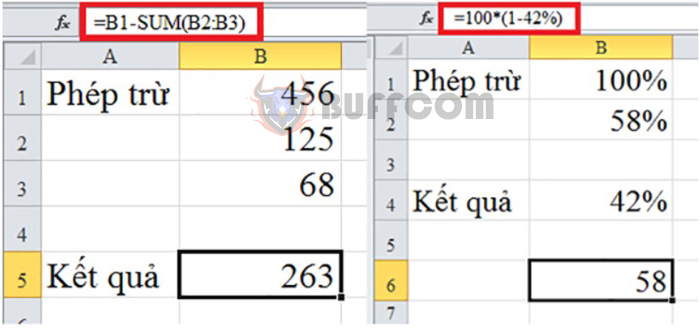
3 Ways to Use Subtraction Formula in Excel: Subtraction is one of the four most commonly used formulas in Excel. Subtraction is used for many different cases: subtracting multiple cells in a data table, subtracting percentages, subtracting dates… in Excel to apply to different calculations. There is no subtract function in Excel, to perform subtraction we will use the “-” operator. This article will guide you on how to perform subtraction formula in Excel through some specific examples. Please refer to it.

1. Subtracting Multiple Cells in Excel

This is a basic and commonly used subtraction formula in Excel. To perform subtraction of multiple cells, we will use the “-” operator. In addition, users can use the SUM function in Excel.
Example 1: Using the minus sign in calculations

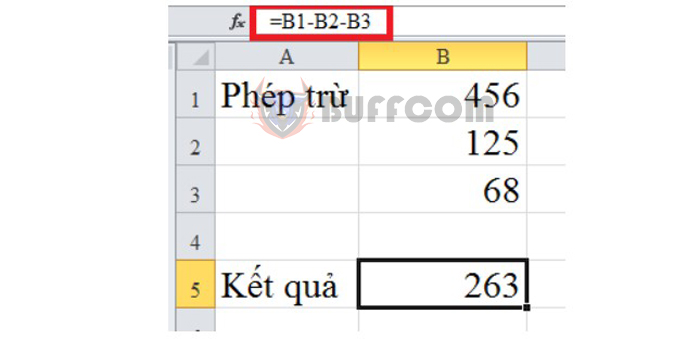
Using the minus sign in an Excel spreadsheet is extremely simple. You just need to enter the “=” sign and then enter the subtraction operation for the numbers to be calculated in the data table and then press Enter. Then the screen will display an accurate result as shown below:
3 Ways to Use Subtraction Formula in Excel

3 Ways to Use Subtraction Formula in Excel

Example 2: Using the SUM function in calculations

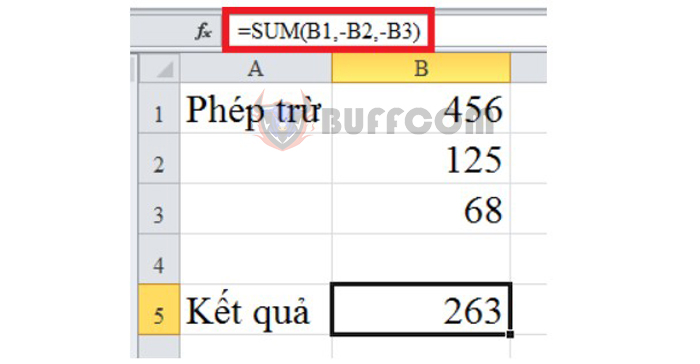
There are two ways to subtract in Excel using the SUM function for you to choose from.

To convert to subtraction, add “-” to turn the arguments into negative values. Then you perform calculations as usual as in the spreadsheet below.
3 Ways to Use Subtraction Formula in Excel

3 Ways to Use Subtraction Formula in Excel

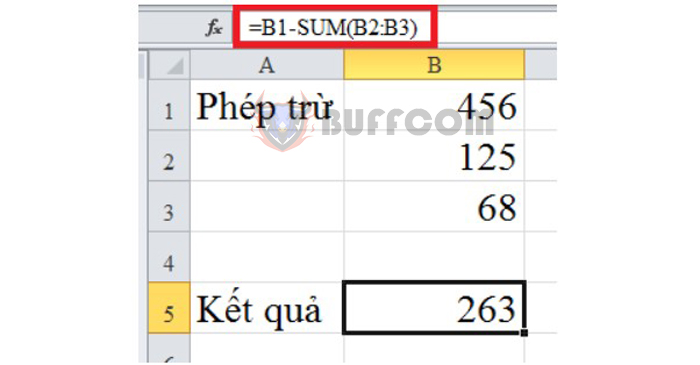
In addition, users can use the formula =B1-SUM(B2:B3) and also get the same result as above. Or simply, we can understand this subtraction operation as B1-(B2+B3). Please follow the instructions in the spreadsheet below.
3 Ways to Use Subtraction Formula in Excel

3 Ways to Use Subtraction Formula in Excel

2. Subtracting percentages in Excel
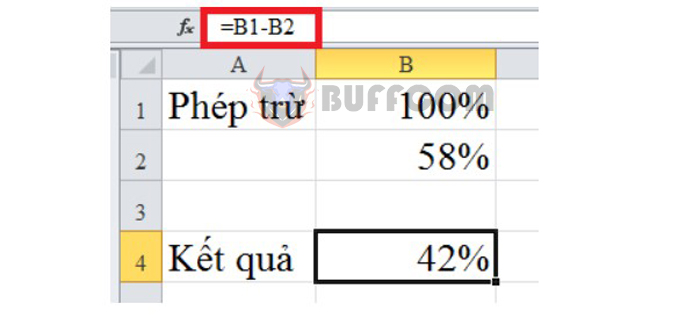
3 Ways to Use Subtraction Formula in Excel

3 Ways to Use Subtraction Formula in Excel

Subtracting percentages in Excel is still performed similarly to subtracting formulas.

On the other hand, if you want to subtract from a number to calculate the percentage value, use the formula =Number * (1-x%). Please observe the implementation below.
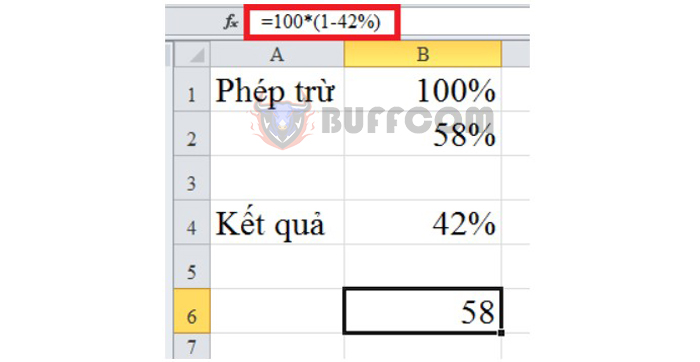
3 Ways to Use Subtraction Formula in Excel

3 Ways to Use Subtraction Formula in Excel

3. Subtracting dates in Excel

The implementation is simple by using the “-” sign in the date subtraction formula. Or we can use the DATE function in Excel to calculate the date value. Please follow the instructions below.
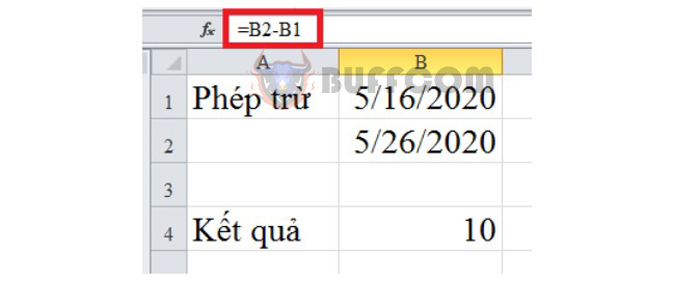
3 Ways to Use Subtraction Formula in Excel

3 Ways to Use Subtraction Formula in Excel

The above article has guided you on how to perform the subtraction formula in Excel. Through some examples of using the subtraction formula, we can see that subtraction is very simple and fast, just apply the “-” operator. Hope this article is helpful for you.
Rate this post
44
319 Views
How to close parentheses for negative numbers in ExcelPrevHow to close parentheses for negative numbers in ExcelMarch 21, 2023
Removing Conditional Formatting RulesMarch 21, 2023Removing Conditional Formatting RulesNext

Leave a Reply Cancel reply

You must be logged in to post a comment.

Buy Windows 11 Professional MS Products CD Key
Buy Office 2021 Professional Plus Key Global For 5 PC
Top rated products
  • AVG Internet Security 2021 10 Devices 2 Years Global AVG Internet Security 2021 10 Devices 2 Years Global
    Rated 5.00 out of 5
    $42.20
  • Trend Micro Maximum Security 3 Devices 1 Year key Global Trend Micro Maximum Security 3 Devices 1 Year key Global
    Rated 5.00 out of 5
    $15.00
  • Windows 11 Home Key Global 2021 Windows 11 Home Key Global 2021
    Rated 5.00 out of 5
    $6.00
  • Windows Server 2022 Remote Desktop Services User Connections (50) Cal Key Global Windows Server 2022 Remote Desktop Services User Connections (50) Cal Key Global
    Rated 5.00 out of 5
    $22.00
  • AVG Ultimate 2021 with Antivirus + Cleaner, Secure VPN 10 Devices 2 Years AVG Ultimate 2021 with Antivirus + Cleaner, Secure VPN 10 Devices 2 Years
    Rated 5.00 out of 5
    $47.00
Products
  • Microsoft SQL Server 2019 Enterprise Microsoft SQL Server 2019 Enterprise $39.00
  • Microsoft Visio Professional 2013 Key 1PC Microsoft Visio Professional 2013 Key 1PC $9.00
  • office-professional-2016-international Microsoft Office Professional Plus 2016 Retail CD Key
    Rated 4.92 out of 5
    $13.00
  • Windows 10 Pro OEM Key Global - Reinstalling win is still active Windows 10 Pro OEM Key Global - Reinstalling win is still active
    Rated 4.88 out of 5
    $6.00
  • Windows Server 2019 Standard Key Global Windows Server 2019 Standard Key Global
    Rated 4.68 out of 5
    $7.00
  • Avast Premium Security 2021 10 Devices 2 Years Global Avast Premium Security 2021 10 Devices 2 Years Global
    Rated 5.00 out of 5
    $41.00
  • AVG Internet Security 2021 1 Device 1 Year Global AVG Internet Security 2021 1 Device 1 Year Global
    Rated 5.00 out of 5
    $11.00
  • Windows 10 Enterprise Key Global Windows 10 Enterprise Key Global
    Rated 4.82 out of 5
    $9.00
  • Office 2024 Home and Student Office 2024 Home and Student $88.00
  • SQL Server 2014 Standard SQL Server 2014 Standard $20.00
Product categories
  • Anti Virus
  • Microsoft Office
  • Microsoft Project
  • Microsoft Visio
  • Microsoft Visual
  • Microsoft Windows
  • Other Software
  • Uncategorized

Buffcom.net always brings the best digital products and services to you. Specializing in Office Software and online marketing services

BIG SALE 50% IN MAY

Microsoft Office
Microsoft Windows
Anti-Virus
Contact Us

Visit Us:

125 Division St, New York, NY 10002, USA

Mail Us:

buffcom.net@gmail.com

TERMS & CONDITIONS | PAYMENT GUIDE  | SHIPPING POLICY  | REFUND POLICY

Copyright © 2019 buffcom.net  All Rights Reserved.