• Microsoft Office
  • Microsoft Windows
  • Other Software
    • Microsoft Visual
    • Microsoft Project
    • Microsoft Visio
    • Anti Virus
  • Blog
    • Word
    • Excel
    • Powerpoint
    • Software tricks/tips

No products in the cart.

  • Microsoft Office
  • Microsoft Windows
  • Other Software
    • Microsoft Visual
    • Microsoft Project
    • Microsoft Visio
    • Anti Virus
  • Blog
    • Word
    • Excel
    • Powerpoint
    • Software tricks/tips

No products in the cart.

  • Microsoft Office
  • Microsoft Windows
  • Other Software
    • Microsoft Visual
    • Microsoft Project
    • Microsoft Visio
    • Anti Virus
  • Blog
    • Word
    • Excel
    • Powerpoint
    • Software tricks/tips

No products in the cart.

  • Microsoft Office
  • Microsoft Windows
  • Other Software
    • Microsoft Visual
    • Microsoft Project
    • Microsoft Visio
    • Anti Virus
  • Blog
    • Word
    • Excel
    • Powerpoint
    • Software tricks/tips
Excel

How to draw a stacked column chart in Excel
0 Comments

How to draw a stacked column chart in Excel: The stacked column chart is commonly used in Excel to visually present data using vertical column shapes. It is a useful tool to help viewers easily see changes in data for comparison and contrast. If you want to draw a stacked column chart in Excel but don’t know how, please refer to the following guide.

Step 1: Create the chart

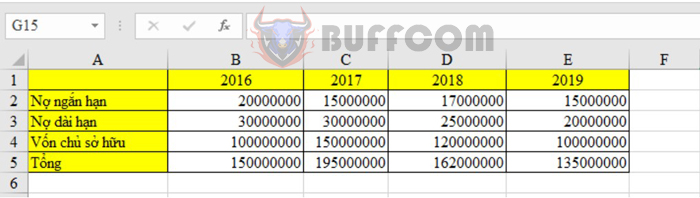
First, to draw the chart, you need to have a data table. Open the data table and select it. For example, we have the following data table:
How to draw a stacked column chart in Excel

How to draw a stacked column chart in Excel

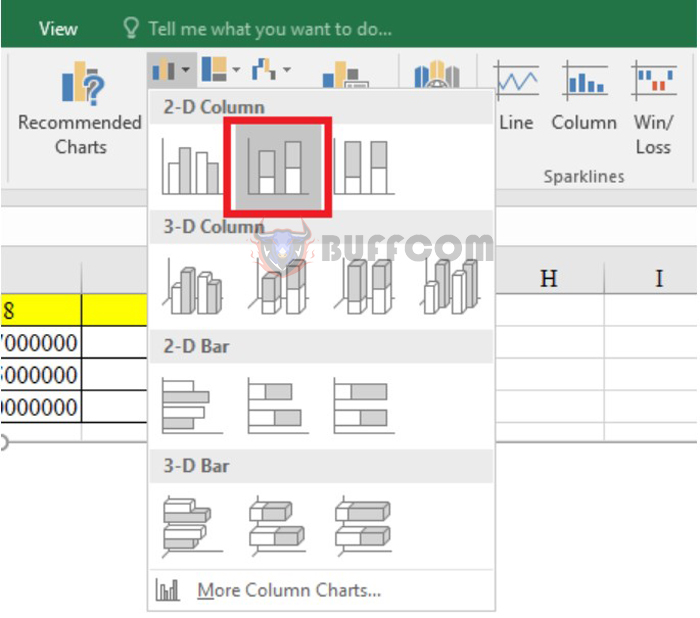
Next, on the toolbar, select the Insert tab. To create a stacked column chart, click on the Stacked Column option in the 2-D Column section, as shown below.
How to draw a stacked column chart in Excel

How to draw a stacked column chart in Excel

Step 2: Customize the chart

Create a chart line

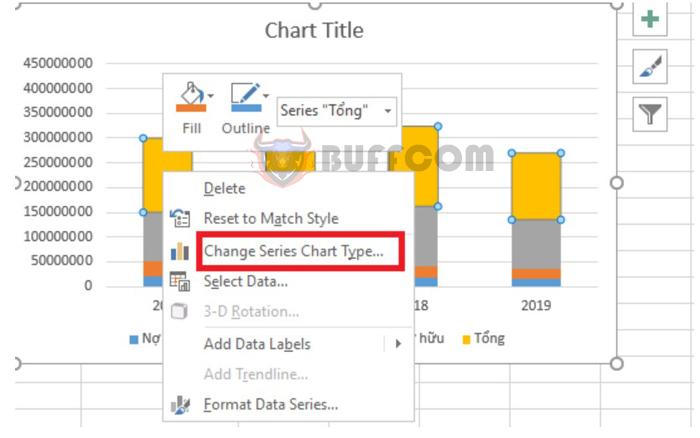
After completing step 1, the chart will automatically appear. However, the “Total” data is also in the stacked column. Let’s separate this “Total” data to have a more comprehensive view. To separate the “Total” data, follow these steps:

  • Right-click on the color of the “Total” data.
  • Select the Change Series Chart Type option.
How to draw a stacked column chart in Excel

How to draw a stacked column chart in Excel

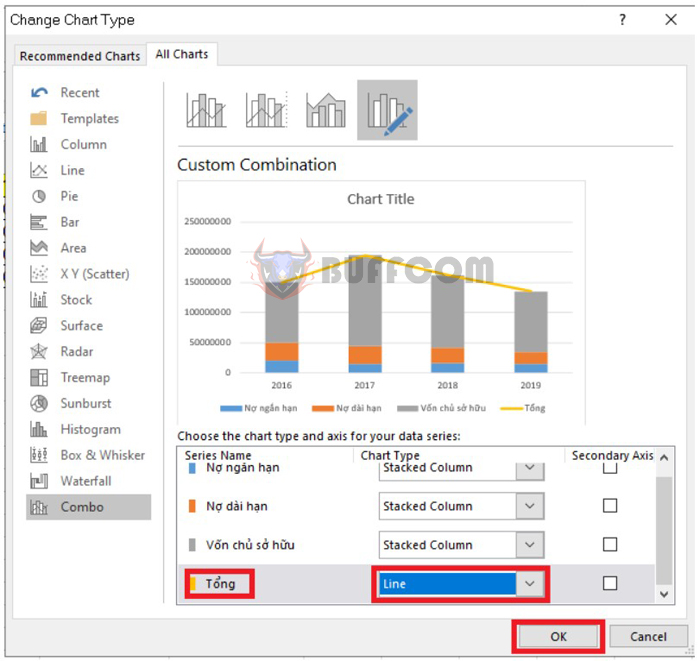
  • Then select Line in the Total section and select the chart line you want, then click OK.
 

How to draw a stacked column chart in Excel

How to draw a stacked column chart in Excel


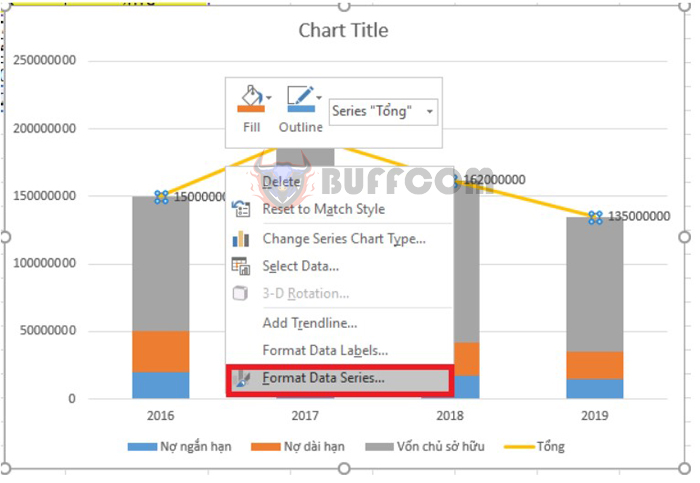
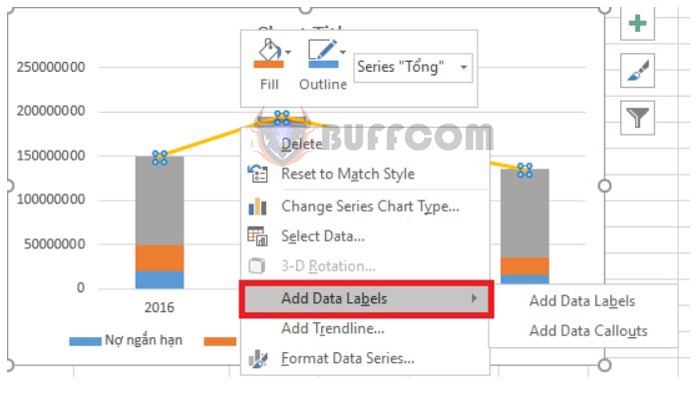
To display the total data, right-click on the chart line you just created and select Add Data Labels.
How to draw a stacked column chart in Excel

How to draw a stacked column chart in Excel


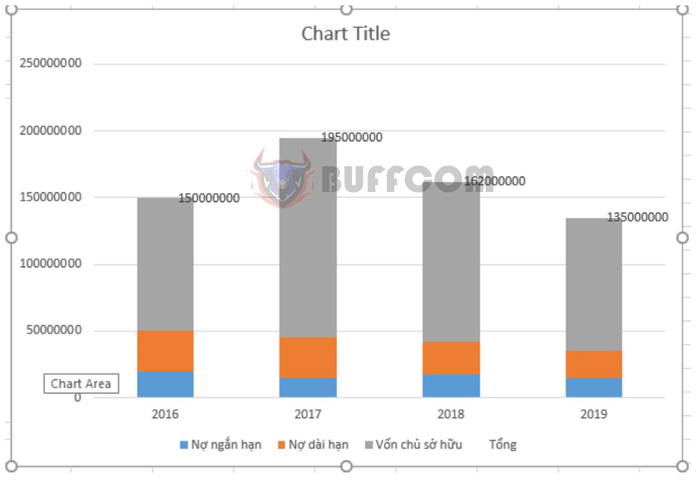
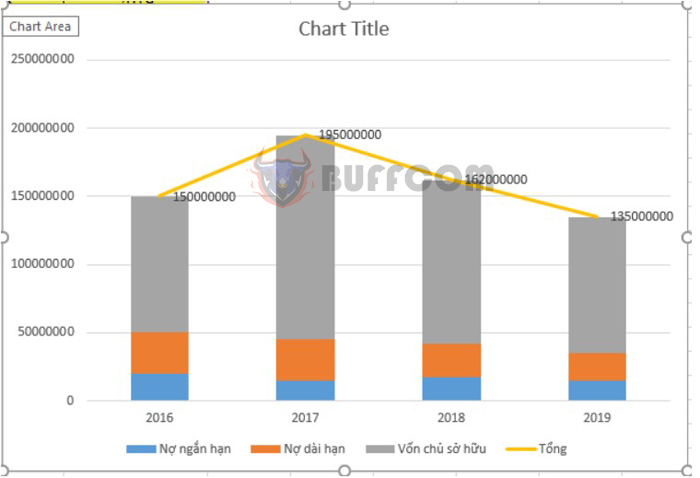
The result will be displayed as follows:
How to draw a stacked column chart in Excel

How to draw a stacked column chart in Excel

Hide the chart line

If you do not want to display this Total line, you can completely hide the chart line. Please follow these steps:

  • Right-click on the Total data line.
  • Select the Format Data Series option.
How to draw a stacked column chart in Excel

How to draw a stacked column chart in Excel

Under the Line Color section, select No Line.
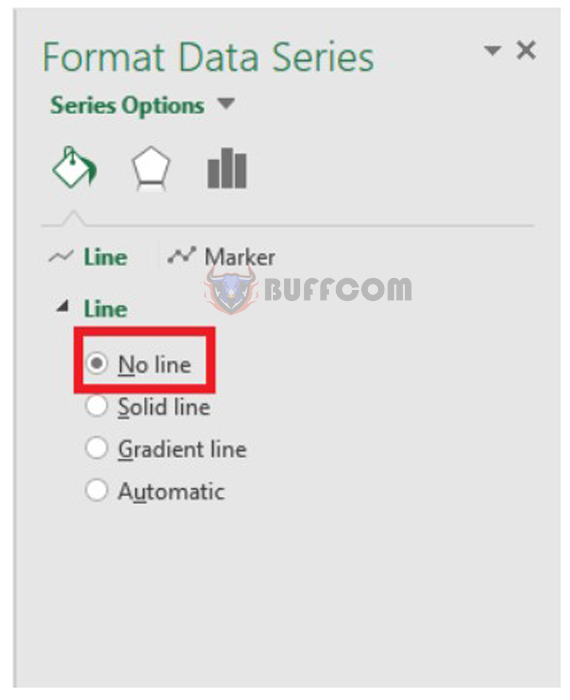
How to draw a stacked column chart in Excel

How to draw a stacked column chart in Excel

The result will be displayed as follows:
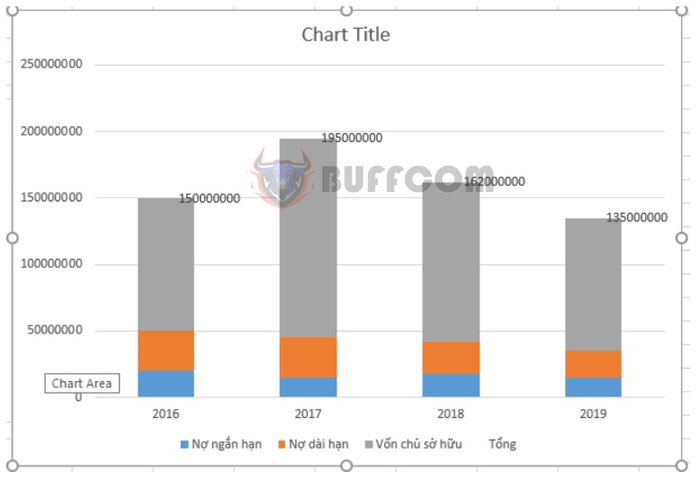
How to draw a stacked column chart in Excel

How to draw a stacked column chart in Excel

Above is the guide on how to draw a stacked column chart in Excel provided by
Buffcom.net . Please refer to and apply it. Wish you success.
Rate this post
50
325 Views
How to extract numbers from a string in ExcelPrevHow to extract numbers from a string in ExcelMarch 28, 2023
Shortcut keys to color cells and text in ExcelMarch 29, 2023Shortcut keys to color cells and text in ExcelNext

Leave a Reply Cancel reply

You must be logged in to post a comment.

Buy Windows 11 Professional MS Products CD Key
Buy Office 2021 Professional Plus Key Global For 5 PC
Top rated products
  • AVG Internet Security 2021 10 Devices 2 Years Global AVG Internet Security 2021 10 Devices 2 Years Global
    Rated 5.00 out of 5
    $42.20
  • Trend Micro Maximum Security 3 Devices 1 Year key Global Trend Micro Maximum Security 3 Devices 1 Year key Global
    Rated 5.00 out of 5
    $15.00
  • Windows 11 Home Key Global 2021 Windows 11 Home Key Global 2021
    Rated 5.00 out of 5
    $6.00
  • Windows Server 2022 Remote Desktop Services User Connections (50) Cal Key Global Windows Server 2022 Remote Desktop Services User Connections (50) Cal Key Global
    Rated 5.00 out of 5
    $22.00
  • AVG Ultimate 2021 with Antivirus + Cleaner, Secure VPN 10 Devices 2 Years AVG Ultimate 2021 with Antivirus + Cleaner, Secure VPN 10 Devices 2 Years
    Rated 5.00 out of 5
    $47.00
Products
  • Kaspersky Small Office Security 20 PCs + 20 Mobiles + 2 Servers 1 Year Kaspersky Small Office Security 20 PCs + 20 Mobiles + 2 Servers 1 Year $284.73
  • Microsoft Office Home And Business 2019 CD Key for MAC Global Microsoft Office Home And Business 2019 CD Key for MAC Global
    Rated 4.95 out of 5
    $30.00
  • Windows 11 Home Key Global 2021 Windows 11 Home Key Global 2021
    Rated 5.00 out of 5
    $6.00
  • Windows 11 Pro Key Global Windows 11 Pro Key Global
    Rated 5.00 out of 5
    $6.00
  • Microsoft Visio Standard 2019 Key 1PC Microsoft Visio Standard 2019 Key 1PC $12.00
  • Microsoft Office Professional Plus 2019 CD Key Global Microsoft Office Professional Plus 2019 CD Key Global - 5 PC
    Rated 4.92 out of 5
    $32.00
  • Windows Server 2016 Standard Key Global Windows Server 2016 Standard Key Global
    Rated 4.80 out of 5
    $10.00
  • AVG Ultimate 2021 with Antivirus + Cleaner, Secure VPN 10 Devices 2 Years AVG Ultimate 2021 with Antivirus + Cleaner, Secure VPN 10 Devices 2 Years
    Rated 5.00 out of 5
    $47.00
  • Windows 10 Pro Key Global Genuine Key Windows 10 Pro Key Global Genuine Key
    Rated 4.78 out of 5
    $6.00
  • Kaspersky Total Security 2021 1 year 1 device key Global Kaspersky Total Security 2021 1 year 1 device key Global
    Rated 5.00 out of 5
    $27.00
Product categories
  • Anti Virus
  • Microsoft Office
  • Microsoft Project
  • Microsoft Visio
  • Microsoft Visual
  • Microsoft Windows
  • Other Software
  • Uncategorized

Buffcom.net always brings the best digital products and services to you. Specializing in Office Software and online marketing services

BIG SALE 50% IN MAY

Microsoft Office
Microsoft Windows
Anti-Virus
Contact Us

Visit Us:

125 Division St, New York, NY 10002, USA

Mail Us:

buffcom.net@gmail.com

TERMS & CONDITIONS | PAYMENT GUIDE  | SHIPPING POLICY  | REFUND POLICY

Copyright © 2019 buffcom.net  All Rights Reserved.