
• Microsoft Office
  • Microsoft Windows
  • Other Software
    • Microsoft Visual
    • Microsoft Project
    • Microsoft Visio
    • Anti Virus
  • Blog
    • Word
    • Excel
    • Powerpoint
    • Software tricks/tips

No products in the cart.

  • Microsoft Office
  • Microsoft Windows
  • Other Software
    • Microsoft Visual
    • Microsoft Project
    • Microsoft Visio
    • Anti Virus
  • Blog
    • Word
    • Excel
    • Powerpoint
    • Software tricks/tips

No products in the cart.

  • Microsoft Office
  • Microsoft Windows
  • Other Software
    • Microsoft Visual
    • Microsoft Project
    • Microsoft Visio
    • Anti Virus
  • Blog
    • Word
    • Excel
    • Powerpoint
    • Software tricks/tips

No products in the cart.

  • Microsoft Office
  • Microsoft Windows
  • Other Software
    • Microsoft Visual
    • Microsoft Project
    • Microsoft Visio
    • Anti Virus
  • Blog
    • Word
    • Excel
    • Powerpoint
    • Software tricks/tips
Excel

The easiest way to insertedit images in Excel
0 Comments

The easiest way to insert/edit images in Excel: For those who often have to compile employee information, inventory statistics, it is often necessary to insert images along with the spreadsheet. If the statistics file is short, you can manually insert images by clicking the Insert button. But if it is a long information table, doing it this way can be time-consuming, as you have to adjust the image for each cell to fit the cell size. This article will guide you on the easiest way to insert/edit images in Excel.

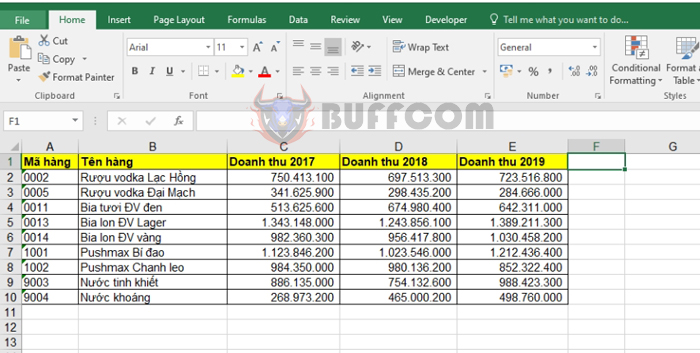
Step 1: Place the cursor where you want to insert the image.
The easiest way to insertedit images in Excel

The easiest way to insertedit images in Excel

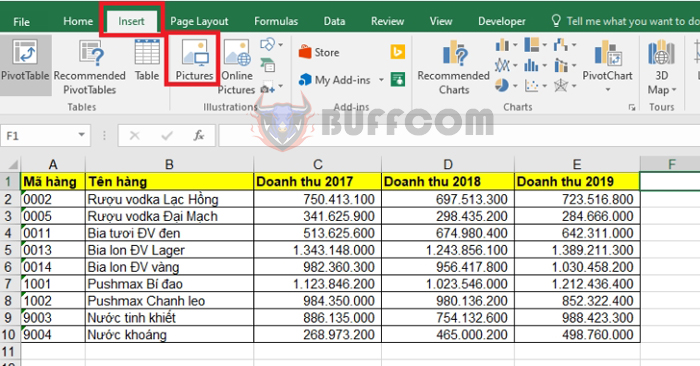
Step 2: Go to the Insert tab => then select the Pictures icon.

Comment 00 awaiting moderation
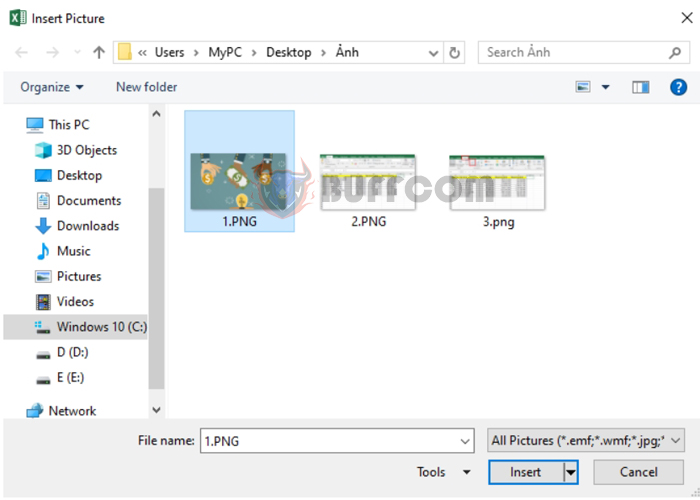
The easiest way to insertedit images inStep 3: After the Insert Picture window appears, find the path to the image file you want to insert => select the image and then click Insert.
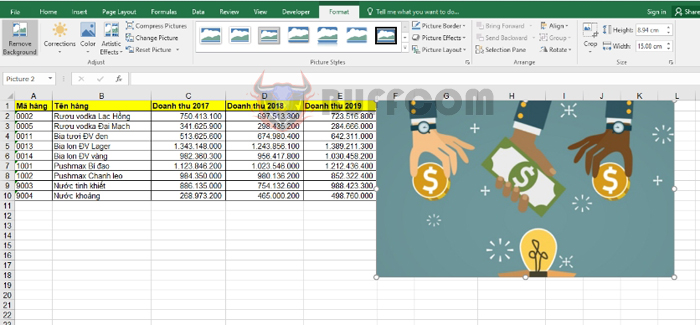
The easiest way to insertedit images inStep 4: After Inserting, the image has been inserted into the Excel worksheet. However, at this point, the image size is default, so it is not suitable for the position where you want to insert it. We need to adjust the size of the image to fit the worksheet better.

The easiest way to insertedit images inStep 5: Change the size of the image

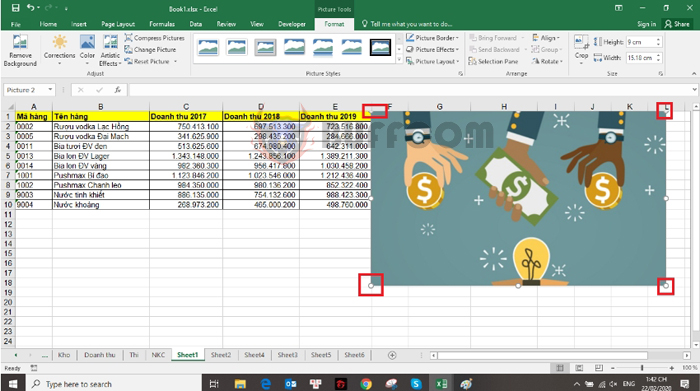
To change the size of the image to fit the worksheet better, you can click on the image. After the outline of the image appears, you can enlarge or reduce the size of the image to your liking by dragging at the corners of the image.
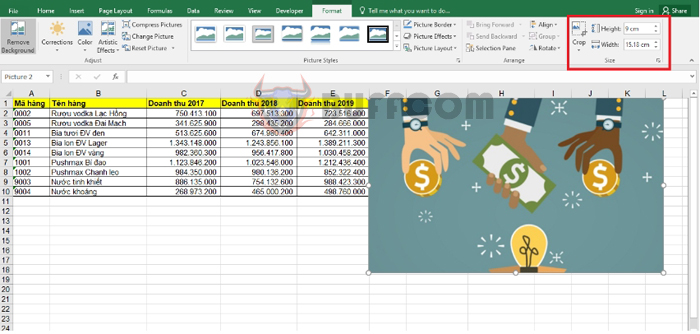
The easiest way to insertedit images inOr you can click on the image, then select the Format tab. In the Size section, you can adjust the height and width of the image in the Height and Width boxes.
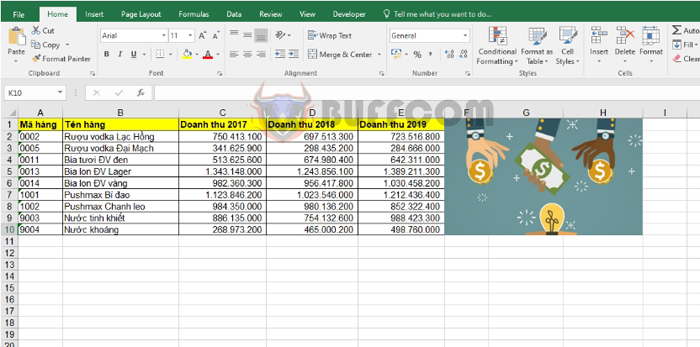
The easiest way to insertedit images inAfter adjusting the size, you will get the result that the image is better suited to the existing worksheet:
The easiest way to insertedit images in Excel

The easiest way to insertedit images in Excel

Thus, the above article has guided you on how to insert images into the worksheet and how to edit the size of images in Excel. Good luck!

Rate this post
36
277 Views
What To Do If You Forget The Password To Protect An Excel File?PrevWhat To Do If You Forget The Password To Protect An Excel File?May 8, 2023
How to find the maximum and minimum values using MAX and MIN functions in ExcelMay 8, 2023How to find the maximum and minimum values using MAX and MIN functions in ExcelNext

Leave a Reply Cancel reply

You must be logged in to post a comment.

Buy Windows 11 Professional MS Products CD Key
Buy Office 2021 Professional Plus Key Global For 5 PC
Top rated products
  • Windows Server 2022 Datacenter Key Global Windows Server 2022 Datacenter Key Global
    Rated 5.00 out of 5
    $7.00
  • Kaspersky Small Office Security 10 PCs + 10 Mobiles + 1 Server 1 Year Kaspersky Small Office Security 10 PCs + 10 Mobiles + 1 Server 1 Year
    Rated 5.00 out of 5
    $164.50
  • Avast Ultimate Suite 2021 1 Year 10 Devices Global Avast Ultimate Suite 2021 1 Year 10 Devices Global
    Rated 5.00 out of 5
    $54.00
  • Windows 11 Pro Key Global Windows 11 Pro Key Global
    Rated 5.00 out of 5
    $6.00
  • Avast Premium Security 2021 10 Devices 2 Years Global Avast Premium Security 2021 10 Devices 2 Years Global
    Rated 5.00 out of 5
    $41.00
Products
  • Windows 11 Home Key Global 2021 Windows 11 Home Key Global 2021
    Rated 5.00 out of 5
    $6.00
  • Microsoft Office 2019 Home and Student for PC Key Global bind to your Microsoft account Microsoft Office 2019 Home and Student for PC Key Global bind to your Microsoft account
    Rated 4.95 out of 5
    $58.00
  • Windows Server 2016 Standard Key Global Windows Server 2016 Standard Key Global
    Rated 4.80 out of 5
    $10.00
  • Buy Windows 11 Pro CD Key License Buy Windows 11 Pro CD Key License
    Rated 5.00 out of 5
    $6.00
  • Microsoft Visual Studio Enterprise 2022 For 1 PC Microsoft Visual Studio Enterprise 2022 For 1 PC $19.00
  • Microsoft Visual Studio Enterprise 2019 For 1 PC Microsoft Visual Studio Enterprise 2019 For 1 PC
    Rated 4.88 out of 5
    $15.00
  • Buy Office 2021 Professional Plus Key Global For 5 PC Buy Office 2021 Professional Plus Key Global For 5 PC
    Rated 5.00 out of 5
    $68.00
  • Buy Windows Server 2016 Essentials Key Global Buy Windows Server 2016 Essentials Key Global
    Rated 4.75 out of 5
    $10.00
  • Windows Server 2019 Standard Key Global Windows Server 2019 Standard Key Global
    Rated 4.68 out of 5
    $7.00
  • Microsoft Visio Professional 2016 Key 1PC Microsoft Visio Professional 2016 Key 1PC $9.00
Product categories
  • Anti Virus
  • Microsoft Office
  • Microsoft Project
  • Microsoft Visio
  • Microsoft Visual
  • Microsoft Windows
  • Other Software
  • Uncategorized

Buffcom.net always brings the best digital products and services to you. Specializing in Office Software and online marketing services

BIG SALE 50% IN MAY

Microsoft Office
Microsoft Windows
Anti-Virus
Contact Us

Visit Us:

125 Division St, New York, NY 10002, USA

Mail Us:

buffcom.net@gmail.com

TERMS & CONDITIONS | PAYMENT GUIDE  | SHIPPING POLICY  | REFUND POLICY

Copyright © 2019 buffcom.net  All Rights Reserved.