• Microsoft Office
  • Microsoft Windows
  • Other Software
    • Microsoft Visual
    • Microsoft Project
    • Microsoft Visio
    • Anti Virus
  • Blog
    • Word
    • Excel
    • Powerpoint
    • Software tricks/tips

No products in the cart.

  • Microsoft Office
  • Microsoft Windows
  • Other Software
    • Microsoft Visual
    • Microsoft Project
    • Microsoft Visio
    • Anti Virus
  • Blog
    • Word
    • Excel
    • Powerpoint
    • Software tricks/tips

No products in the cart.

  • Microsoft Office
  • Microsoft Windows
  • Other Software
    • Microsoft Visual
    • Microsoft Project
    • Microsoft Visio
    • Anti Virus
  • Blog
    • Word
    • Excel
    • Powerpoint
    • Software tricks/tips

No products in the cart.

  • Microsoft Office
  • Microsoft Windows
  • Other Software
    • Microsoft Visual
    • Microsoft Project
    • Microsoft Visio
    • Anti Virus
  • Blog
    • Word
    • Excel
    • Powerpoint
    • Software tricks/tips
Excel

VLOOKUP between Sheets
0 Comments

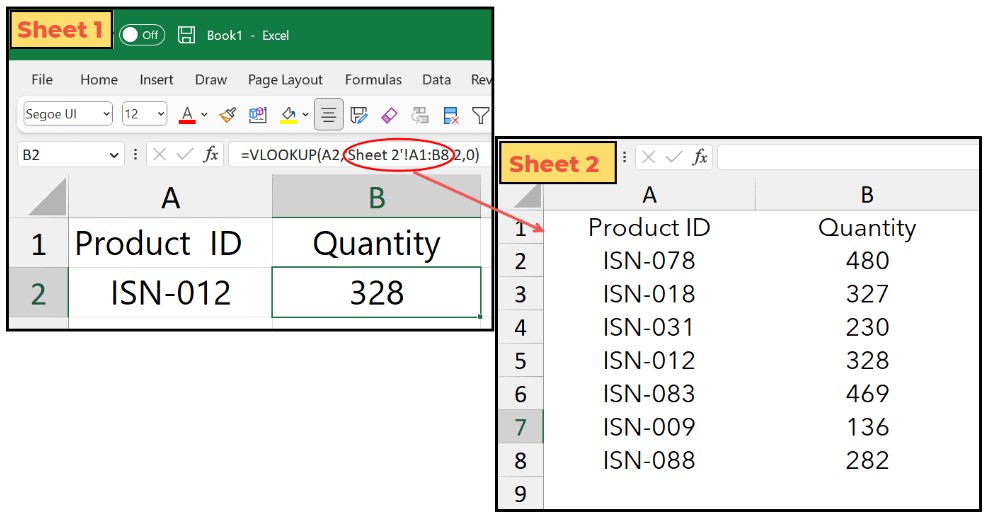
VLOOKUP between Sheets. When you need to look up a value from data in another sheet, you can use the VLOOKUP function. This tutorial provides an easy-to-follow example to demonstrate how to do this.
VLOOKUP between Sheets

VLOOKUP between Sheets

VLOOKUP between Sheets

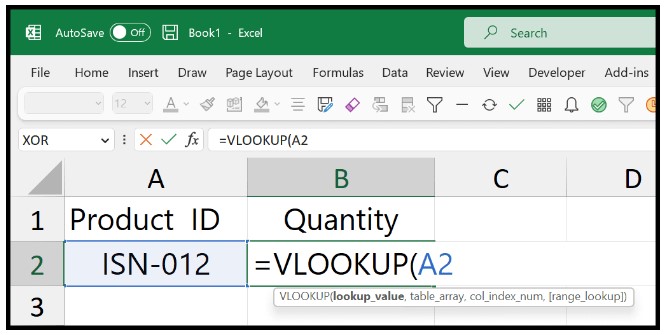
Follow these steps to write the formula:

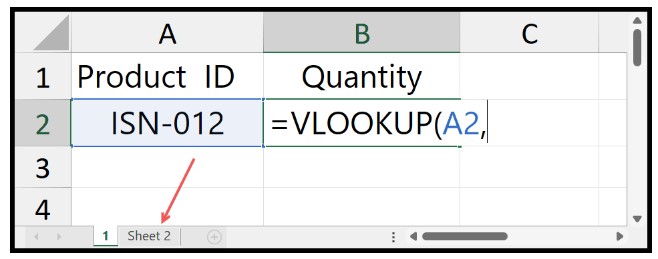
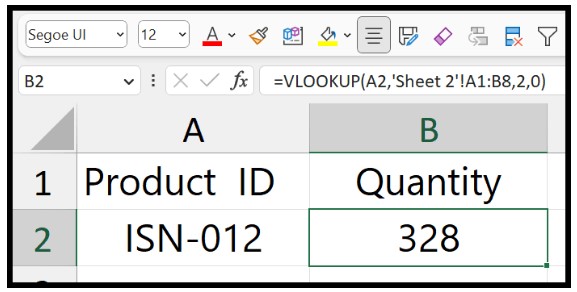
  1. Type VLOOKUP in a cell, and in the lookup_value argument, enter the cell containing the lookup value.
    VLOOKUP between Sheets

    VLOOKUP between Sheets

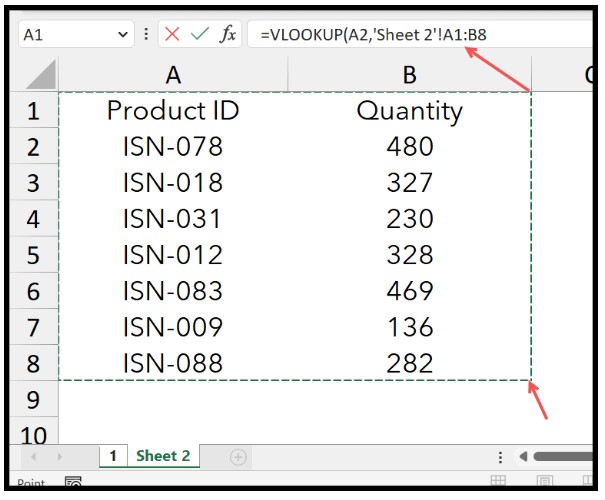
  2. Add a comma and select “Sheet 2” to open it.VLOOKUP between Sheets 3
  3. In “Sheet 2”, select the table containing the Product ID and Quantity data.VLOOKUP between Sheets 4
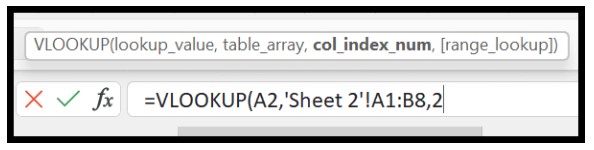
  4. Enter another comma and specify 2 in the col_index_num argument.VLOOKUP between Sheets 5
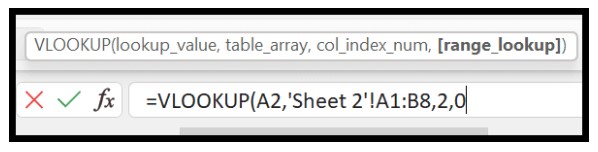
  5. In the [range_lookup] argument, enter 0 or FALSE for an exact match lookup.VLOOKUP between Sheets 6
  6. Close the function and hit enter to get the result in the cell on “Sheet 1”.VLOOKUP between Sheets 7

Important Notes:

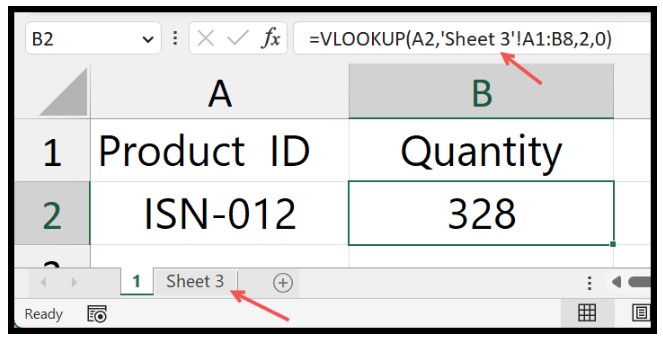
  • If you change the name of the sheet where you have the data, Excel will automatically update your formula.VLOOKUP between Sheets 8
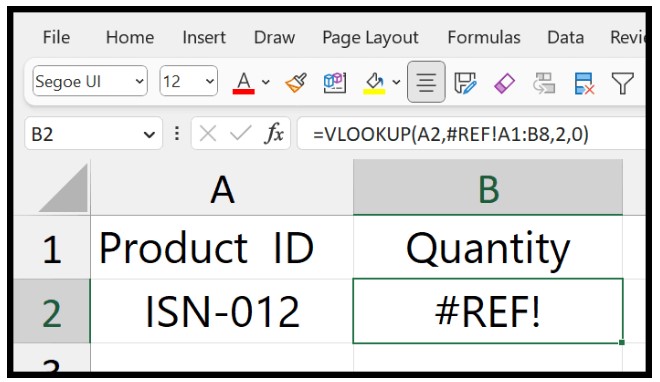
  • If you delete the data sheet, your formula will show the #REF! error in the result, and there’s no way to undo the deletion of a sheet.VLOOKUP between Sheets 9
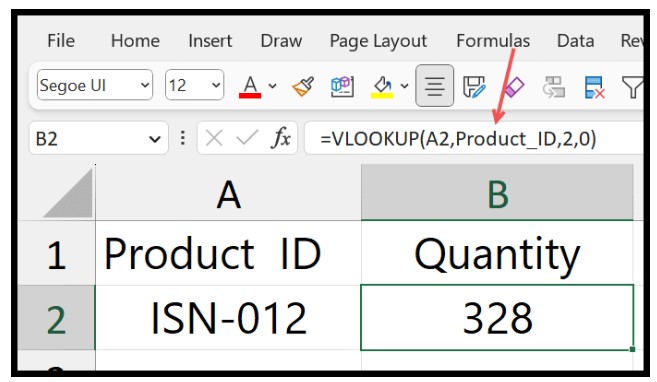
  • You can also turn the data from another sheet into a named range and refer to it in the VLOOKUP function. This eliminates the need to open the second sheet while writing the formula. Instead, you can enter the named range, and Excel will refer to the data.VLOOKUP between Sheets 10
Rate this post
43
315 Views
How to Lookup the Last Value from a Column or a Row in ExcelPrevHow to Lookup the Last Value from a Column or a Row in ExcelMay 9, 2023
The Most Comprehensive List Of PowerPoint ShortcutsMay 9, 2023The Most Comprehensive List Of PowerPoint ShortcutsNext

Leave a Reply Cancel reply

You must be logged in to post a comment.

Buy Windows 11 Professional MS Products CD Key
Buy Office 2021 Professional Plus Key Global For 5 PC
Top rated products
  • Avast Premium Security 2021 10 Devices 1 Year Global Avast Premium Security 2021 10 Devices 1 Year Global
    Rated 5.00 out of 5
    $28.00
  • Avast Ultimate Suite 2021 3 Years 10 Devices Global Avast Ultimate Suite 2021 3 Years 10 Devices Global
    Rated 5.00 out of 5
    $90.00
  • Windows Server 2022 Remote Desktop Services Device Connections (50) Cal Key Global Windows Server 2022 Remote Desktop Services Device Connections (50) Cal Key Global
    Rated 5.00 out of 5
    $22.00
  • Kaspersky Internet Security 2021 1 year 1 device key Global Kaspersky Internet Security 2021 1 year 1 device key Global
    Rated 5.00 out of 5
    $24.00
  • Kaspersky Internet Security 2021 1 year 5 devices key Global Kaspersky Internet Security 2021 1 year 5 devices key Global
    Rated 5.00 out of 5
    $45.00
Products
  • Microsoft Office Professional Plus 2010 retail Microsoft Office Professional Plus 2010 retail Key Global - 5 PC
    Rated 4.96 out of 5
    $15.00
  • Windows Server 2012 R2 Datacenter Key Global Windows Server 2012 R2 Datacenter Key Global
    Rated 4.71 out of 5
    $15.00
  • Kaspersky Standard - 1 Device, 1 Year (Global License) Kaspersky Standard - 1 Device, 1 Year (Global License) $21.00
  • Kaspersky Small Office Security 10 PCs + 10 Mobiles + 1 Server 1 Year Kaspersky Small Office Security 10 PCs + 10 Mobiles + 1 Server 1 Year
    Rated 5.00 out of 5
    $164.50
  • Windows Server 2019 Standard Key Global Windows Server 2019 Standard Key Global
    Rated 4.68 out of 5
    $7.00
  • Windows Server 2025 Remote Desktop Services 50 User Connections Windows Server 2025 Remote Desktop Services 50 User Connections $25.00
  • AVG Internet Security 2021 10 Devices 2 Years Global AVG Internet Security 2021 10 Devices 2 Years Global
    Rated 5.00 out of 5
    $42.20
  • Microsoft Office Home And Business 2019 CD Key for MAC Global Microsoft Office Home And Business 2019 CD Key for MAC Global
    Rated 4.95 out of 5
    $30.00
  • Buy Windows Server 2016 Essentials Key Global Buy Windows Server 2016 Essentials Key Global
    Rated 4.75 out of 5
    $10.00
  • Kaspersky Premium - 1 Device 1 Year - GLOBAL Kaspersky Premium - 1 Device 1 Year - GLOBAL $37.00
Product categories
  • Anti Virus
  • Microsoft Office
  • Microsoft Project
  • Microsoft Visio
  • Microsoft Visual
  • Microsoft Windows
  • Other Software
  • Uncategorized

Buffcom.net always brings the best digital products and services to you. Specializing in Office Software and online marketing services

BIG SALE 50% IN MAY

Microsoft Office
Microsoft Windows
Anti-Virus
Contact Us

Visit Us:

125 Division St, New York, NY 10002, USA

Mail Us:

buffcom.net@gmail.com

TERMS & CONDITIONS | PAYMENT GUIDE  | SHIPPING POLICY  | REFUND POLICY

Copyright © 2019 buffcom.net  All Rights Reserved.