
• ChatGPT Business
  • Microsoft Office
  • Microsoft Windows
  • Other Software
    • Microsoft Visual
    • Microsoft Project
    • Microsoft Visio
    • Anti Virus
  • Blog
    • Word
    • Excel
    • Powerpoint
    • Software tricks/tips

No products in the cart.

  • ChatGPT Business
  • Microsoft Office
  • Microsoft Windows
  • Other Software
    • Microsoft Visual
    • Microsoft Project
    • Microsoft Visio
    • Anti Virus
  • Blog
    • Word
    • Excel
    • Powerpoint
    • Software tricks/tips

No products in the cart.

  • ChatGPT Business
  • Microsoft Office
  • Microsoft Windows
  • Other Software
    • Microsoft Visual
    • Microsoft Project
    • Microsoft Visio
    • Anti Virus
  • Blog
    • Word
    • Excel
    • Powerpoint
    • Software tricks/tips

No products in the cart.

  • ChatGPT Business
  • Microsoft Office
  • Microsoft Windows
  • Other Software
    • Microsoft Visual
    • Microsoft Project
    • Microsoft Visio
    • Anti Virus
  • Blog
    • Word
    • Excel
    • Powerpoint
    • Software tricks/tips
Powerpoint

How to Change Background Image in PowerPoint 365
0 Comments

Changing the background image in PowerPoint slide is quite simple, but combining the background image and Textbox to make them fit together is another issue. In this article, I will guide you on how to quickly and effectively change the background image of PowerPoint slides. Let’s take a look at the entire article!

How to change the background in PowerPoint using the Design tool

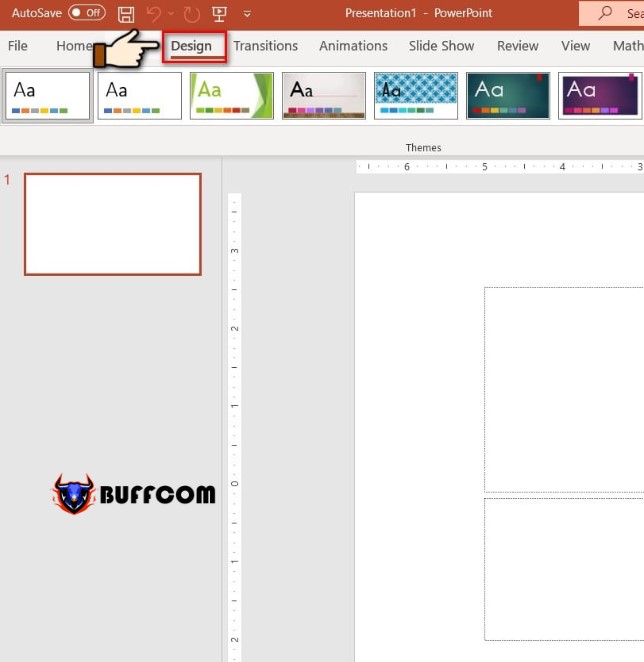
Step 1: In the PowerPoint interface, click on Design on the Ribbon toolbar.
How to Change Background Image in PowerPoint 365

How to Change Background Image in PowerPoint 365

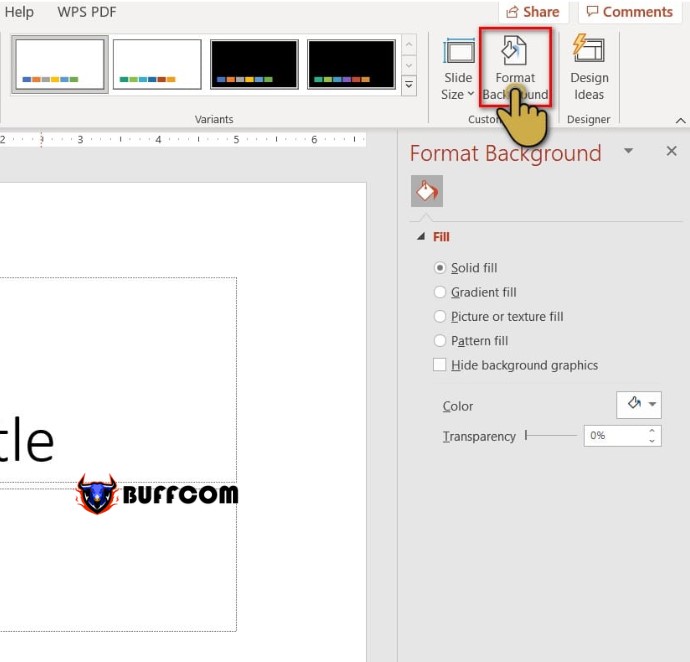
Step 2: Continue to select the Format Background option to replace the background image for the slide.
How to Change Background Image in PowerPoint 365

How to Change Background Image in PowerPoint 365

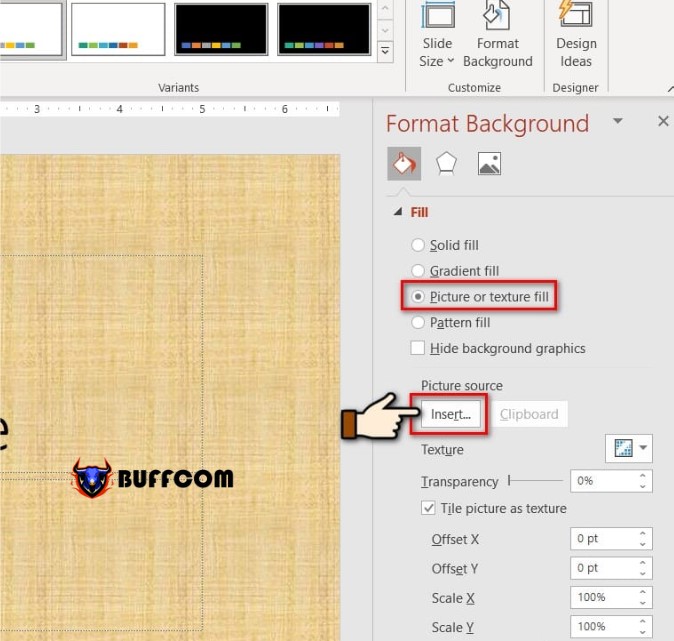
Step 3: The Format Background section appears. Here are some tools to help you change the background:
Solid fill: Shows the original color, uniform, meaning there is only one color in the slide.
Gradient fill: Mix multiple colors together in the same slide. You will change in the color section!
Picture or texture fill: Change the background image with an image.
Here, click on Insert in the Picture source section to appear options for adding images as background.
How to Change Background Image in PowerPoint 365

How to Change Background Image in PowerPoint 365

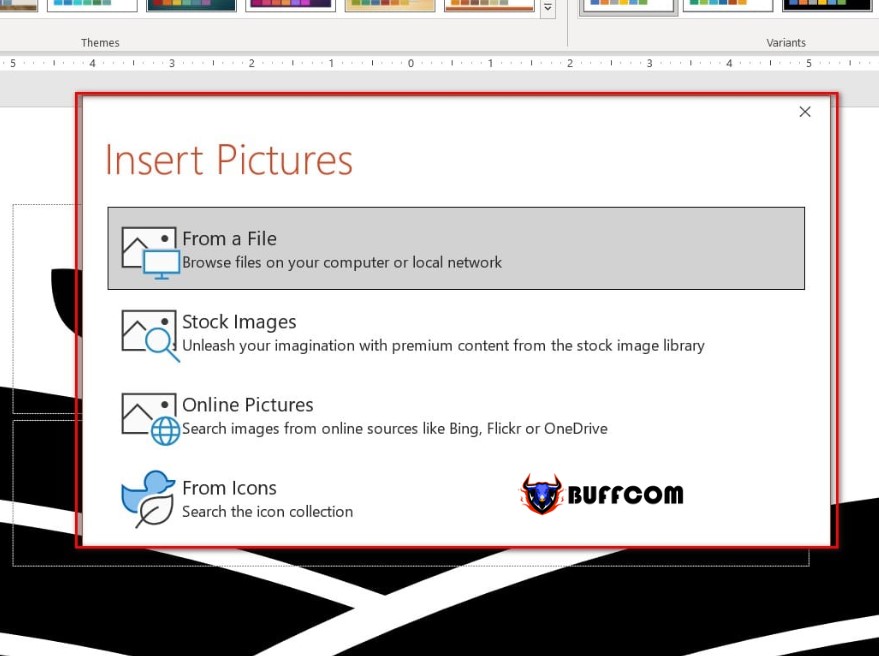
Step 4: Next, the options appear: Upload image from folder (From a file), Upload image available in PowerPoint (Online Pictures), or select image from Icon (From Icons),…
How to Change Background Image in PowerPoint 365

How to Change Background Image in PowerPoint 365

Step 5: In the Transparency section, adjust the horizontal bar to blur or sharpen the background as desired. You can also adjust by entering the percentage of the image’s transparency.

How to Change Background Image in PowerPoint 365

How to Change Background Image in PowerPoint 365

How to change the background in PowerPoint by inserting an image

Step 1: Select the slide where you want to insert an image to create a background.

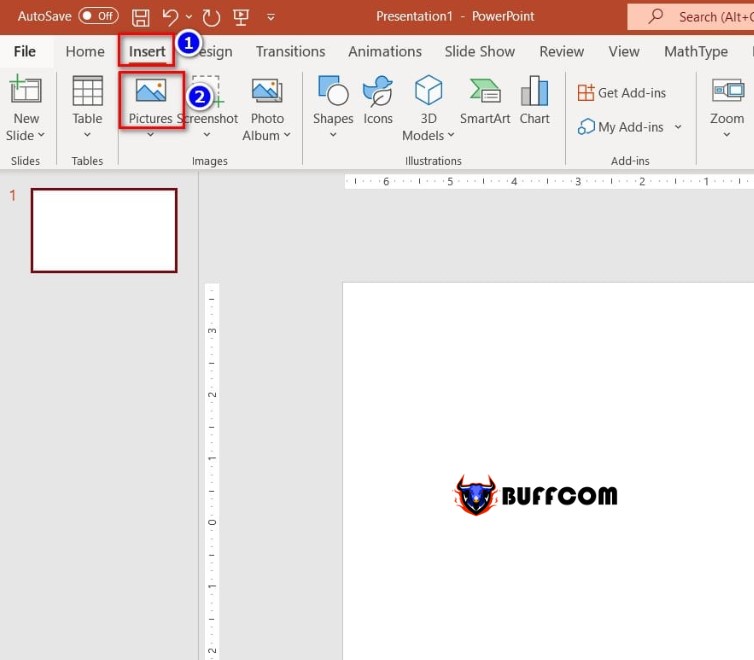
Step 2: Go to the Insert tab and select Picture.
How to Change Background Image in PowerPoint 365

How to Change Background Image in PowerPoint 365

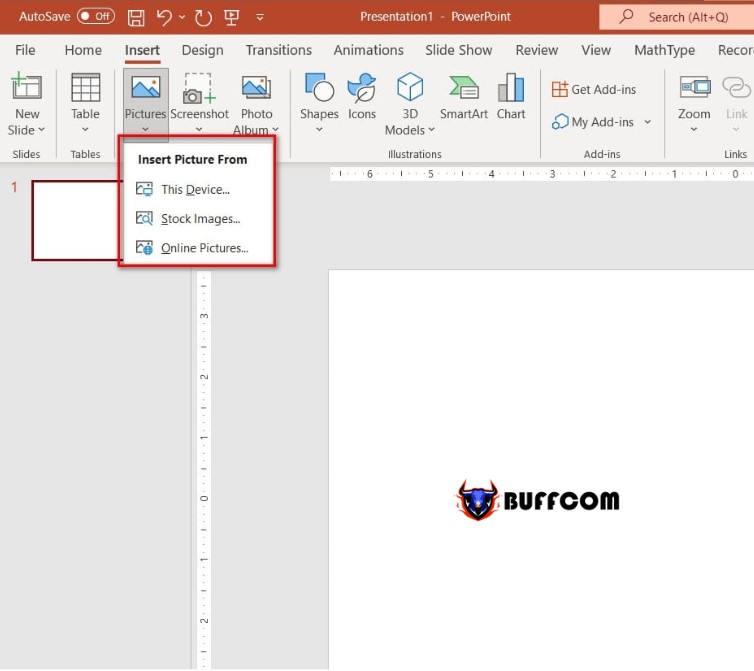
Step 3: In the Picture section, there are 2 options to pay attention to:
This Device: Insert an image available on the computer.
Online Pictures: Insert an image from the Internet.
How to Change Background Image in PowerPoint 365

How to Change Background Image in PowerPoint 365

Step 4: If you choose This Device, find the address of the image you want to insert and click Insert to insert the image.
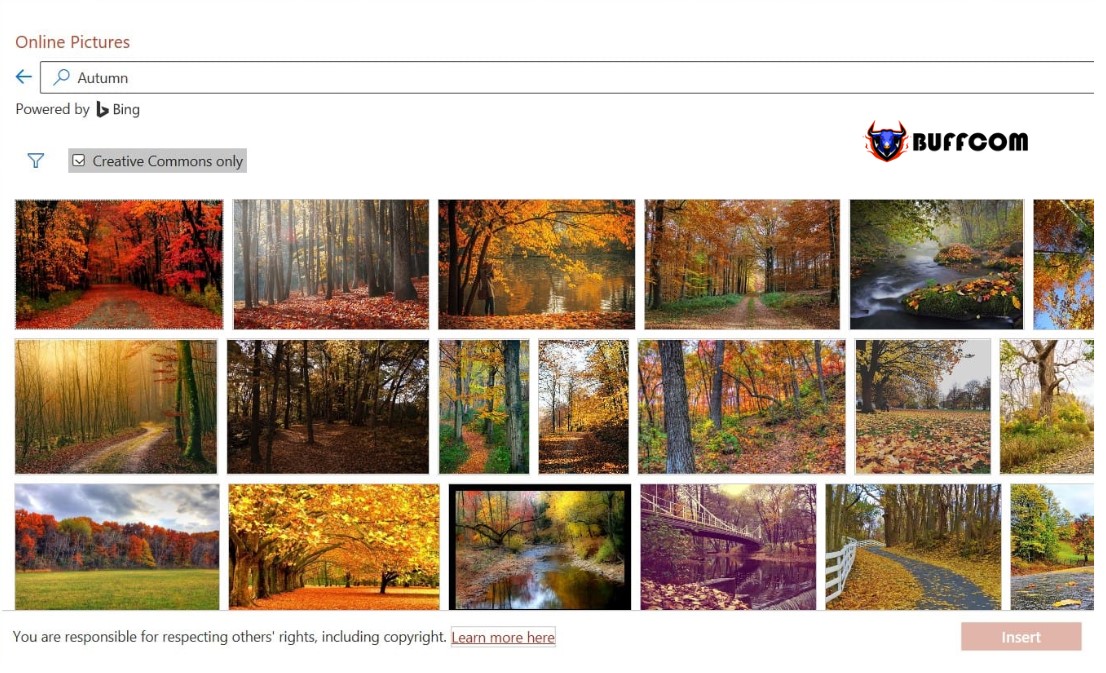
If you click on Online Pictures, enter the keyword for the image you want to find in the Bing Image Search section and press Enter. Then select the image you want to insert and click Insert.
How to Change Background Image in PowerPoint 365

How to Change Background Image in PowerPoint 365

Step 5: After the image has been inserted, the final step is to resize the image to fit as the background image of the slide.

So I have finished guiding you on how to change the background image in PowerPoint 365, it’s extremely simple, right! I hope you will successfully implement it.


Rate this post
54
317 Views
14 Good Tips and Tricks In Word For YouPrev14 Good Tips and Tricks In Word For YouMarch 10, 2023
Attach Professional Files in ExcelMarch 10, 2023Attach Professional Files in ExcelNext

Leave a Reply Cancel reply

You must be logged in to post a comment.

Buy Windows 11 Professional MS Products CD Key
Buy Office 2021 Professional Plus Key Global For 5 PC
Top rated products
  • Windows 11 Home Key Global 2021 Windows 11 Home Key Global 2021
    Rated 5.00 out of 5
    $6.00
  • Windows Server 2022 Remote Desktop Services User Connections (50) Cal Key Global Windows Server 2022 Remote Desktop Services User Connections (50) Cal Key Global
    Rated 5.00 out of 5
    $22.00
  • AVG Ultimate 2021 with Antivirus + Cleaner, Secure VPN 10 Devices 2 Years AVG Ultimate 2021 with Antivirus + Cleaner, Secure VPN 10 Devices 2 Years
    Rated 5.00 out of 5
    $47.00
  • Avast Premium Security 2021 10 Devices 1 Year Global Avast Premium Security 2021 10 Devices 1 Year Global
    Rated 5.00 out of 5
    $28.00
  • Avast Ultimate Suite 2021 3 Years 10 Devices Global Avast Ultimate Suite 2021 3 Years 10 Devices Global
    Rated 5.00 out of 5
    $90.00
Products
  • Project Standard 2021 Microsoft Project Standard 2021 - 1 PC $13.00
  • Office 2024 Home And Business For Mac/Pc Bind Office 2024 Home And Business For Mac/Pc Bind $110.00
  • Project Professional 2021 Microsoft Project Professional 2021 - 1 PC $13.00
  • Kaspersky Premium - 1 Device 1 Year - GLOBAL Kaspersky Premium - 1 Device 1 Year - GLOBAL $37.00
  • Windows Server 2019 Essentials Key Global Windows Server 2019 Essentials Key Global
    Rated 4.71 out of 5
    $7.00
  • Microsoft Visio Professional 2010 Key 1PC Microsoft Visio Professional 2010 Key 1PC $9.00
  • AVG Internet Security 2021 10 Devices 1 Year Global AVG Internet Security 2021 10 Devices 1 Year Global
    Rated 5.00 out of 5
    $30.00
  • Project Professional 2024 Project Professional 2024 $43.00
  • Windows Server 2019 Remote Desktop Services Device Connections (50) Cal Key Global Windows Server 2019 Remote Desktop Services Device Connections (50) Cal Key Global
    Rated 4.72 out of 5
    $20.00
  • AVG Internet Security 2021 1 Device 1 Year Global AVG Internet Security 2021 1 Device 1 Year Global
    Rated 5.00 out of 5
    $11.00
Product categories
  • Anti Virus
  • Microsoft Office
  • Microsoft Project
  • Microsoft Visio
  • Microsoft Visual
  • Microsoft Windows
  • Other Software
  • Uncategorized

Buffcom.net always brings the best digital products and services to you. Specializing in Office Software and online marketing services

BIG SALE 50% IN MAY

Microsoft Office
Microsoft Windows
Anti-Virus
Contact Us

Visit Us:

125 Division St, New York, NY 10002, USA

Mail Us:

buffcom.net@gmail.com

TERMS & CONDITIONS | PAYMENT GUIDE  | SHIPPING POLICY  | REFUND POLICY

Copyright © 2019 buffcom.net  All Rights Reserved.