
• Microsoft Office
  • Microsoft Windows
  • Other Software
    • Microsoft Visual
    • Microsoft Project
    • Microsoft Visio
    • Anti Virus
  • Blog
    • Word
    • Excel
    • Powerpoint
    • Software tricks/tips

No products in the cart.

  • Microsoft Office
  • Microsoft Windows
  • Other Software
    • Microsoft Visual
    • Microsoft Project
    • Microsoft Visio
    • Anti Virus
  • Blog
    • Word
    • Excel
    • Powerpoint
    • Software tricks/tips

No products in the cart.

  • Microsoft Office
  • Microsoft Windows
  • Other Software
    • Microsoft Visual
    • Microsoft Project
    • Microsoft Visio
    • Anti Virus
  • Blog
    • Word
    • Excel
    • Powerpoint
    • Software tricks/tips

No products in the cart.

  • Microsoft Office
  • Microsoft Windows
  • Other Software
    • Microsoft Visual
    • Microsoft Project
    • Microsoft Visio
    • Anti Virus
  • Blog
    • Word
    • Excel
    • Powerpoint
    • Software tricks/tips
Excel

How to change the color of gridlines in Excel?
0 Comments

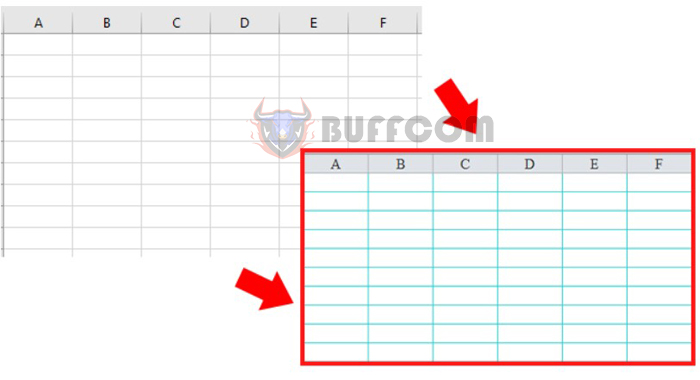
How to change the color of gridlines in Excel? By default, gridlines in Excel are light black in color. If you work on Excel for a long time, this color may strain your eyes or make it difficult to differentiate between different data points. Therefore, changing the color of gridlines can be a helpful way to make your spreadsheet stand out and make it easier to read. In this article, Buffcom.net will guide you on how to change the color of gridlines in Excel.

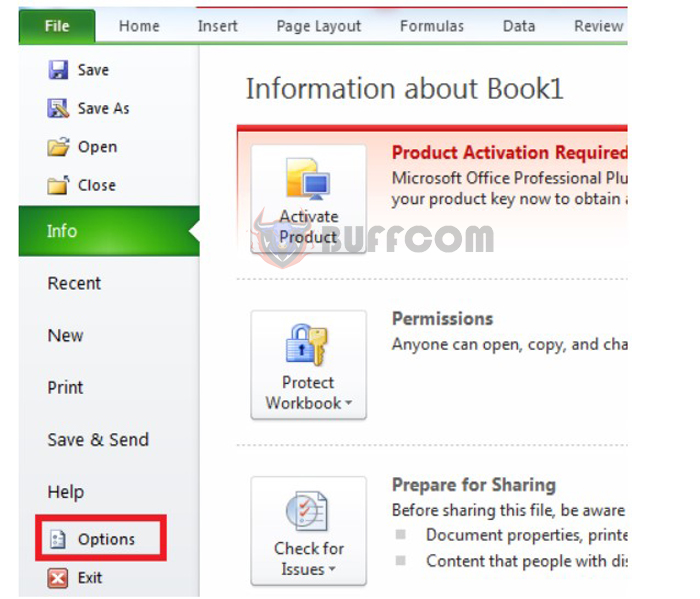
Step 1: Click on “Options” from the File icon

Firstly, open Excel and click on the File icon. Then, select Options.
How to change the color of gridlines in Excel?

How to change the color of gridlines in Excel?

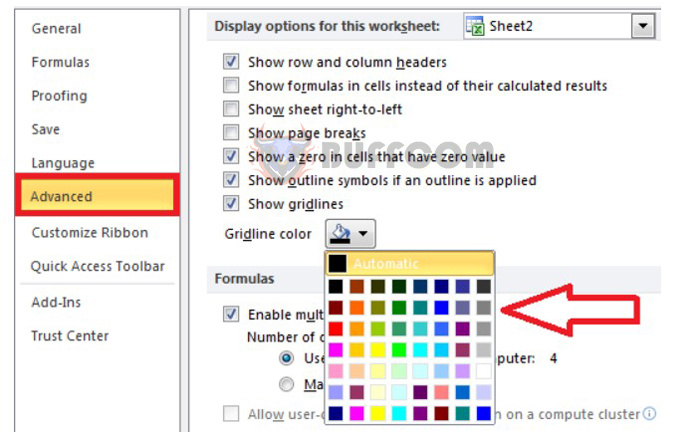
Step 2: Make changes in the Advanced tab

In the next window, click on the Advanced tab. Scroll down to the Display options for this worksheet section and select a suitable color for gridlines in the Gridline Color option. This will help you to select a color of your choice for the gridlines. Finally, click on OK to save the changes.
How to change the color of gridlines in Excel?

How to change the color of gridlines in Excel?

Step 3: Click on “Format Cells” to create a display area

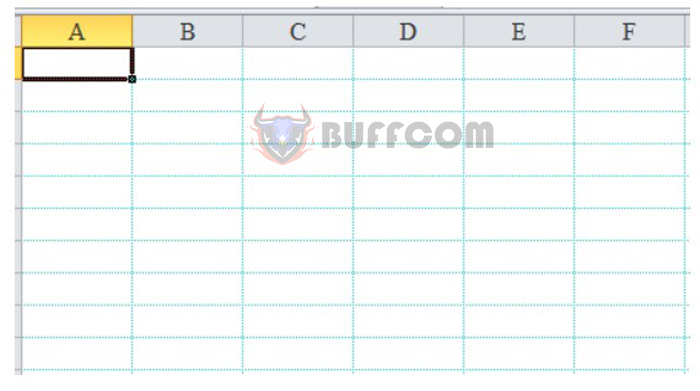
After selecting a color for gridlines, you will see that the old gridlines disappear and a new color replaces them.
How to change the color of gridlines in Excel?

How to change the color of gridlines in Excel?

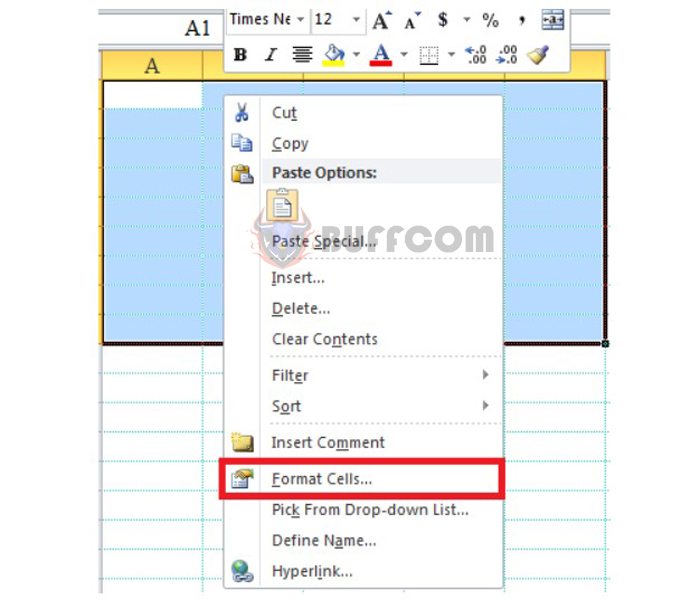
To create a display area for your Excel sheet, select the cells you want to format and right-click. Then, click on Format Cells.
How to change the color of gridlines in Excel?

How to change the color of gridlines in Excel?

Step 4: Make changes in the Border tab

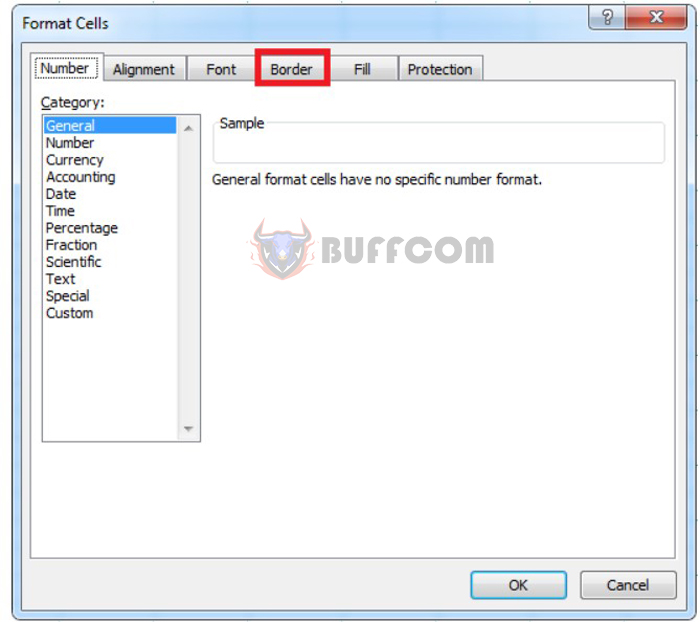
Once the Format Cells window appears, click on the Border tab.
How to change the color of gridlines in Excel?

How to change the color of gridlines in Excel?

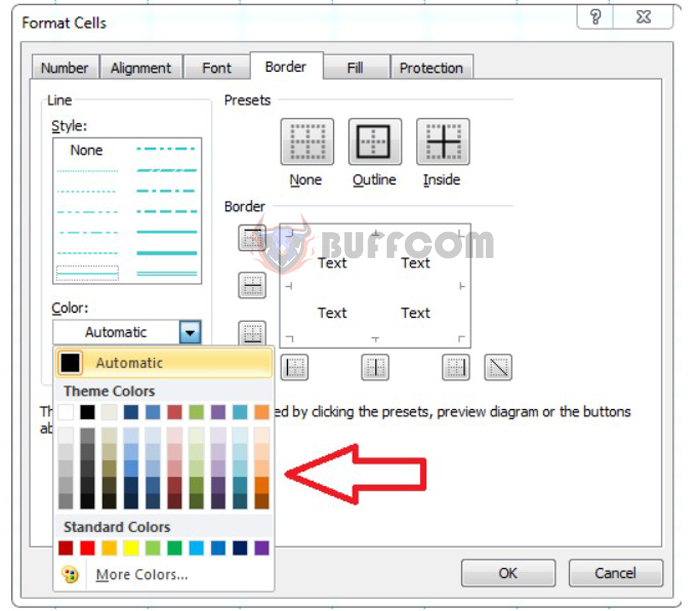
Select a line style from the Style section. Then, click on the Presets section and select Outline and Inside. This will apply the selected line style to the entire selected range. If you want to change the color of the line, click on the Color section and select a new color.
How to change the color of gridlines in Excel?

How to change the color of gridlines in Excel?

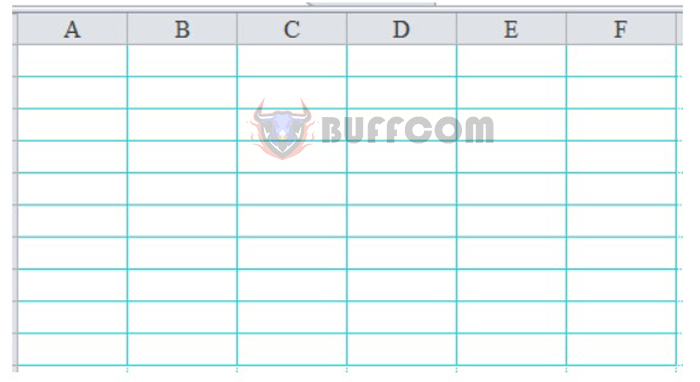
After completing these steps, your spreadsheet will have a new color for gridlines. You can choose different colors according to your preferences to make your spreadsheet look more visually appealing and easy to read.
How to change the color of gridlines in Excel?

How to change the color of gridlines in Excel?

In this article, we have learned how to change the color of gridlines in Excel spreadsheets to highlight data and avoid confusion between cells. By following the simple steps outlined, you can choose any color for the gridline and create a more visually appealing display for your Excel spreadsheet. Additionally, changing the color of gridlines can give your Excel sheet a more professional and polished look. We hope that with these simple actions, you will be able to easily create beautiful and user-friendly Excel spreadsheets.

Rate this post
47
317 Views
How To Type Subscripts And Superscripts In WordPrevHow To Type Subscripts And Superscripts In WordMarch 18, 2023
Quickly Fixing Encrypted Excel File Error and Unable to Read ContentMarch 20, 2023Quickly Fixing Encrypted Excel File Error and Unable to Read ContentNext

Leave a Reply Cancel reply

You must be logged in to post a comment.

Buy Windows 11 Professional MS Products CD Key
Buy Office 2021 Professional Plus Key Global For 5 PC
Top rated products
  • AVG Ultimate 2021 with Antivirus + Cleaner, Secure VPN 10 Devices 2 Years AVG Ultimate 2021 with Antivirus + Cleaner, Secure VPN 10 Devices 2 Years
    Rated 5.00 out of 5
    $47.00
  • Avast Premium Security 2021 10 Devices 1 Year Global Avast Premium Security 2021 10 Devices 1 Year Global
    Rated 5.00 out of 5
    $28.00
  • Avast Ultimate Suite 2021 3 Years 10 Devices Global Avast Ultimate Suite 2021 3 Years 10 Devices Global
    Rated 5.00 out of 5
    $90.00
  • Windows Server 2022 Remote Desktop Services Device Connections (50) Cal Key Global Windows Server 2022 Remote Desktop Services Device Connections (50) Cal Key Global
    Rated 5.00 out of 5
    $22.00
  • Kaspersky Internet Security 2021 1 year 1 device key Global Kaspersky Internet Security 2021 1 year 1 device key Global
    Rated 5.00 out of 5
    $24.00
Products
  • Windows Server 2019 Remote Desktop Services Device Connections (50) Cal Key Global Windows Server 2019 Remote Desktop Services Device Connections (50) Cal Key Global
    Rated 4.72 out of 5
    $20.00
  • Microsoft Office 2019 Home and Student for PC Key Global bind to your Microsoft account Microsoft Office 2019 Home and Student for PC Key Global bind to your Microsoft account
    Rated 4.95 out of 5
    $58.00
  • AVG Internet Security 2021 10 Devices 1 Year Global AVG Internet Security 2021 10 Devices 1 Year Global
    Rated 5.00 out of 5
    $30.00
  • Buy Office 2021 Professional Plus Key Global For 5 PC Buy Office 2021 Professional Plus Key Global For 5 PC
    Rated 5.00 out of 5
    $68.00
  • Buy Windows 11 Professional MS Products CD Key Buy Windows 11 Professional MS Products CD Key
    Rated 5.00 out of 5
    $6.00
  • Project Professional 2024 Project Professional 2024 $43.00
  • Windows Server 2025 Standard Windows Server 2025 Standard $30.00
  • Microsoft Visio Professional 2013 Key 1PC Microsoft Visio Professional 2013 Key 1PC $9.00
  • Microsoft Office Home And Business 2016 For Mac Key Global Bind Microsoft Account Microsoft Office Home And Business 2016 For Mac Key Global Bind Microsoft Account
    Rated 4.92 out of 5
    $15.00
  • Microsoft Visio Professional 2016 Key 1PC Microsoft Visio Professional 2016 Key 1PC $9.00
Product categories
  • Anti Virus
  • Microsoft Office
  • Microsoft Project
  • Microsoft Visio
  • Microsoft Visual
  • Microsoft Windows
  • Other Software
  • Uncategorized

Buffcom.net always brings the best digital products and services to you. Specializing in Office Software and online marketing services

BIG SALE 50% IN MAY

Microsoft Office
Microsoft Windows
Anti-Virus
Contact Us

Visit Us:

125 Division St, New York, NY 10002, USA

Mail Us:

buffcom.net@gmail.com

TERMS & CONDITIONS | PAYMENT GUIDE  | SHIPPING POLICY  | REFUND POLICY

Copyright © 2019 buffcom.net  All Rights Reserved.