
• Microsoft Office
  • Microsoft Windows
  • Other Software
    • Microsoft Visual
    • Microsoft Project
    • Microsoft Visio
    • Anti Virus
  • Blog
    • Word
    • Excel
    • Powerpoint
    • Software tricks/tips

No products in the cart.

  • Microsoft Office
  • Microsoft Windows
  • Other Software
    • Microsoft Visual
    • Microsoft Project
    • Microsoft Visio
    • Anti Virus
  • Blog
    • Word
    • Excel
    • Powerpoint
    • Software tricks/tips

No products in the cart.

  • Microsoft Office
  • Microsoft Windows
  • Other Software
    • Microsoft Visual
    • Microsoft Project
    • Microsoft Visio
    • Anti Virus
  • Blog
    • Word
    • Excel
    • Powerpoint
    • Software tricks/tips

No products in the cart.

  • Microsoft Office
  • Microsoft Windows
  • Other Software
    • Microsoft Visual
    • Microsoft Project
    • Microsoft Visio
    • Anti Virus
  • Blog
    • Word
    • Excel
    • Powerpoint
    • Software tricks/tips
Word

How to remove or clear formatting in word?
0 Comments

Removing or clearing formatting in Word can help streamline your document editing process. Here are a couple of methods to achieve this:

Remove Formatting with Clear Formatting

  1. Select the part of the document from which you want to remove all formatting, or press CTRL + A to select the entire document.
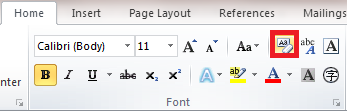
  2. Go to the Home tab.
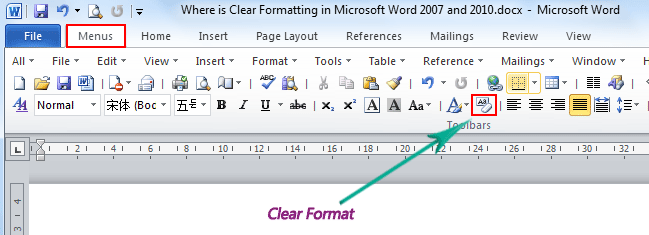
  3. Look for the “Clear Formatting” option in the Font group.
  4. Click on “Clear Formatting” to remove all formatting from the selected text.
  5. Please note that this method cannot remove formatting applied by styles, themes, or direct formatting such as bold, italics, and underline.
    How to remove or clear formatting in word

    How to remove or clear formatting in word

Remove All Formatting with VBA

You can also use VBA (Visual Basic for Applications) to remove all formatting from the document:

  1. Press Alt + F11 to open the VBA window.
  2. Click on Module in the Insert tab and insert the VBA code provided below into the Module window.
  3. Press the Run button or press F5 to execute the VBA code.

VBA Code to Remove All Formatting:

Sub ClearFormatting()
ActiveDocument.Select
Selection.ClearFormatting
End Sub

This code will remove all formatting from the active document.

Another VBA code example allows you to specify a range for formatting removal:

Sub ClearFormattingBetweenParagraphs()
ActiveDocument.Range(Start:=ActiveDocument.Paragraphs(2).Range.Start, _
End:=ActiveDocument.Paragraphs(4).Range.End).Select
Selection.ClearFormatting
End Sub

This code removes formatting between paragraph 2 and paragraph 4. You can adjust the paragraph numbers as needed.

These methods provide efficient ways to remove formatting from your Word document, helping you achieve a clean and consistent look.
Rate this post
54
223 Views
How to show developer tab ribbon in Word?PrevHow to show developer tab ribbon in Word?April 18, 2024
How to change straight quotes to curly quotes in word?April 21, 2024How to change straight quotes to curly quotes in word?Next
Buy Windows 11 Professional MS Products CD Key
Buy Office 2021 Professional Plus Key Global For 5 PC
Top rated products
  • Kaspersky Small Office Security 15 PCs + 15 Mobiles + 2 Servers 1 Year Kaspersky Small Office Security 15 PCs + 15 Mobiles + 2 Servers 1 Year
    Rated 5.00 out of 5
    $201.00
  • Buy Windows 11 Professional MS Products CD Key Buy Windows 11 Professional MS Products CD Key
    Rated 5.00 out of 5
    $6.00
  • AVG Internet Security 2021 1 Device 1 Year Global AVG Internet Security 2021 1 Device 1 Year Global
    Rated 5.00 out of 5
    $11.00
  • Buy Office 2021 Professional Plus Key Global For 5 PC Buy Office 2021 Professional Plus Key Global For 5 PC
    Rated 5.00 out of 5
    $68.00
  • Avast SecureLine VPN 2021 2 Years 5 Devices Global Avast SecureLine VPN 2021 2 Years 5 Devices Global
    Rated 5.00 out of 5
    $47.00
Products
  • Kaspersky Standard - 1 Device, 1 Year (Global License) Kaspersky Standard - 1 Device, 1 Year (Global License) $21.00
  • Windows Server 2025 Remote Desktop Services 50 Device Connections Windows Server 2025 Remote Desktop Services 50 Device Connections $25.00
  • Windows Server2008 R2 Remote Desktop Services user connections (20)cal Windows Server2008 R2 Remote Desktop Services user connections (20)cal $29.00
  • AVG Ultimate 2021 with Antivirus + Cleaner, Secure VPN 10 Devices 2 Years AVG Ultimate 2021 with Antivirus + Cleaner, Secure VPN 10 Devices 2 Years
    Rated 5.00 out of 5
    $47.00
  • 5 Key Windows 10 Pro Key Global - Combo 5 KEY 5 Key Windows 10 Pro Key Global - Combo 5 KEY
    Rated 4.81 out of 5
    $25.00
  • AVG Internet Security 2021 10 Devices 1 Year Global AVG Internet Security 2021 10 Devices 1 Year Global
    Rated 5.00 out of 5
    $30.00
  • Windows Server 2025 Remote Desktop Services 50 User Connections Windows Server 2025 Remote Desktop Services 50 User Connections $25.00
  • Avast SecureLine VPN 2021 2 Years 5 Devices Global Avast SecureLine VPN 2021 2 Years 5 Devices Global
    Rated 5.00 out of 5
    $47.00
  • Kaspersky Small Office Security 10 PCs + 10 Mobiles + 1 Server 1 Year Kaspersky Small Office Security 10 PCs + 10 Mobiles + 1 Server 1 Year
    Rated 5.00 out of 5
    $164.50
  • Microsoft Visio Professional 2010 Key 1PC Microsoft Visio Professional 2010 Key 1PC $9.00
Product categories
  • Anti Virus
  • Microsoft Office
  • Microsoft Project
  • Microsoft Visio
  • Microsoft Visual
  • Microsoft Windows
  • Other Software
  • Uncategorized

Buffcom.net always brings the best digital products and services to you. Specializing in Office Software and online marketing services

BIG SALE 50% IN MAY

Microsoft Office
Microsoft Windows
Anti-Virus
Contact Us

Visit Us:

125 Division St, New York, NY 10002, USA

Mail Us:

buffcom.net@gmail.com

TERMS & CONDITIONS | PAYMENT GUIDE  | SHIPPING POLICY  | REFUND POLICY

Copyright © 2019 buffcom.net  All Rights Reserved.