
• Microsoft Office
  • Microsoft Windows
  • Other Software
    • Microsoft Visual
    • Microsoft Project
    • Microsoft Visio
    • Anti Virus
  • Blog
    • Word
    • Excel
    • Powerpoint
    • Software tricks/tips

No products in the cart.

  • Microsoft Office
  • Microsoft Windows
  • Other Software
    • Microsoft Visual
    • Microsoft Project
    • Microsoft Visio
    • Anti Virus
  • Blog
    • Word
    • Excel
    • Powerpoint
    • Software tricks/tips

No products in the cart.

  • Microsoft Office
  • Microsoft Windows
  • Other Software
    • Microsoft Visual
    • Microsoft Project
    • Microsoft Visio
    • Anti Virus
  • Blog
    • Word
    • Excel
    • Powerpoint
    • Software tricks/tips

No products in the cart.

  • Microsoft Office
  • Microsoft Windows
  • Other Software
    • Microsoft Visual
    • Microsoft Project
    • Microsoft Visio
    • Anti Virus
  • Blog
    • Word
    • Excel
    • Powerpoint
    • Software tricks/tips
Software tricks/tips

Managing and Updating Applications from the Microsoft Store on Windows 10
0 Comments

Managing and updating applications from the Microsoft Store on Windows 10 is straightforward and essential for keeping your system secure and functional. Here’s a concise guide:

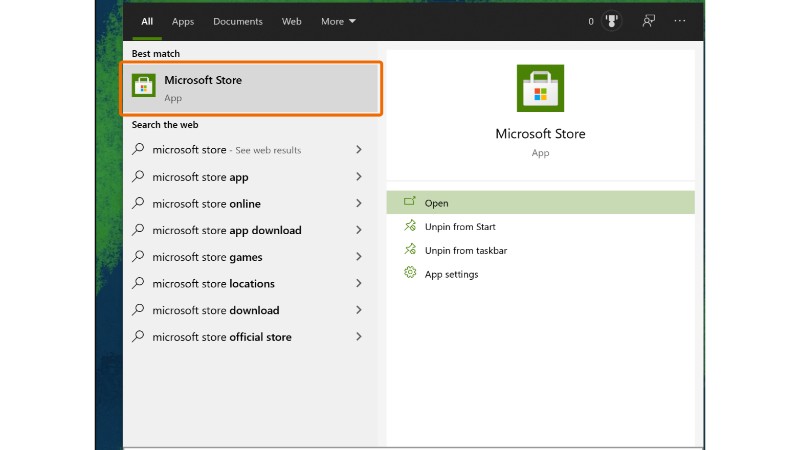
Opening Microsoft Store:
Managing and Updating Applications from the Microsoft Store on Windows 10
Search for Microsoft Store: Use the search bar next to the Start menu. Type “Microsoft Store” and press Enter.
Launch the Store: Click on the Microsoft Store icon that appears in the search results.
Managing Applications:
Accessing Your Library: In the Store, click on the three dots (…) in the top right corner and select “My Library” to see all your apps and games.
Installation: To install an app, search for it in the Store, select it, and then click “Install” on the app’s page.
Uninstallation: To uninstall an app, go to “Settings” > “Apps” > “Apps & features”. Find the app you want to uninstall, click it, and select “Uninstall”.
Updating Applications:
Automatic Updates: By default, the Microsoft Store automatically updates your apps. To ensure this setting is enabled, in the Store, click on the three dots (…), go to “Settings”, and ensure “Update apps automatically” is turned on.
Manual Updates: To manually update applications, in the Microsoft Store, click on the three dots (…) and select “Downloads and updates”. Then, click “Get updates” to check for updates for all your apps.

Benefits of Updating:
Managing and Updating Applications from the Microsoft Store on Windows 10 1
Security: Updates often include patches for security vulnerabilities.
New Features: Developers regularly add new features to their apps through updates.
Performance Improvements: Updates can also bring optimizations that improve app performance and fix existing bugs.
By following these steps, you can easily manage and update your applications from the Microsoft Store on Windows 10, ensuring a smooth and secure experience.




Rate this post
34
169 Views
Navigating the Microsoft Store on Windows 10: Apps, Games, and MorePrevNavigating the Microsoft Store on Windows 10: Apps, Games, and MoreMarch 13, 2024
Troubleshooting Common Issues with the Microsoft Store on Windows 10March 15, 2024Troubleshooting Common Issues with the Microsoft Store on Windows 10Next
Buy Windows 11 Professional MS Products CD Key
Buy Office 2021 Professional Plus Key Global For 5 PC
Top rated products
  • Avast Ultimate Suite 2021 1 Year 10 Devices Global Avast Ultimate Suite 2021 1 Year 10 Devices Global
    Rated 5.00 out of 5
    $54.00
  • Windows 11 Pro Key Global Windows 11 Pro Key Global
    Rated 5.00 out of 5
    $6.00
  • Avast Premium Security 2021 10 Devices 2 Years Global Avast Premium Security 2021 10 Devices 2 Years Global
    Rated 5.00 out of 5
    $41.00
  • Kaspersky Small Office Security 15 PCs + 15 Mobiles + 2 Servers 1 Year Kaspersky Small Office Security 15 PCs + 15 Mobiles + 2 Servers 1 Year
    Rated 5.00 out of 5
    $201.00
  • Buy Windows 11 Professional MS Products CD Key Buy Windows 11 Professional MS Products CD Key
    Rated 5.00 out of 5
    $6.00
Products
  • Windows 10 Home OEM Key Global Windows 10 Home OEM Key Global
    Rated 4.80 out of 5
    $6.00
  • Windows Server 2012 R2 Datacenter Key Global Windows Server 2012 R2 Datacenter Key Global
    Rated 4.71 out of 5
    $15.00
  • Microsoft Visio 2019 professional Key Global Bind to your Microsoft Account Microsoft Visio 2019 professional Key Global Bind to your Microsoft Account
    Rated 4.96 out of 5
    $12.00
  • AVG Ultimate 2021 with Antivirus + Cleaner, Secure VPN 10 Devices 1 Year AVG Ultimate 2021 with Antivirus + Cleaner, Secure VPN 10 Devices 1 Year
    Rated 4.91 out of 5
    $34.00
  • Microsoft Visio Professional 2013 Key 1PC Microsoft Visio Professional 2013 Key 1PC $9.00
  • Windows Server 2012 Remote Desktop Services 50 USER Connections Key Global Windows Server 2012 Remote Desktop Services 50 USER Connections Key Global
    Rated 4.69 out of 5
    $25.00
  • Windows Server 2019 Datacenter Key Global Windows Server 2019 Datacenter Key Global
    Rated 4.75 out of 5
    $7.00
  • Windows Server 2025 Standard Windows Server 2025 Standard $30.00
  • Windows Server 2022 Datacenter Key Global Windows Server 2022 Datacenter Key Global
    Rated 5.00 out of 5
    $7.00
  • Kaspersky Small Office Security 10 PCs + 10 Mobiles + 1 Server 1 Year Kaspersky Small Office Security 10 PCs + 10 Mobiles + 1 Server 1 Year
    Rated 5.00 out of 5
    $164.50
Product categories
  • Anti Virus
  • Microsoft Office
  • Microsoft Project
  • Microsoft Visio
  • Microsoft Visual
  • Microsoft Windows
  • Other Software
  • Uncategorized

Buffcom.net always brings the best digital products and services to you. Specializing in Office Software and online marketing services

BIG SALE 50% IN MAY

Microsoft Office
Microsoft Windows
Anti-Virus
Contact Us

Visit Us:

125 Division St, New York, NY 10002, USA

Mail Us:

buffcom.net@gmail.com

TERMS & CONDITIONS | PAYMENT GUIDE  | SHIPPING POLICY  | REFUND POLICY

Copyright © 2019 buffcom.net  All Rights Reserved.