• ChatGPT Business
  • Microsoft Office
  • Microsoft Windows
  • Other Software
    • Microsoft Visual
    • Microsoft Project
    • Microsoft Visio
    • Anti Virus
  • Blog
    • Word
    • Excel
    • Powerpoint
    • Software tricks/tips

No products in the cart.

  • ChatGPT Business
  • Microsoft Office
  • Microsoft Windows
  • Other Software
    • Microsoft Visual
    • Microsoft Project
    • Microsoft Visio
    • Anti Virus
  • Blog
    • Word
    • Excel
    • Powerpoint
    • Software tricks/tips

No products in the cart.

  • ChatGPT Business
  • Microsoft Office
  • Microsoft Windows
  • Other Software
    • Microsoft Visual
    • Microsoft Project
    • Microsoft Visio
    • Anti Virus
  • Blog
    • Word
    • Excel
    • Powerpoint
    • Software tricks/tips

No products in the cart.

  • ChatGPT Business
  • Microsoft Office
  • Microsoft Windows
  • Other Software
    • Microsoft Visual
    • Microsoft Project
    • Microsoft Visio
    • Anti Virus
  • Blog
    • Word
    • Excel
    • Powerpoint
    • Software tricks/tips
Excel

Calculating the Number of Years Between Two Dates in Excel
0 Comments

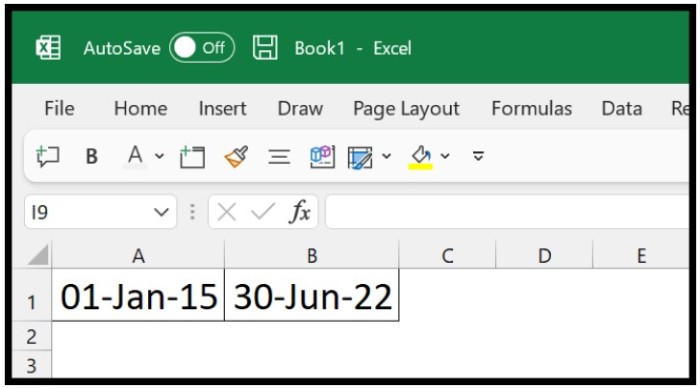
To calculate the number of years between two dates in Excel, you can use either the YEARFRAC or DATEDIF function. Both functions are useful, and you need to understand their arguments before using them. Here’s an example where you have a start date in cell A1 and an end date in cell B1.Number 1
Using DATEDIF Function

DATEDIF is the easiest way to get the count of years between two dates. Note that DATEDIF is not in Excel’s function list, and you need to know its arguments before you use it.Number 2
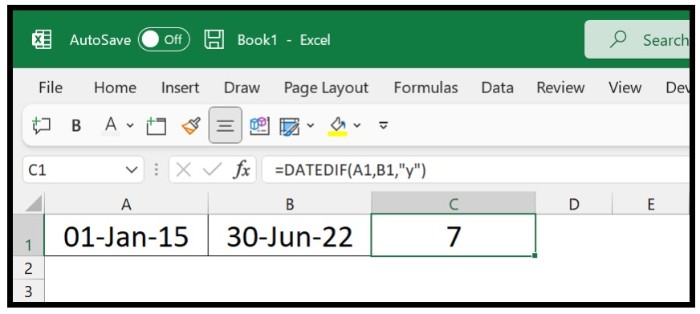
To use DATEDIF to get the number of years between two dates, follow these steps:

  1. Enter the DATEDIF function in cell C1.
  2. Refer to cell A1, where you have the start date.
  3. Refer to cell B1, where you have the end date.
  4. In the third argument, enter the unit “y” to get the count of years.
  5. Hit enter to get the result.

=DATEDIF(A1, B1, “y”)

The result in cell C1 is the number of complete years between the two dates. If you want to get the months and days along with the year, you can use the formula in the following way:

=DATEDIF(A1,B1,”y”)&”y, “&DATEDIF(A1,B1,”ym”)&”m, “&DATEDIF(A1,B1,”md”)&”d”Number 3
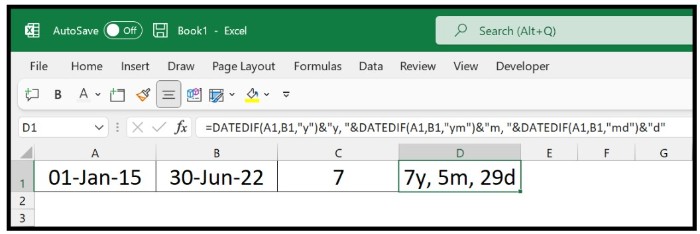
Here, we used DATEDIF three times in the same formula but with different units.

Using YEARFRAC Function

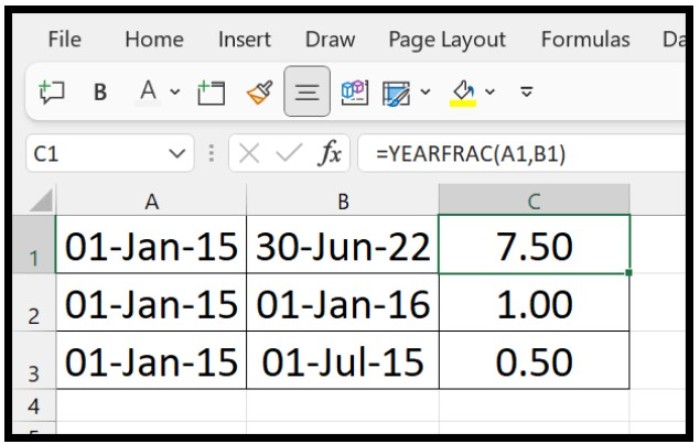
If you don’t want to use the DATEDIF function, you can switch to YEARFRAC. Here’s an example where we have used the same start and end dates as in the DATEDIF example:Number 4
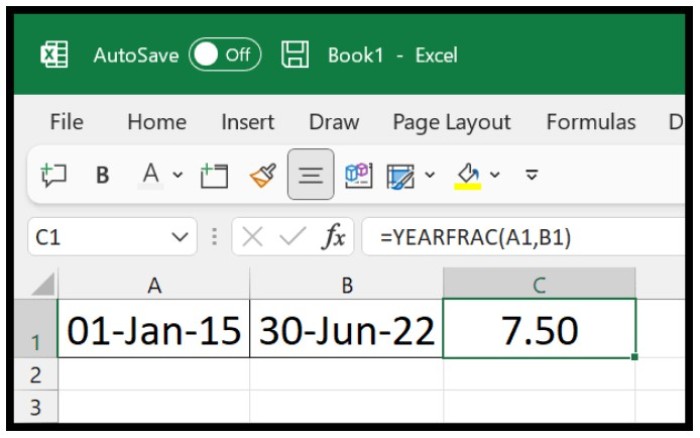
  1. Enter the YEARFRAC function in cell C1.
  2. In the first argument, refer to cell A1, where you have the start date.
  3. In the second argument, refer to cell B1, where you have the end date.
  4. Hit enter to get the result.Number 5

=YEARFRAC(A1,B1)

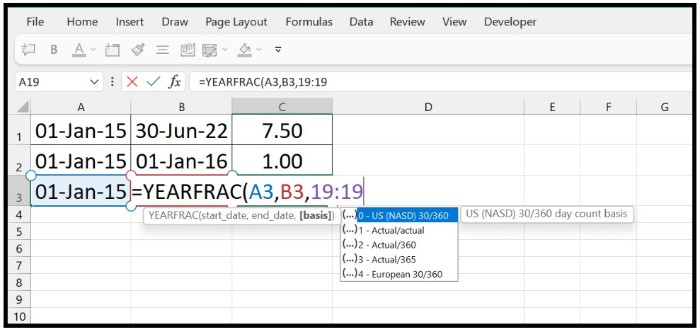
The result in cell C1 is the number of years between the two dates, including any fraction of a year. For example, if there are six months between two dates, the result will be 0.5. Note that YEARFRAC has a third argument that you can use to change the basis of difference that you want to use to get the years to count between two dates.Number 6
Both functions are useful in different situations, so choose the one that best fits your needs.
Rate this post
39
298 Views
Obtain the First Day of the Month in ExcelPrevObtain the First Day of the Month in ExcelMay 4, 2023
Concatenating Two Dates in ExcelMay 4, 2023Concatenating Two Dates in ExcelNext

Leave a Reply Cancel reply

You must be logged in to post a comment.

Buy Windows 11 Professional MS Products CD Key
Buy Office 2021 Professional Plus Key Global For 5 PC
Top rated products
  • Avast Premium Security 2021 10 Devices 1 Year Global Avast Premium Security 2021 10 Devices 1 Year Global
    Rated 5.00 out of 5
    $28.00
  • Avast Ultimate Suite 2021 3 Years 10 Devices Global Avast Ultimate Suite 2021 3 Years 10 Devices Global
    Rated 5.00 out of 5
    $90.00
  • Windows Server 2022 Remote Desktop Services Device Connections (50) Cal Key Global Windows Server 2022 Remote Desktop Services Device Connections (50) Cal Key Global
    Rated 5.00 out of 5
    $22.00
  • Kaspersky Internet Security 2021 1 year 1 device key Global Kaspersky Internet Security 2021 1 year 1 device key Global
    Rated 5.00 out of 5
    $24.00
  • Kaspersky Internet Security 2021 1 year 5 devices key Global Kaspersky Internet Security 2021 1 year 5 devices key Global
    Rated 5.00 out of 5
    $45.00
Products
  • Microsoft Visio Professional 2021 Key 1PC Microsoft Visio Professional 2021 Key 1PC $13.00
  • Buy Windows 11 Pro CD Key License Buy Windows 11 Pro CD Key License
    Rated 5.00 out of 5
    $6.00
  • Windows Server 2019 Remote Desktop Services Device Connections (50) Cal Key Global Windows Server 2019 Remote Desktop Services Device Connections (50) Cal Key Global
    Rated 4.72 out of 5
    $20.00
  • Project Professional 2013 Microsoft Project Professional 2013 - 1 PC $9.00
  • Windows 10 Pro Key Global Genuine Key Windows 10 Pro Key Global Genuine Key
    Rated 4.78 out of 5
    $6.00
  • Windows Server2008 R2 Remote Desktop Services device connections (20)cal Windows Server2008 R2 Remote Desktop Services device connections (20)cal $29.00
  • Avast Ultimate Suite 2021 2 Years 10 Devices Global Avast Ultimate Suite 2021 2 Years 10 Devices Global
    Rated 5.00 out of 5
    $77.00
  • Kaspersky Total Security 2021 1 year 5 devices key Global Kaspersky Total Security 2021 1 year 5 devices key Global
    Rated 5.00 out of 5
    $46.00
  • Microsoft SQL Server 2019 Enterprise Microsoft SQL Server 2019 Enterprise $39.00
  • Microsoft Office Professional Plus 2010 retail Microsoft Office Professional Plus 2010 retail Key Global - 5 PC
    Rated 4.96 out of 5
    $15.00
Product categories
  • Anti Virus
  • Microsoft Office
  • Microsoft Project
  • Microsoft Visio
  • Microsoft Visual
  • Microsoft Windows
  • Other Software
  • Uncategorized

Buffcom.net always brings the best digital products and services to you. Specializing in Office Software and online marketing services

BIG SALE 50% IN MAY

Microsoft Office
Microsoft Windows
Anti-Virus
Contact Us

Visit Us:

125 Division St, New York, NY 10002, USA

Mail Us:

buffcom.net@gmail.com

TERMS & CONDITIONS | PAYMENT GUIDE  | SHIPPING POLICY  | REFUND POLICY

Copyright © 2019 buffcom.net  All Rights Reserved.