• Microsoft Office
  • Microsoft Windows
  • Other Software
    • Microsoft Visual
    • Microsoft Project
    • Microsoft Visio
    • Anti Virus
  • Blog
    • Word
    • Excel
    • Powerpoint
    • Software tricks/tips

No products in the cart.

  • Microsoft Office
  • Microsoft Windows
  • Other Software
    • Microsoft Visual
    • Microsoft Project
    • Microsoft Visio
    • Anti Virus
  • Blog
    • Word
    • Excel
    • Powerpoint
    • Software tricks/tips

No products in the cart.

  • Microsoft Office
  • Microsoft Windows
  • Other Software
    • Microsoft Visual
    • Microsoft Project
    • Microsoft Visio
    • Anti Virus
  • Blog
    • Word
    • Excel
    • Powerpoint
    • Software tricks/tips

No products in the cart.

  • Microsoft Office
  • Microsoft Windows
  • Other Software
    • Microsoft Visual
    • Microsoft Project
    • Microsoft Visio
    • Anti Virus
  • Blog
    • Word
    • Excel
    • Powerpoint
    • Software tricks/tips
Excel

How to Add an Empty Option as the First Choice in an Excel Data Validation Dropdown List?
0 Comments

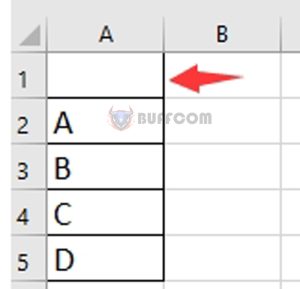
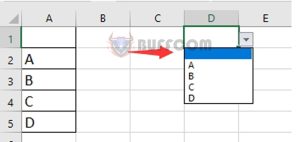
How to Add an Empty Option as the First Choice in an Excel Data Validation Dropdown List? Sometimes, by default, we need to display an empty option in a data validation cell as shown in the screenshot below. However, in general, blanks cannot be displayed when doing data validation just for a single choice. Here, this article will discuss how to add a blank as the first choice in an Excel data validation dropdown list.

Adding a Blank as the First Choice in Data Validation List

To accomplish this task, you only need four steps:

Insert a blank cell above the data list you intend to use to create the data validation list.
How to Add an Empty Option as the First Choice in an Excel Data Validation Dropdown List?

How to Add an Empty Option as the First Choice in an Excel Data Validation Dropdown List?

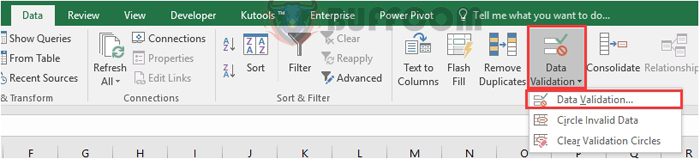
Select a cell or cells where you will be adding the data validation list and click on Data > Data Validation > Data Validation.
How to Add an Empty Option as the First Choice in an Excel Data Validation Dropdown List2
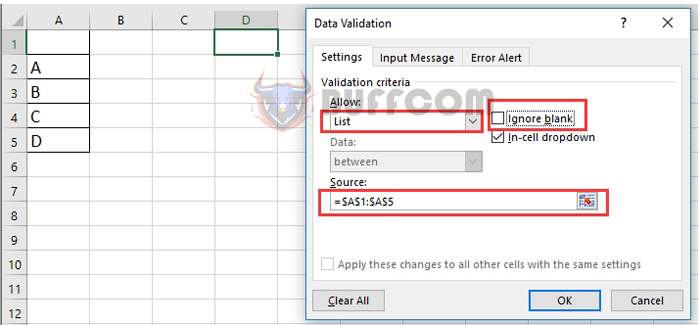
In the Data Validation dialog box, choose List from the Allow dropdown list, select the range including the blank cell that you want to base the data validation list on, and uncheck the Ignore blank option.

How to Add an Empty Option as the First Choice in an Excel Data Validation Dropdown List3
Click OK. Now you will see the first option in the data validation dropdown list is empty.
How to Add an Empty Option as the First Choice in an Excel Data Validation Dropdown List4

Rate this post
69
331 Views
3 Simple Steps to Draw Dotted Lines in Microsoft WordPrev3 Simple Steps to Draw Dotted Lines in Microsoft WordAugust 22, 2023
How to Generate Dynamic Data Validation Dropdown Lists in ExcelAugust 23, 2023How to Generate Dynamic Data Validation Dropdown Lists in ExcelNext

Leave a Reply Cancel reply

You must be logged in to post a comment.

Buy Windows 11 Professional MS Products CD Key
Buy Office 2021 Professional Plus Key Global For 5 PC
Top rated products
  • Avast Ultimate Suite 2021 1 Year 10 Devices Global Avast Ultimate Suite 2021 1 Year 10 Devices Global
    Rated 5.00 out of 5
    $54.00
  • Windows 11 Pro Key Global Windows 11 Pro Key Global
    Rated 5.00 out of 5
    $6.00
  • Avast Premium Security 2021 10 Devices 2 Years Global Avast Premium Security 2021 10 Devices 2 Years Global
    Rated 5.00 out of 5
    $41.00
  • Kaspersky Small Office Security 15 PCs + 15 Mobiles + 2 Servers 1 Year Kaspersky Small Office Security 15 PCs + 15 Mobiles + 2 Servers 1 Year
    Rated 5.00 out of 5
    $201.00
  • Buy Windows 11 Professional MS Products CD Key Buy Windows 11 Professional MS Products CD Key
    Rated 5.00 out of 5
    $6.00
Products
  • Windows 11 Home Key Global 2021 Windows 11 Home Key Global 2021
    Rated 5.00 out of 5
    $6.00
  • Windows Server 2016 Remote Desktop Services 50 USER Connections Key Global Windows Server 2016 Remote Desktop Services 50 USER Connections Key Global
    Rated 4.74 out of 5
    $15.00
  • Buy Windows 11 Home CD Key Global Buy Windows 11 Home CD Key Global
    Rated 4.73 out of 5
    $6.00
  • AVG Ultimate 2021 with Antivirus + Cleaner, Secure VPN 10 Devices 2 Years AVG Ultimate 2021 with Antivirus + Cleaner, Secure VPN 10 Devices 2 Years
    Rated 5.00 out of 5
    $47.00
  • Microsoft Office Professional Plus 2010 retail Microsoft Office Professional Plus 2010 retail Key Global - 5 PC
    Rated 4.96 out of 5
    $15.00
  • Windows 10 Education Key Global Windows 10 Education Key Global
    Rated 4.84 out of 5
    $9.00
  • Project Standard 2021 Microsoft Project Standard 2021 - 1 PC $13.00
  • Windows 10 Home Key Global Windows 10 Home Key Global
    Rated 4.81 out of 5
    $10.00
  • Avast Premium Security 2021 10 Devices 1 Year Global Avast Premium Security 2021 10 Devices 1 Year Global
    Rated 5.00 out of 5
    $28.00
  • Buy Windows 11 Professional MS Products CD Key Buy Windows 11 Professional MS Products CD Key
    Rated 5.00 out of 5
    $6.00
Product categories
  • Anti Virus
  • Microsoft Office
  • Microsoft Project
  • Microsoft Visio
  • Microsoft Visual
  • Microsoft Windows
  • Other Software
  • Uncategorized

Buffcom.net always brings the best digital products and services to you. Specializing in Office Software and online marketing services

BIG SALE 50% IN MAY

Microsoft Office
Microsoft Windows
Anti-Virus
Contact Us

Visit Us:

125 Division St, New York, NY 10002, USA

Mail Us:

buffcom.net@gmail.com

TERMS & CONDITIONS | PAYMENT GUIDE  | SHIPPING POLICY  | REFUND POLICY

Copyright © 2019 buffcom.net  All Rights Reserved.