
• Microsoft Office
  • Microsoft Windows
  • Other Software
    • Microsoft Visual
    • Microsoft Project
    • Microsoft Visio
    • Anti Virus
  • Blog
    • Word
    • Excel
    • Powerpoint
    • Software tricks/tips

No products in the cart.

  • Microsoft Office
  • Microsoft Windows
  • Other Software
    • Microsoft Visual
    • Microsoft Project
    • Microsoft Visio
    • Anti Virus
  • Blog
    • Word
    • Excel
    • Powerpoint
    • Software tricks/tips

No products in the cart.

  • Microsoft Office
  • Microsoft Windows
  • Other Software
    • Microsoft Visual
    • Microsoft Project
    • Microsoft Visio
    • Anti Virus
  • Blog
    • Word
    • Excel
    • Powerpoint
    • Software tricks/tips

No products in the cart.

  • Microsoft Office
  • Microsoft Windows
  • Other Software
    • Microsoft Visual
    • Microsoft Project
    • Microsoft Visio
    • Anti Virus
  • Blog
    • Word
    • Excel
    • Powerpoint
    • Software tricks/tips
Software tricks/tips

How To Install Korean Input Method On Windows 10

0 Comments

In the past, installing input methods on Windows used to be time-consuming. However, with Windows 10, installing additional input methods has become easy and convenient. Windows 10 supports a wide range of keyboard layouts for different languages spoken worldwide. Installing the Korean input method on Windows 10 is straightforward, and in this article, Buffcom.net will provide you with a detailed guide.

Installing the Korean Input Method

Step 1: Press the Windows + I key combination to open the Settings window. Then select “Time & Language“.
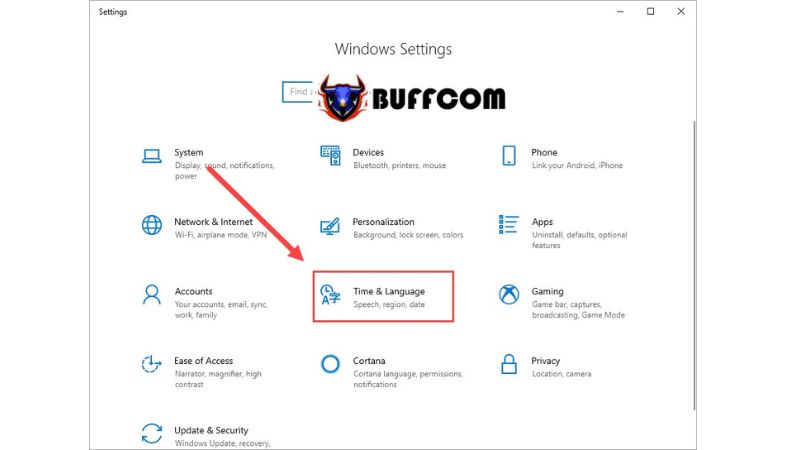
Install Korean Input Method On Windows 10 2Step 2: Choose “Language” and click on “Add a language” to add an input method.
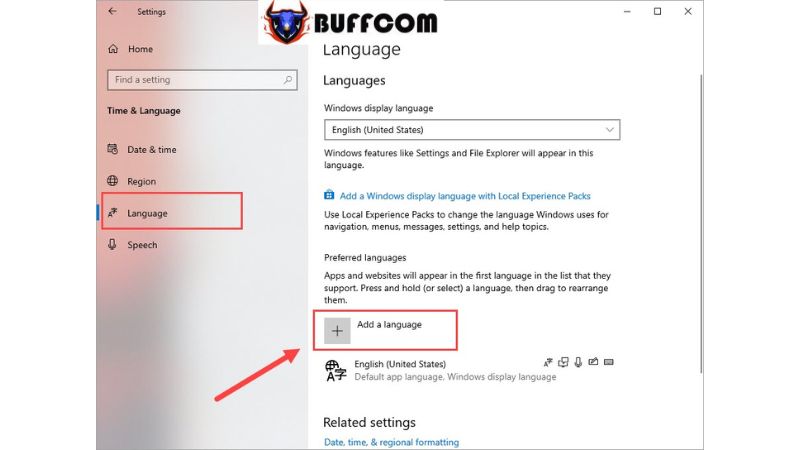
Install Korean Input Method On Windows 10 3Step 3: Enter “Korean” and select it to install the Korean input method.
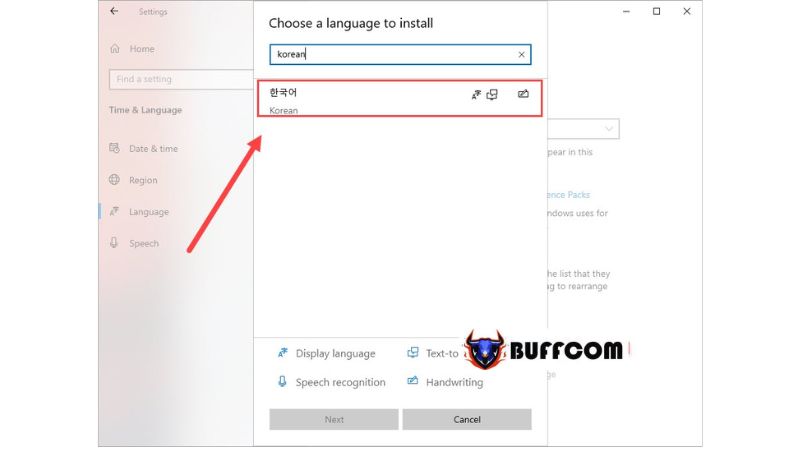
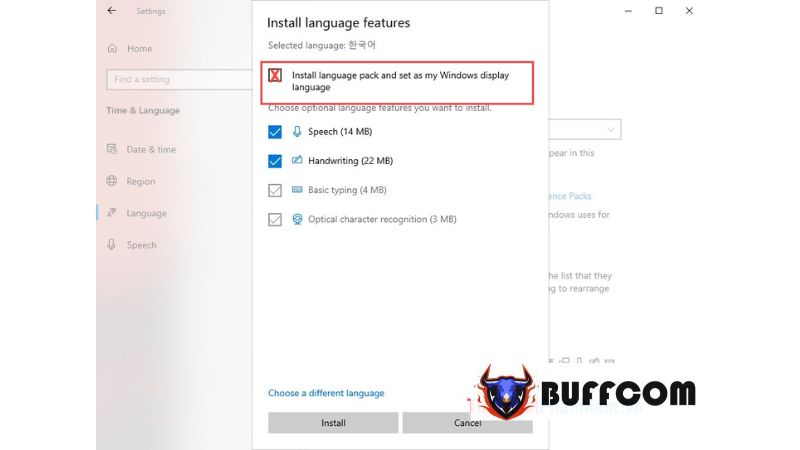
Install Korean Input Method On Windows 10 4Step 4: During the installation process, pay attention to the following:

Uncheck the option “Install language pack and set as my Windows display language” if you don’t want to change the display language of your computer to Korean.
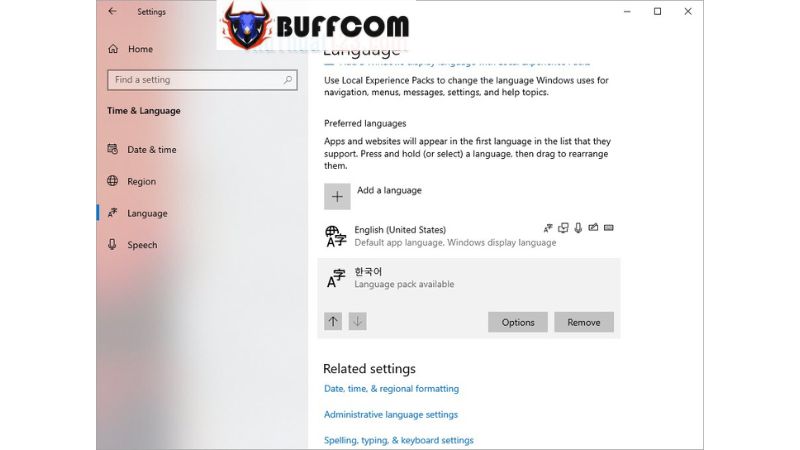
Install Korean Input Method On Windows 10 5Step 5: After the installation is complete, you will have two parallel input methods available on the Windows operating system.
Install Korean Input Method On Windows 10 6Switching Input Methods on Your Computer

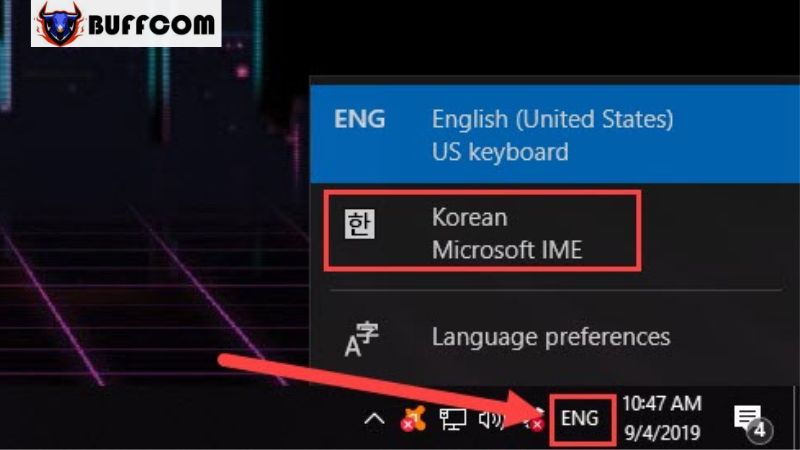
To switch from the Telex input method to the Korean input method, simply click on the Language icon on the Taskbar (next to the date and time). Then choose the input method you want.
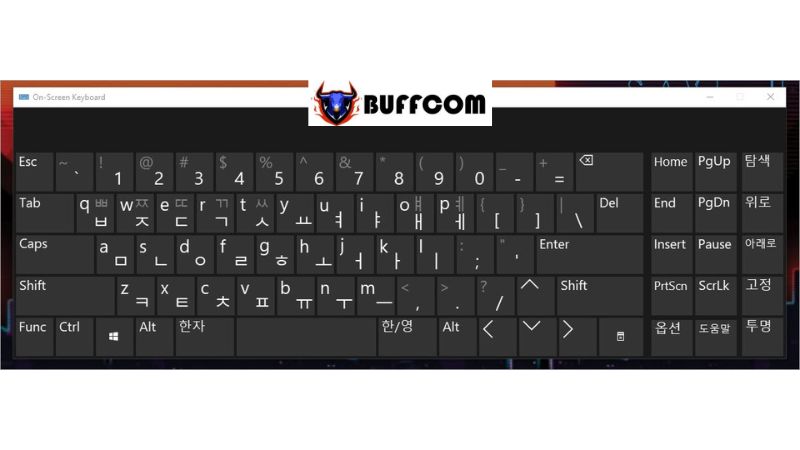
Install Korean Input Method On Windows 10 7The system will automatically switch the input method to Korean.
Install Korean Input Method On Windows 10 8

In this article, Buffcom.net has provided you with a guide on how to install the Korean input method on Windows 10. We wish you success, and if you’re interested in a genuine Windows key, please contact Buffcom.net for assistance!


Rate this post
41
321 Views
How to Create Quick Access Shortcuts for All Applications on Windows 10 DesktopPrevHow to Create Quick Access Shortcuts for All Applications on Windows 10 DesktopJune 9, 2023
How to Uninstall Windows 10 Update from CMD or SettingsJune 9, 2023How to Uninstall Windows 10 Update from CMD or SettingsNext

Leave a Reply Cancel reply

You must be logged in to post a comment.

Buy Windows 11 Professional MS Products CD Key
Buy Office 2021 Professional Plus Key Global For 5 PC
Top rated products
  • Avast Premium Security 2021 Avast Premium Security 2021 1 Device 1 Year Global
    Rated 5.00 out of 5
    $11.00
  • Trend Micro Internet Security 3 Devices 1 Year Key GLOBAL Trend Micro Internet Security 3 Devices 1 Year Key GLOBAL
    Rated 5.00 out of 5
    $17.00
  • Windows 11 Pro Key Global Windows 11 Pro Key Global
    Rated 5.00 out of 5
    $6.00
  • AVG Internet Security 2021 10 Devices 2 Years Global AVG Internet Security 2021 10 Devices 2 Years Global
    Rated 5.00 out of 5
    $42.20
  • Trend Micro Maximum Security 3 Devices 1 Year key Global Trend Micro Maximum Security 3 Devices 1 Year key Global
    Rated 5.00 out of 5
    $15.00
Products
  • Avast SecureLine VPN 2021 1 Year 5 Devices Global Avast SecureLine VPN 2021 1 Year 5 Devices Global
    Rated 4.91 out of 5
    $34.00
  • Windows Server 2022 Datacenter Key Global Windows Server 2022 Datacenter Key Global
    Rated 5.00 out of 5
    $7.00
  • Office 2019 Professional Plus Key Global Bind to your Microsoft Account Office 2019 Professional Plus Key Global Bind to your Microsoft Account
    Rated 4.97 out of 5
    $49.00
  • Microsoft Project 2019 professional Key Global Bind to your Microsoft Account Microsoft Project 2019 professional Key Global Bind to your Microsoft Account
    Rated 4.93 out of 5
    $12.00
  • Kaspersky Internet Security 2021 1 year 5 devices key Global Kaspersky Internet Security 2021 1 year 5 devices key Global
    Rated 5.00 out of 5
    $45.00
  • Office 2016 Home and Student for PC Key CD Key Global Office 2016 Home and Student for PC Key CD Key Global
    Rated 4.96 out of 5
    $14.00
  • Microsoft Office 2019 Home and Student for PC Key Global bind to your Microsoft account Microsoft Office 2019 Home and Student for PC Key Global bind to your Microsoft account
    Rated 4.95 out of 5
    $58.00
  • Microsoft Visio Professional 2016 Key 1PC Microsoft Visio Professional 2016 Key 1PC $9.00
  • Avast Premium Security 2021 Avast Premium Security 2021 1 Device 1 Year Global
    Rated 5.00 out of 5
    $11.00
  • Trend Micro Maximum Security 3 Devices 1 Year key Global Trend Micro Maximum Security 3 Devices 1 Year key Global
    Rated 5.00 out of 5
    $15.00
Product categories
  • Anti Virus
  • Microsoft Office
  • Microsoft Project
  • Microsoft Visio
  • Microsoft Visual
  • Microsoft Windows
  • Other Software
  • Uncategorized

Buffcom.net always brings the best digital products and services to you. Specializing in Office Software and online marketing services

BIG SALE 50% IN MAY

Microsoft Office
Microsoft Windows
Anti-Virus
Contact Us

Visit Us:

125 Division St, New York, NY 10002, USA

Mail Us:

buffcom.net@gmail.com

TERMS & CONDITIONS | PAYMENT GUIDE  | SHIPPING POLICY  | REFUND POLICY

Copyright © 2019 buffcom.net  All Rights Reserved.