
• Microsoft Office
  • Microsoft Windows
  • Other Software
    • Microsoft Visual
    • Microsoft Project
    • Microsoft Visio
    • Anti Virus
  • Blog
    • Word
    • Excel
    • Powerpoint
    • Software tricks/tips

No products in the cart.

  • Microsoft Office
  • Microsoft Windows
  • Other Software
    • Microsoft Visual
    • Microsoft Project
    • Microsoft Visio
    • Anti Virus
  • Blog
    • Word
    • Excel
    • Powerpoint
    • Software tricks/tips

No products in the cart.

  • Microsoft Office
  • Microsoft Windows
  • Other Software
    • Microsoft Visual
    • Microsoft Project
    • Microsoft Visio
    • Anti Virus
  • Blog
    • Word
    • Excel
    • Powerpoint
    • Software tricks/tips

No products in the cart.

  • Microsoft Office
  • Microsoft Windows
  • Other Software
    • Microsoft Visual
    • Microsoft Project
    • Microsoft Visio
    • Anti Virus
  • Blog
    • Word
    • Excel
    • Powerpoint
    • Software tricks/tips
Software tricks/tips

Guide to Installing Windows 10 from a USB Drive
0 Comments

After creating an installation media, it is essential to understand how to boot from a Windows 10 from a USB Drive. This step is necessary to install Windows from the bootable USB.

The key is to modify your computer’s boot order. By doing so, the USB flash drive will be prioritized at the top of the boot order list. This arrangement ensures that your computer reads the files on the USB first, initiating the loading of the installation media rather than the already installed system.

To achieve this, access your computer’s BIOS and adjust the boot order settings to prioritize USB. Following this adjustment, during the next startup sequence, your system will boot from the USB, initiating the Windows installation process.

Installing Windows 10 using a Bootable USB

With the computer’s boot order successfully configured to prioritize USB, you can proceed to install Windows using the USB’s installation file.

Note: Before installation, ensure that you have backed up all your files to prevent any data loss.

Steps for Installing Windows 10 using Bootable USB:

Insert your USB device into the computer’s USB port and start the computer. You may be prompted to press a key to boot from the USB.

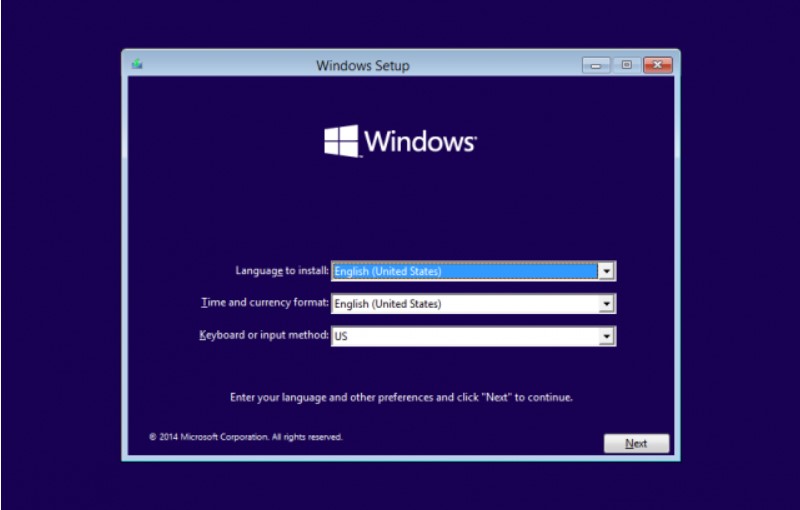
Select your preferred language, timezone, currency, and keyboard settings. After customizing these settings, click Next. (Note: Settings can be modified after the Windows 10 installation is complete.)
Guide to Installing Windows 10 from a USB Drive

Guide to Installing Windows 10 from a USB Drive

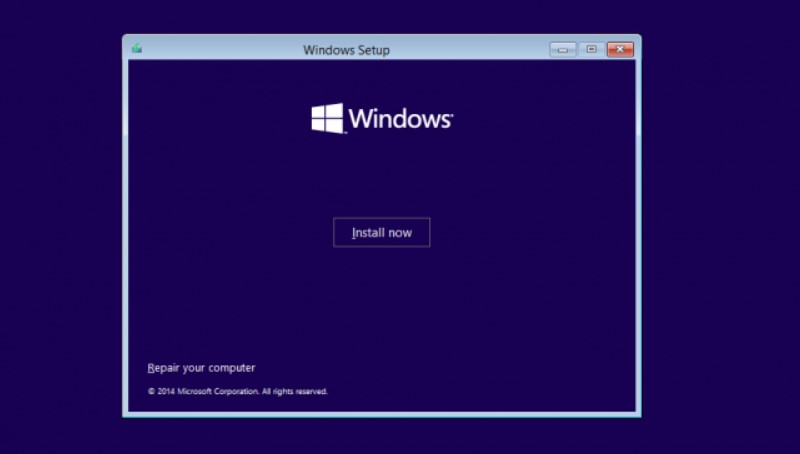
Click “Install Now” and choose the Windows 10 edition you purchased. Click Next to initiate the installation process.

Guide to Installing Windows 10 from a USB Drive

Guide to Installing Windows 10 from a USB Drive

Choose your installation type: Upgrade to keep existing files, settings, and apps, or perform a fresh clean installation by selecting Custom.
Guide to Installing Windows 10 from a USB Drive

Guide to Installing Windows 10 from a USB Drive

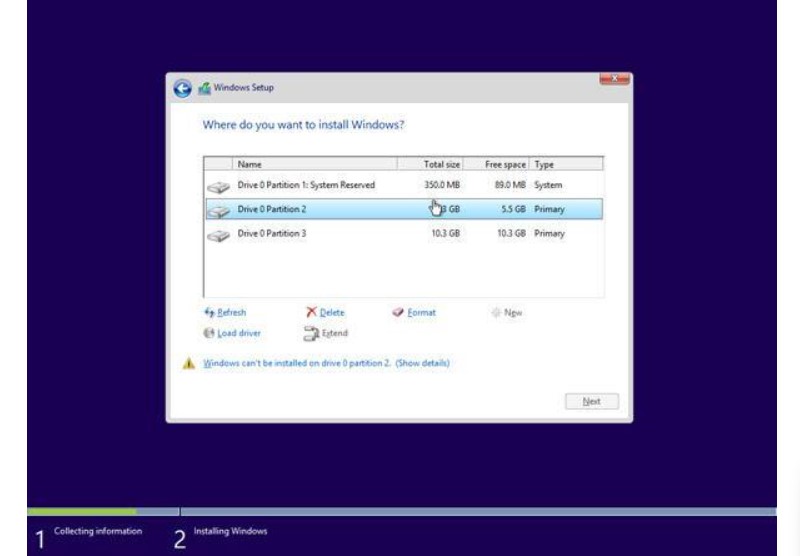
To install Windows, create a partition on your hard drive for system files (C: drive). You can use an existing partition by formatting it or delete existing partitions and create new ones.

To use an existing partition, select it and click Format.
Guide to Installing Windows 10 from a USB Drive

Guide to Installing Windows 10 from a USB Drive

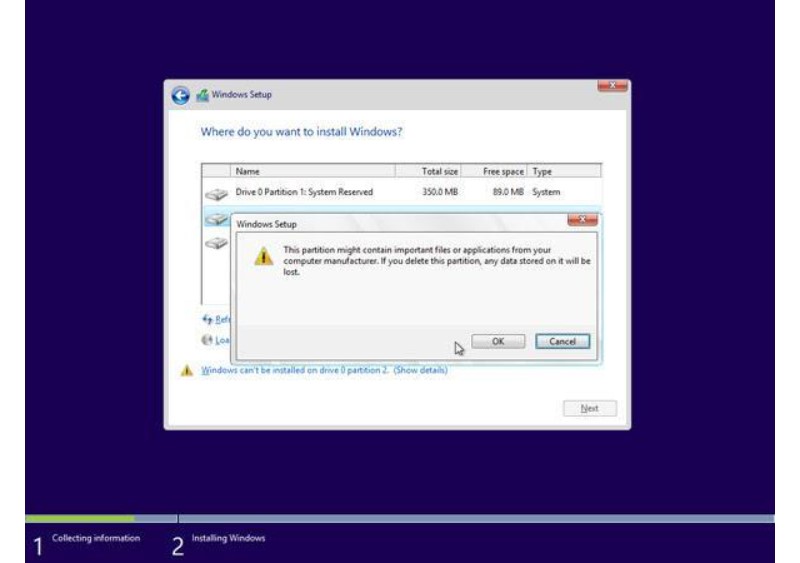
To delete existing partitions, select each one, click Delete, then OK.
Guide to Installing Windows 10 from a USB Drive

Guide to Installing Windows 10 from a USB Drive

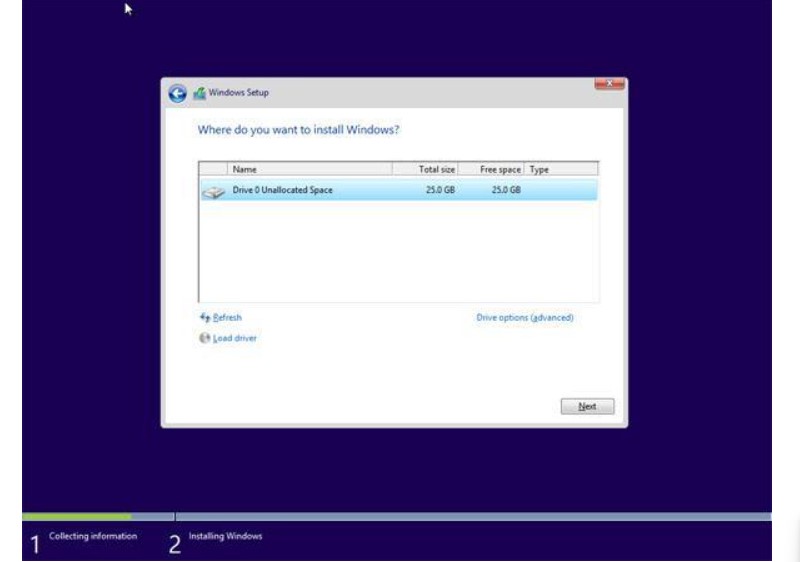
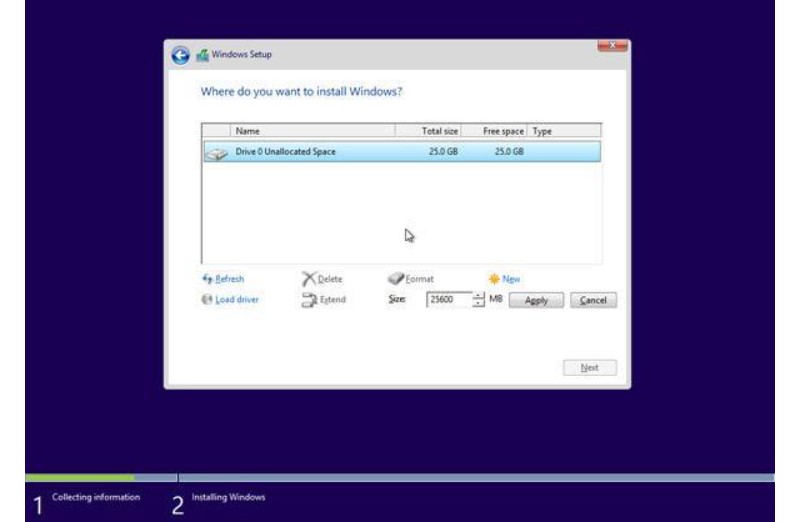
If you deleted all existing partitions, your hard drive space will be unallocated. Create new partitions by clicking “Drive options (advanced),” then click New, choose the size, and click Next.
Guide to Installing Windows 10 from a USB Drive

Guide to Installing Windows 10 from a USB Drive

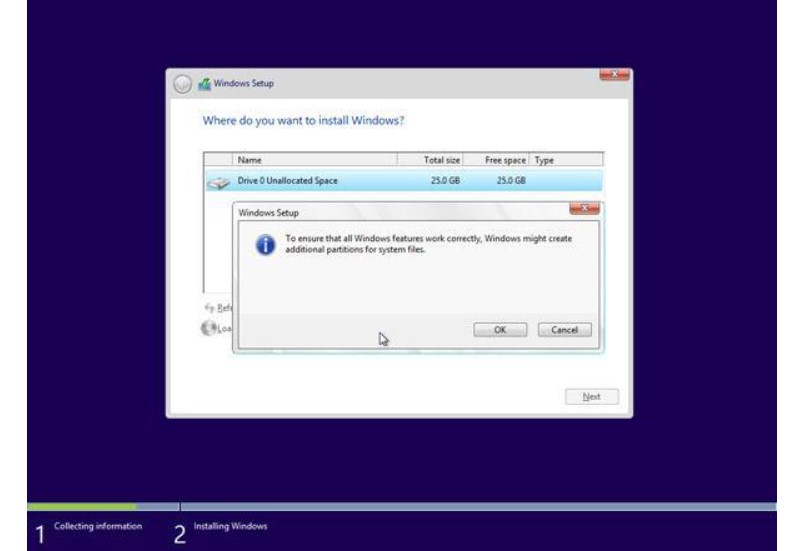
Windows will create new partitions. Click OK to accept. Repeat for additional partitions.
Guide to Installing Windows 10 from a USB Drive
Guide to Installing Windows 10 from a USB Drive

Guide to Installing Windows 10 from a USB Drive

Guide to Installing Windows 10 from a USB Drive

After creating partitions, format each one (except for the one intended for Windows system files). Select each partition, click Format, then OK when prompted.

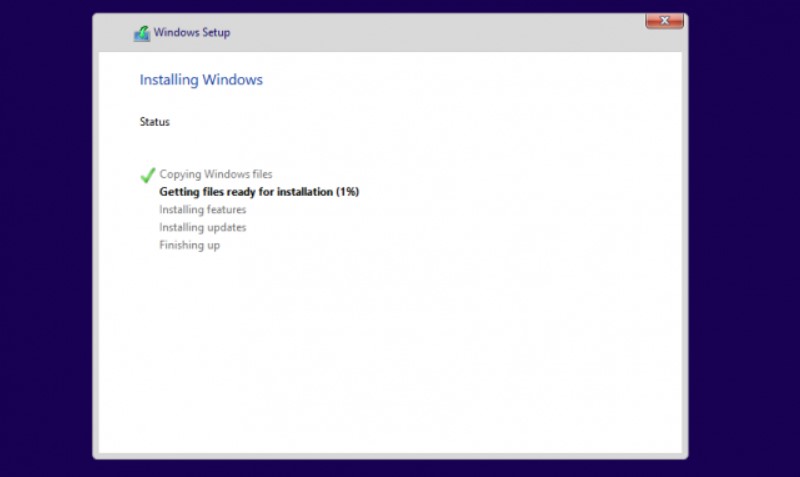
Select the partition where you want to install Windows and click Next. The installation will commence, and your computer may reboot several times, which is normal.

Guide to Installing Windows 10 from a USB Drive

Guide to Installing Windows 10 from a USB Drive

After installation, your computer will restart. During the first startup, configure settings or use express settings recommended by Microsoft.
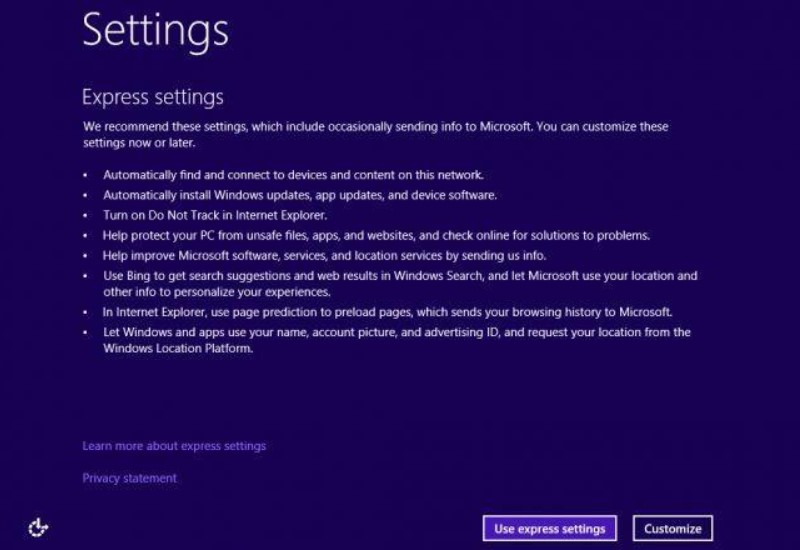
Guide to Installing Windows 10 from a USB Drive

Guide to Installing Windows 10 from a USB Drive

Finally, sign in to your Microsoft account to access Windows 10 features. If you prefer not to sign in, click “Skip this step” and follow instructions to create a local user account.
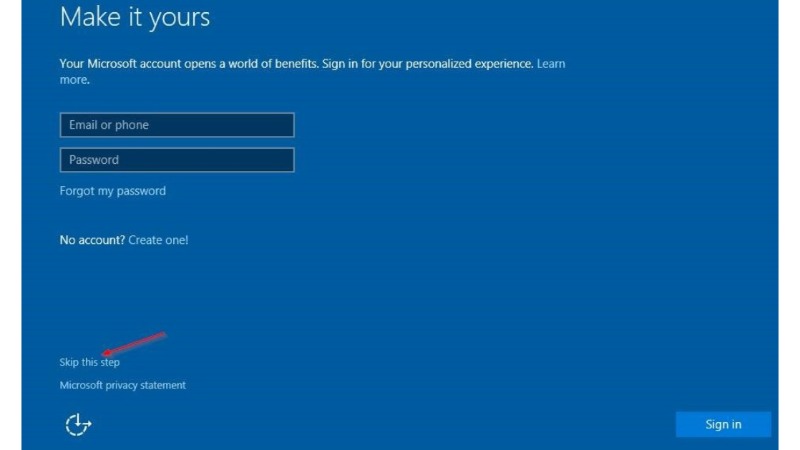
Guide to Installing Windows 10 from a USB Drive

Guide to Installing Windows 10 from a USB Drive


Rate this post
51
253 Views
Optimizing Restart for Windows 10/Windows 11PrevOptimizing Restart for Windows 10/Windows 11December 18, 2023
Installation and Activation Guide for Office Professional Plus 2019December 18, 2023Installation and Activation Guide for Office Professional Plus 2019Next

Leave a Reply Cancel reply

You must be logged in to post a comment.

Buy Windows 11 Professional MS Products CD Key
Buy Office 2021 Professional Plus Key Global For 5 PC
Top rated products
  • Kaspersky Small Office Security 15 PCs + 15 Mobiles + 2 Servers 1 Year Kaspersky Small Office Security 15 PCs + 15 Mobiles + 2 Servers 1 Year
    Rated 5.00 out of 5
    $201.00
  • Buy Windows 11 Professional MS Products CD Key Buy Windows 11 Professional MS Products CD Key
    Rated 5.00 out of 5
    $6.00
  • AVG Internet Security 2021 1 Device 1 Year Global AVG Internet Security 2021 1 Device 1 Year Global
    Rated 5.00 out of 5
    $11.00
  • Buy Office 2021 Professional Plus Key Global For 5 PC Buy Office 2021 Professional Plus Key Global For 5 PC
    Rated 5.00 out of 5
    $68.00
  • Avast SecureLine VPN 2021 2 Years 5 Devices Global Avast SecureLine VPN 2021 2 Years 5 Devices Global
    Rated 5.00 out of 5
    $47.00
Products
  • Project Professional 2013 Microsoft Project Professional 2013 - 1 PC $9.00
  • AVG Internet Security 2021 1 Device 1 Year Global AVG Internet Security 2021 1 Device 1 Year Global
    Rated 5.00 out of 5
    $11.00
  • office-professional-2016-international Microsoft Office Professional Plus 2016 Retail CD Key
    Rated 4.92 out of 5
    $13.00
  • Buy Microsoft Office Professional Plus 2019 CD Key Global - 5 PC Buy Microsoft Office Professional Plus 2019 CD Key Global - 5 PC
    Rated 4.95 out of 5
    $32.00
  • Windows 11 Pro Key Global Windows 11 Pro Key Global
    Rated 5.00 out of 5
    $6.00
  • Microsoft Visio Standard 2021 Key 1PC Microsoft Visio Standard 2021 Key 1PC $13.00
  • Windows 10 Home Key Global Windows 10 Home Key Global
    Rated 4.81 out of 5
    $10.00
  • Microsoft Visio Professional 2016 Key 1PC Microsoft Visio Professional 2016 Key 1PC $9.00
  • Kaspersky Small Office Security 20 PCs + 20 Mobiles + 2 Servers 1 Year Kaspersky Small Office Security 20 PCs + 20 Mobiles + 2 Servers 1 Year $284.73
  • Microsoft Office Home And Business 2019 CD Key for MAC Global Microsoft Office Home And Business 2019 CD Key for MAC Global
    Rated 4.95 out of 5
    $30.00
Product categories
  • Anti Virus
  • Microsoft Office
  • Microsoft Project
  • Microsoft Visio
  • Microsoft Visual
  • Microsoft Windows
  • Other Software
  • Uncategorized

Buffcom.net always brings the best digital products and services to you. Specializing in Office Software and online marketing services

BIG SALE 50% IN MAY

Microsoft Office
Microsoft Windows
Anti-Virus
Contact Us

Visit Us:

125 Division St, New York, NY 10002, USA

Mail Us:

buffcom.net@gmail.com

TERMS & CONDITIONS | PAYMENT GUIDE  | SHIPPING POLICY  | REFUND POLICY

Copyright © 2019 buffcom.net  All Rights Reserved.