
• ChatGPT Business
  • Microsoft Office
  • Microsoft Windows
  • Other Software
    • Microsoft Visual
    • Microsoft Project
    • Microsoft Visio
    • Anti Virus
  • Blog
    • Word
    • Excel
    • Powerpoint
    • Software tricks/tips

No products in the cart.

  • ChatGPT Business
  • Microsoft Office
  • Microsoft Windows
  • Other Software
    • Microsoft Visual
    • Microsoft Project
    • Microsoft Visio
    • Anti Virus
  • Blog
    • Word
    • Excel
    • Powerpoint
    • Software tricks/tips

No products in the cart.

  • ChatGPT Business
  • Microsoft Office
  • Microsoft Windows
  • Other Software
    • Microsoft Visual
    • Microsoft Project
    • Microsoft Visio
    • Anti Virus
  • Blog
    • Word
    • Excel
    • Powerpoint
    • Software tricks/tips

No products in the cart.

  • ChatGPT Business
  • Microsoft Office
  • Microsoft Windows
  • Other Software
    • Microsoft Visual
    • Microsoft Project
    • Microsoft Visio
    • Anti Virus
  • Blog
    • Word
    • Excel
    • Powerpoint
    • Software tricks/tips
Excel

Quick tips for calculating table data in Excel
0 Comments

Quick tips for calculating table data in Excel: Excel provides users with many tools to manipulate data in a table. In this article, Buffcom.net will share with you a quick way to calculate data in a table in Excel.

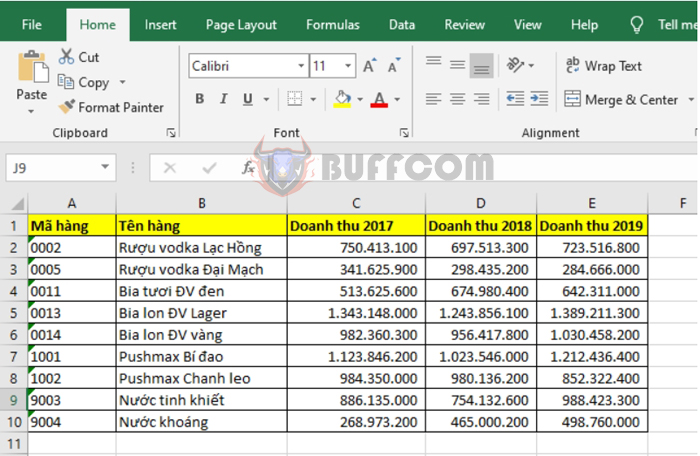
For example, we have a table of revenue for the years 2017, 2018, and 2019 as shown below.

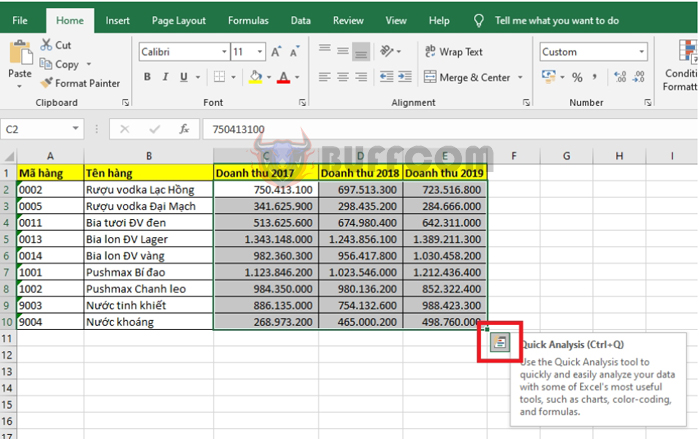
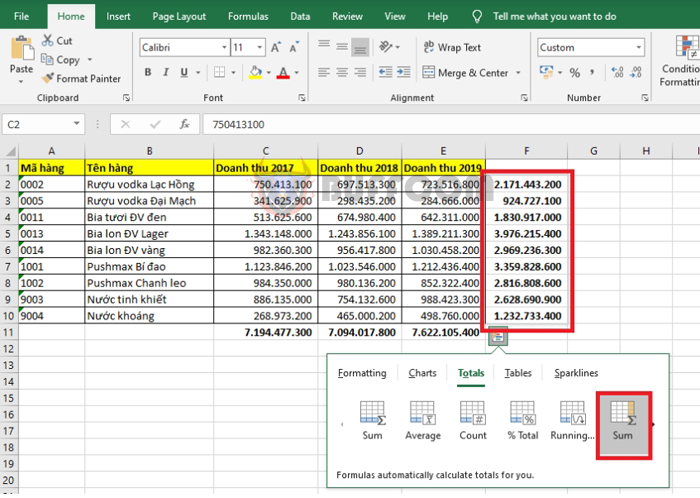
To calculate data in the table, first select all the data cells you want to calculate in the table. Then, click and hold the bottom right corner of the selection. A Quick Analysis tool icon will appear. Click on this icon.

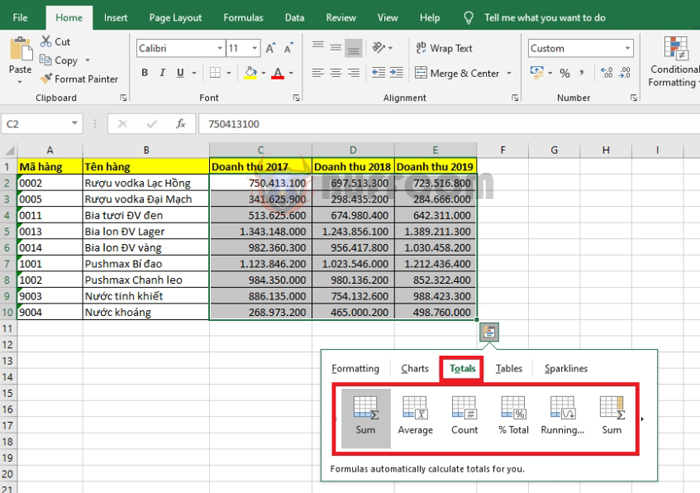
After clicking on the Quick Analysis tool icon, a dialog box will appear. Select the Totals tab. Here you will see calculation functions you can choose from, such as:
Quick tips for calculating table data in Excel

Quick tips for calculating table data in Excel

Sum: calculates the sum
Average: calculates the average
Count: counts the number of cells with data
% Total: calculates the percentage of the total
…
Quick tips for calculating table data in Excel

Quick tips for calculating table data in Excel

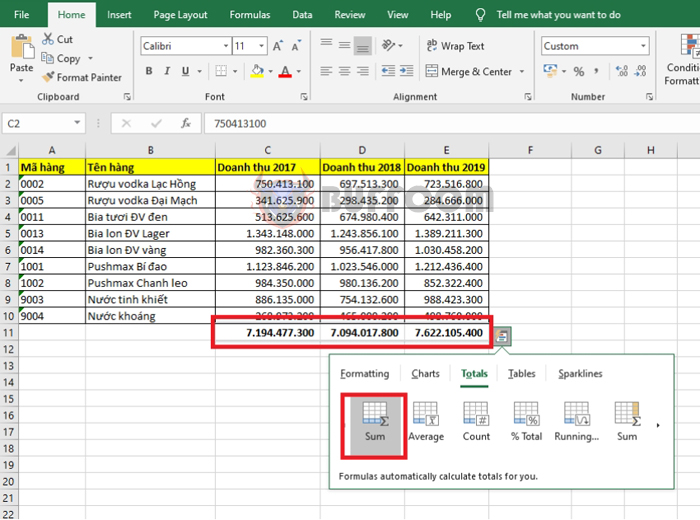
For example, if you want to calculate the total revenue for each year, select the Sum function for each column. The total of each revenue column will be displayed at the bottom of each revenue column in the table.
Quick tips for calculating table data in Excel

Quick tips for calculating table data in Excel

If you want to calculate the total revenue for each product over the 3 years, you can select the Sum function for each row. The total revenue for each product over the 3 years will be displayed to the right of the table.
Quick tips for calculating table data inIn this way, the above article has guided you on how to quickly calculate data in a table in Excel. We hope the article will be useful to you in your work. Good luck!
Rate this post
39
290 Views
Tip on using Paste Values to copy data in ExcelPrevTip on using Paste Values to copy data in ExcelApril 13, 2023
Tip on using the LEN function to filter data in ExcelApril 14, 2023Tip on using the LEN function to filter data in ExcelNext

Leave a Reply Cancel reply

You must be logged in to post a comment.

Buy Windows 11 Professional MS Products CD Key
Buy Office 2021 Professional Plus Key Global For 5 PC
Top rated products
  • Kaspersky Small Office Security 15 PCs + 15 Mobiles + 2 Servers 1 Year Kaspersky Small Office Security 15 PCs + 15 Mobiles + 2 Servers 1 Year
    Rated 5.00 out of 5
    $201.00
  • Buy Windows 11 Professional MS Products CD Key Buy Windows 11 Professional MS Products CD Key
    Rated 5.00 out of 5
    $6.00
  • AVG Internet Security 2021 1 Device 1 Year Global AVG Internet Security 2021 1 Device 1 Year Global
    Rated 5.00 out of 5
    $11.00
  • Buy Office 2021 Professional Plus Key Global For 5 PC Buy Office 2021 Professional Plus Key Global For 5 PC
    Rated 5.00 out of 5
    $68.00
  • Avast SecureLine VPN 2021 2 Years 5 Devices Global Avast SecureLine VPN 2021 2 Years 5 Devices Global
    Rated 5.00 out of 5
    $47.00
Products
  • Windows Server 2012 R2 Standard Key Global Windows Server 2012 R2 Standard Key Global
    Rated 4.78 out of 5
    $15.00
  • Windows Server 2019 Datacenter Key Global Windows Server 2019 Datacenter Key Global
    Rated 4.75 out of 5
    $7.00
  • Avast Premium Security 2021 Avast Premium Security 2021 1 Device 1 Year Global
    Rated 5.00 out of 5
    $11.00
  • 5 Key Windows 10 Pro Key Global - Combo 5 KEY 5 Key Windows 10 Pro Key Global - Combo 5 KEY
    Rated 4.81 out of 5
    $25.00
  • Windows Server 2012 Remote Desktop Services 50 USER Connections Key Global Windows Server 2012 Remote Desktop Services 50 USER Connections Key Global
    Rated 4.69 out of 5
    $25.00
  • Windows Server 2025 Datacenter Windows Server 2025 Datacenter $30.00
  • Windows Server 2019 Essentials Key Global Windows Server 2019 Essentials Key Global
    Rated 4.71 out of 5
    $7.00
  • Windows Server 2016 Datacenter Key Global Windows Server 2016 Datacenter Key Global
    Rated 4.74 out of 5
    $10.00
  • Windows Server 2019 Remote Desktop Services Device Connections (50) Cal Key Global Windows Server 2019 Remote Desktop Services Device Connections (50) Cal Key Global
    Rated 4.72 out of 5
    $20.00
  • Windows Server 2022 Datacenter Key Global Windows Server 2022 Datacenter Key Global
    Rated 5.00 out of 5
    $7.00
Product categories
  • Anti Virus
  • Microsoft Office
  • Microsoft Project
  • Microsoft Visio
  • Microsoft Visual
  • Microsoft Windows
  • Other Software
  • Uncategorized

Buffcom.net always brings the best digital products and services to you. Specializing in Office Software and online marketing services

BIG SALE 50% IN MAY

Microsoft Office
Microsoft Windows
Anti-Virus
Contact Us

Visit Us:

125 Division St, New York, NY 10002, USA

Mail Us:

buffcom.net@gmail.com

TERMS & CONDITIONS | PAYMENT GUIDE  | SHIPPING POLICY  | REFUND POLICY

Copyright © 2019 buffcom.net  All Rights Reserved.