
• Microsoft Office
  • Microsoft Windows
  • Other Software
    • Microsoft Visual
    • Microsoft Project
    • Microsoft Visio
    • Anti Virus
  • Blog
    • Word
    • Excel
    • Powerpoint
    • Software tricks/tips

No products in the cart.

  • Microsoft Office
  • Microsoft Windows
  • Other Software
    • Microsoft Visual
    • Microsoft Project
    • Microsoft Visio
    • Anti Virus
  • Blog
    • Word
    • Excel
    • Powerpoint
    • Software tricks/tips

No products in the cart.

  • Microsoft Office
  • Microsoft Windows
  • Other Software
    • Microsoft Visual
    • Microsoft Project
    • Microsoft Visio
    • Anti Virus
  • Blog
    • Word
    • Excel
    • Powerpoint
    • Software tricks/tips

No products in the cart.

  • Microsoft Office
  • Microsoft Windows
  • Other Software
    • Microsoft Visual
    • Microsoft Project
    • Microsoft Visio
    • Anti Virus
  • Blog
    • Word
    • Excel
    • Powerpoint
    • Software tricks/tips
Excel

How to Write Superscripts and Subscripts in Excel
0 Comments

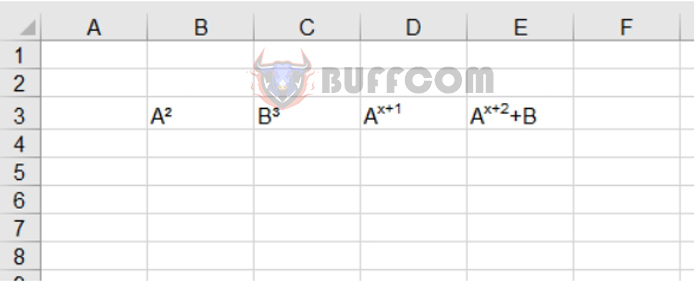
How to Write Superscripts and Subscripts in Excel: Are you in need of writing superscripts or subscripts in Excel but unsure of how to do it? This article will guide you through the process.

1. Use Keyboard Shortcuts for Superscripts 2 and 3

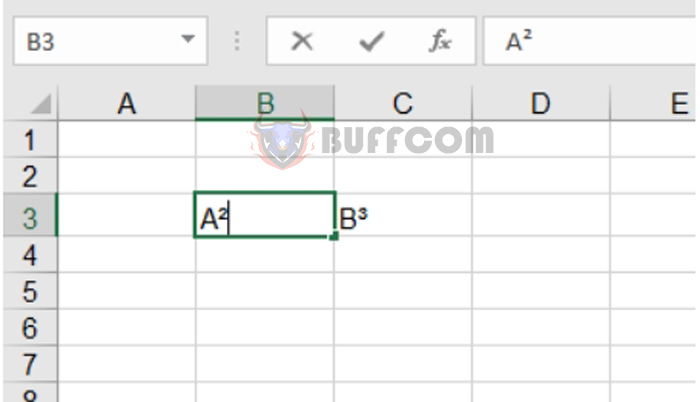
If you want to write superscript 2 or superscript 3, you can use the following keyboard shortcuts:

  • Superscript 2: Press the keyboard shortcut Alt + 0178 (i.e., press and hold the Alt key, then press 0, 1, 7, 8, and release the Alt key).
  • Superscript 3: Press the keyboard shortcut Alt + 0179 (i.e., press and hold the Alt key, then press 0, 1, 7, 9, and release the Alt key).
How to Write Superscripts and Subscripts in Excel

How to Write Superscripts and Subscripts in Excel

2. Use the Format Cells Tool for Superscripts and Subscripts

The Alt keyboard shortcuts only work for superscript 2 and 3. If you want to write more complex superscripts or subscripts, you need to use the Format Cells tool.
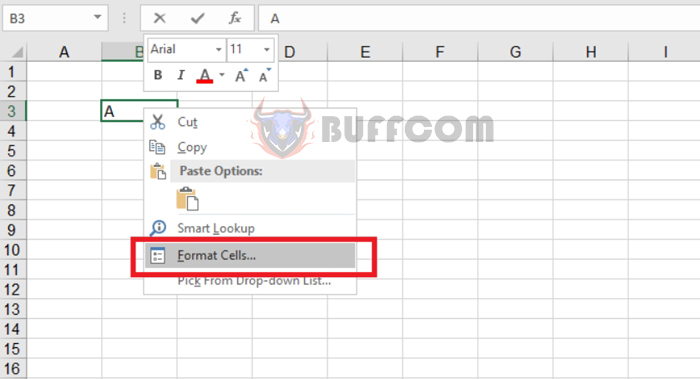
Step 1: Enter “A” into a cell in Excel, then right-click on the cell and select Format Cells, or press the keyboard shortcut Ctrl + 1.

Note: You need to right-click on the cell where you want to continue typing after “A”.
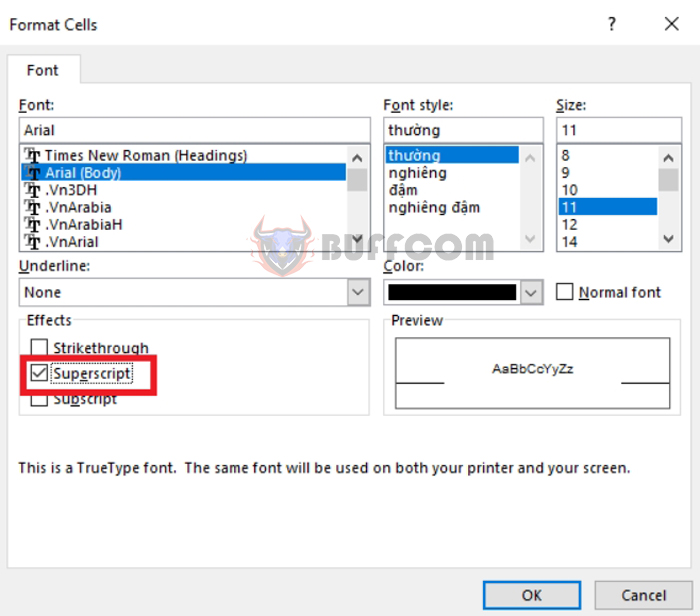
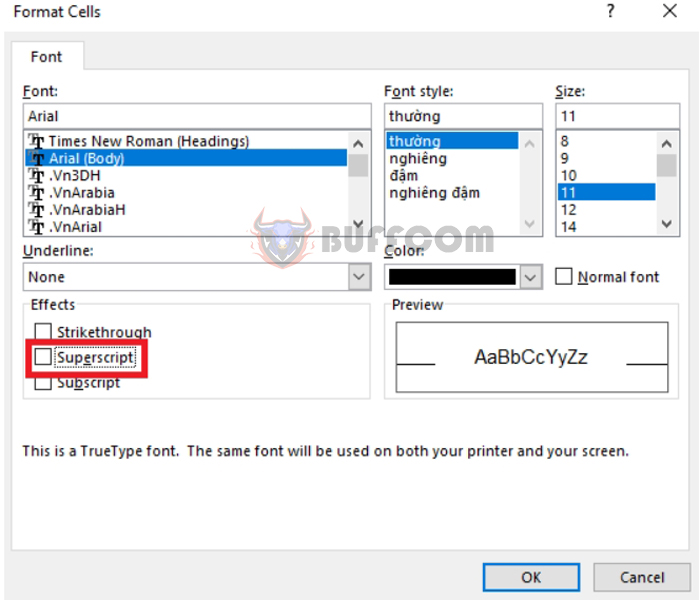
How to Write Superscripts and Subscripts inStep 2: The Format Cells dialog box will appear. Under the Effects tab, check the box for Superscript. Then click OK.
How to Write Superscripts and Subscripts inStep 3: Now you can continue typing the exponent. For example, type “x+1”, and the smaller number you enter will appear directly above.
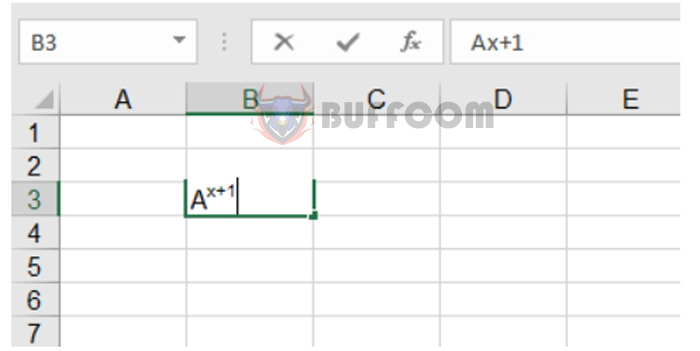
How to Write Superscripts and Subscripts inTo continue typing other numbers, repeat the steps to open the Format Cells dialog box and uncheck the Superscript option.
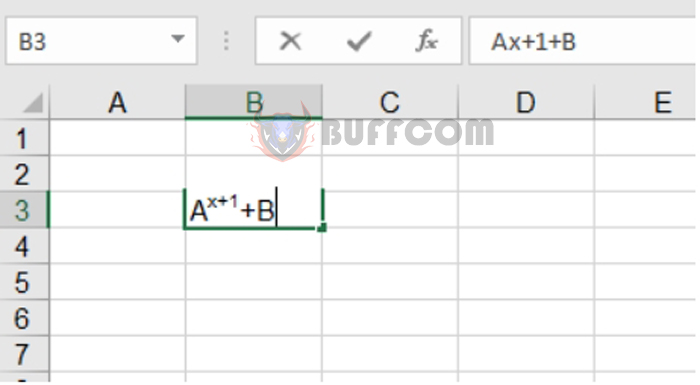
How to Write Superscripts and Subscripts inYou can then enter the rest of your data as usual.
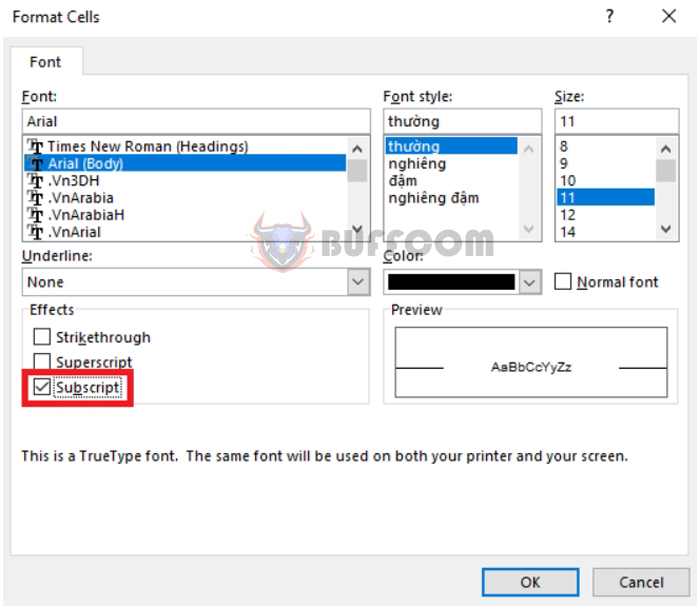
How to Write Superscripts and Subscripts inSimilarly, if you want to write subscripts, open the Format Cells dialog box and check the box for Subscript. You can then enter the subscript as illustrated in the example below.
How to Write Superscripts and Subscripts inThat’s it! This article has provided you with instructions on how to write superscripts and subscripts in Excel. Good luck with your Excel endeavors!

Rate this post
48
319 Views
How to Use the OFFSET Function to Reference Data in ExcelPrevHow to Use the OFFSET Function to Reference Data in ExcelMay 22, 2023
How to Use the PROPER and UPPER Functions to Convert Lowercase to Uppercase in ExcelMay 22, 2023How to Use the PROPER and UPPER Functions to Convert Lowercase to Uppercase in ExcelNext

Leave a Reply Cancel reply

You must be logged in to post a comment.

Buy Windows 11 Professional MS Products CD Key
Buy Office 2021 Professional Plus Key Global For 5 PC
Top rated products
  • Trend Micro Internet Security 3 Devices 1 Year Key GLOBAL Trend Micro Internet Security 3 Devices 1 Year Key GLOBAL
    Rated 5.00 out of 5
    $17.00
  • Windows 11 Pro Key Global Windows 11 Pro Key Global
    Rated 5.00 out of 5
    $6.00
  • AVG Internet Security 2021 10 Devices 2 Years Global AVG Internet Security 2021 10 Devices 2 Years Global
    Rated 5.00 out of 5
    $42.20
  • Trend Micro Maximum Security 3 Devices 1 Year key Global Trend Micro Maximum Security 3 Devices 1 Year key Global
    Rated 5.00 out of 5
    $15.00
  • Windows 11 Home Key Global 2021 Windows 11 Home Key Global 2021
    Rated 5.00 out of 5
    $6.00
Products
  • Project Professional 2021 Microsoft Project Professional 2021 - 1 PC $13.00
  • Windows 10 Enterprise LTSC 2019 Key Global Windows 10 Enterprise LTSC 2019 Key Global
    Rated 4.83 out of 5
    $9.00
  • Windows Server 2019 Remote Desktop Services 50 USER Connections Key Global Windows Server 2019 Remote Desktop Services 50 USER Connections Key Global
    Rated 4.75 out of 5
    $20.00
  • Windows 10 Education Key Global Windows 10 Education Key Global
    Rated 4.84 out of 5
    $9.00
  • Buy Office 2021 Professional Plus Key Global For 5 PC Buy Office 2021 Professional Plus Key Global For 5 PC
    Rated 5.00 out of 5
    $68.00
  • Microsoft Visual Studio 2022 Professional Key Microsoft Visual Studio 2022 Professional Key $19.00
  • Kaspersky Small Office Security 20 PCs + 20 Mobiles + 2 Servers 1 Year Kaspersky Small Office Security 20 PCs + 20 Mobiles + 2 Servers 1 Year $284.73
  • AVG Ultimate 2021 with Antivirus + Cleaner, Secure VPN 10 Devices 2 Years AVG Ultimate 2021 with Antivirus + Cleaner, Secure VPN 10 Devices 2 Years
    Rated 5.00 out of 5
    $47.00
  • Windows 10 Enterprise Key Global Windows 10 Enterprise Key Global
    Rated 4.82 out of 5
    $9.00
  • Kaspersky Small Office Security 10 PCs + 10 Mobiles + 1 Server 1 Year Kaspersky Small Office Security 10 PCs + 10 Mobiles + 1 Server 1 Year
    Rated 5.00 out of 5
    $164.50
Product categories
  • Anti Virus
  • Microsoft Office
  • Microsoft Project
  • Microsoft Visio
  • Microsoft Visual
  • Microsoft Windows
  • Other Software
  • Uncategorized

Buffcom.net always brings the best digital products and services to you. Specializing in Office Software and online marketing services

BIG SALE 50% IN MAY

Microsoft Office
Microsoft Windows
Anti-Virus
Contact Us

Visit Us:

125 Division St, New York, NY 10002, USA

Mail Us:

buffcom.net@gmail.com

TERMS & CONDITIONS | PAYMENT GUIDE  | SHIPPING POLICY  | REFUND POLICY

Copyright © 2019 buffcom.net  All Rights Reserved.